 DocuAssist.AI Guide
Look and embed
Make the chatbot look like your brand, then put it on your website.
Look
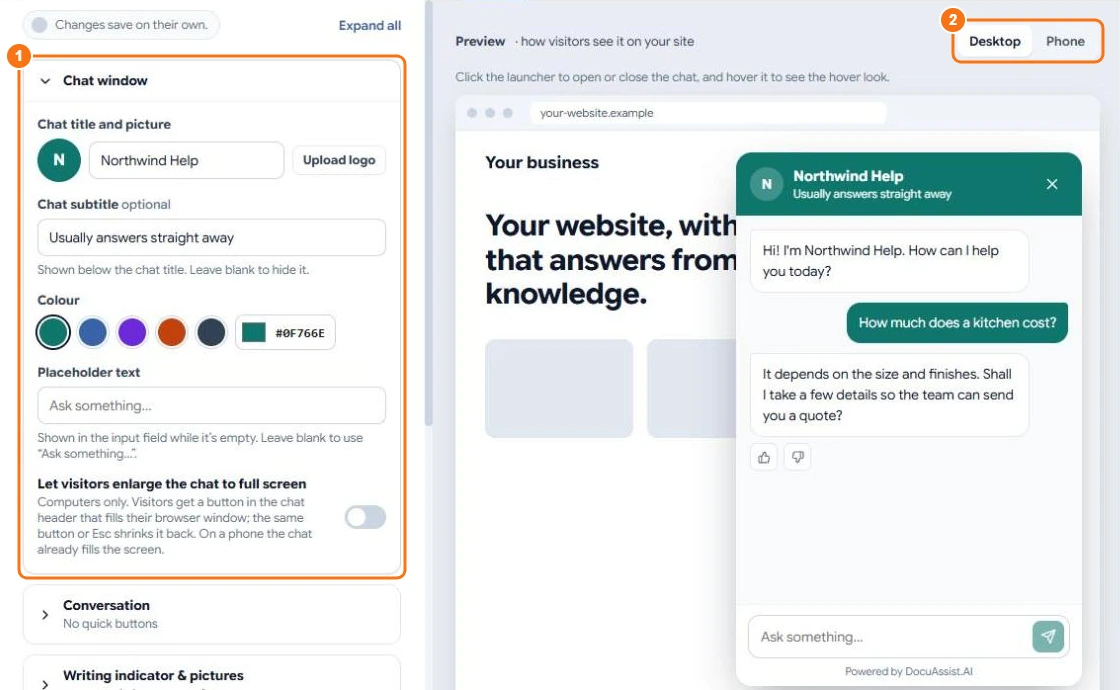
On the Look tab, settings are grouped in sections (1); changes save on their own. Each section shows a one-line summary when closed.
- Chat window — title, logo, subtitle, colour, placeholder text, and whether visitors can enlarge the chat to full screen.
- Conversation — welcome message and quick buttons.
- Writing indicator and pictures — what visitors see while it writes.
- Feedback — thumbs up and down under answers.
- Launcher button — where the chat button sits, its icon and label.
- Launcher motion and hover — an animation and a hover effect.
- Launcher custom CSS — for your own styles, checked for safety as you type.
- Branding and availability — the "Powered by DocuAssist.AI" line, and terms visitors must accept.
The preview on the right shows the chat on a website; switch between Desktop and Phone (2).
Embed
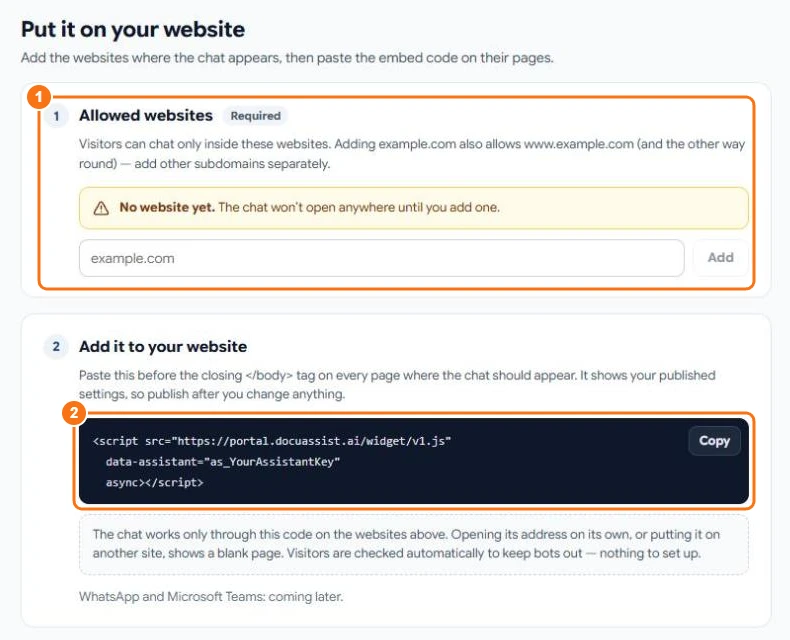
- Open the Embed tab.
- Under Allowed websites (1), add each website the chat may appear on, for example example.com (www.example.com is included). The chat won't open anywhere else.
- Under Add it to your website (2), select Copy and paste the code before the closing body tag on every page where the chat should appear.
- Publish the chatbot.
The chat works only through this code on your allowed websites. Opening its address on its own, or putting the code on another site, shows a blank page. Visitors are checked automatically to keep bots out.
Tip
The code shows your published settings. After you change anything, select Publish changes.
Related
Last updated on November 18, 2026