 DocuAssist.AI Guide
Save, download and print
Save keeps your changes in DocuAssist.AI. Download gives you a copy of the file on your computer, and you decide whether your markup stays editable in it. Print prints the document with your markup.
Save your changes
Select Save at the top right of the editor. Your saved copy in DocuAssist.AI always keeps your text, markup and signatures editable, so you can change them later.
Download a copy
- Select Download
Select Download in the toolbar. On the free Basic plan the button shows how many downloads you have left.
- Choose what stays editable
For Edited text, Annotation and Signatures, choose:
- Editable — others can still change or remove it in a PDF editor.
- Flattened — it becomes part of the page and can no longer be changed.
- Exclude — it is left out of the downloaded file.
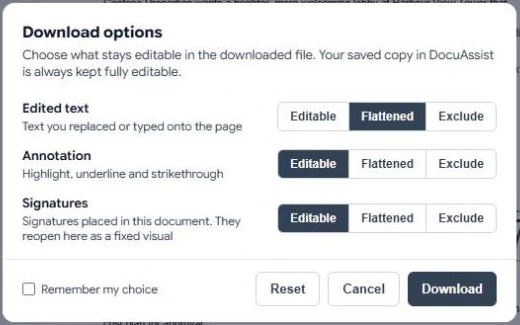
- Download
Select Download. Tick Remember my choice to skip this step next time, and Reset to go back to the defaults.
Flatten signatures and edited text before you send a final version to someone outside DocuAssist.AI, so they cannot be moved or changed.
Select Print or press Ctrl+P. DocuAssist.AI prepares the pages with your markup and opens your browser's print window. If the owner of the document turned off printing, the Print button is greyed out.
Downloads on each plan
The free Basic plan includes a limited number of downloads in total. Paid plans include unlimited downloads. See Plans and pricing.