 DocuAssist.AI Guide
Ask Atlas AI about a document
Ask Atlas AI to summarise a document, find a clause, list action items or explain a table — and see exactly where in the document each answer came from.
Before you start
- Open the document. Atlas AI works with PDFs, Word, Excel, PowerPoint, text files and pictures.
- Atlas AI uses credits for each answer. Your balance is shown at the top of the panel.
Ask a question
- Open Atlas AI
Select Atlas AI on the right-hand side of the document. On a phone, select the Atlas AI button at the bottom of the screen.
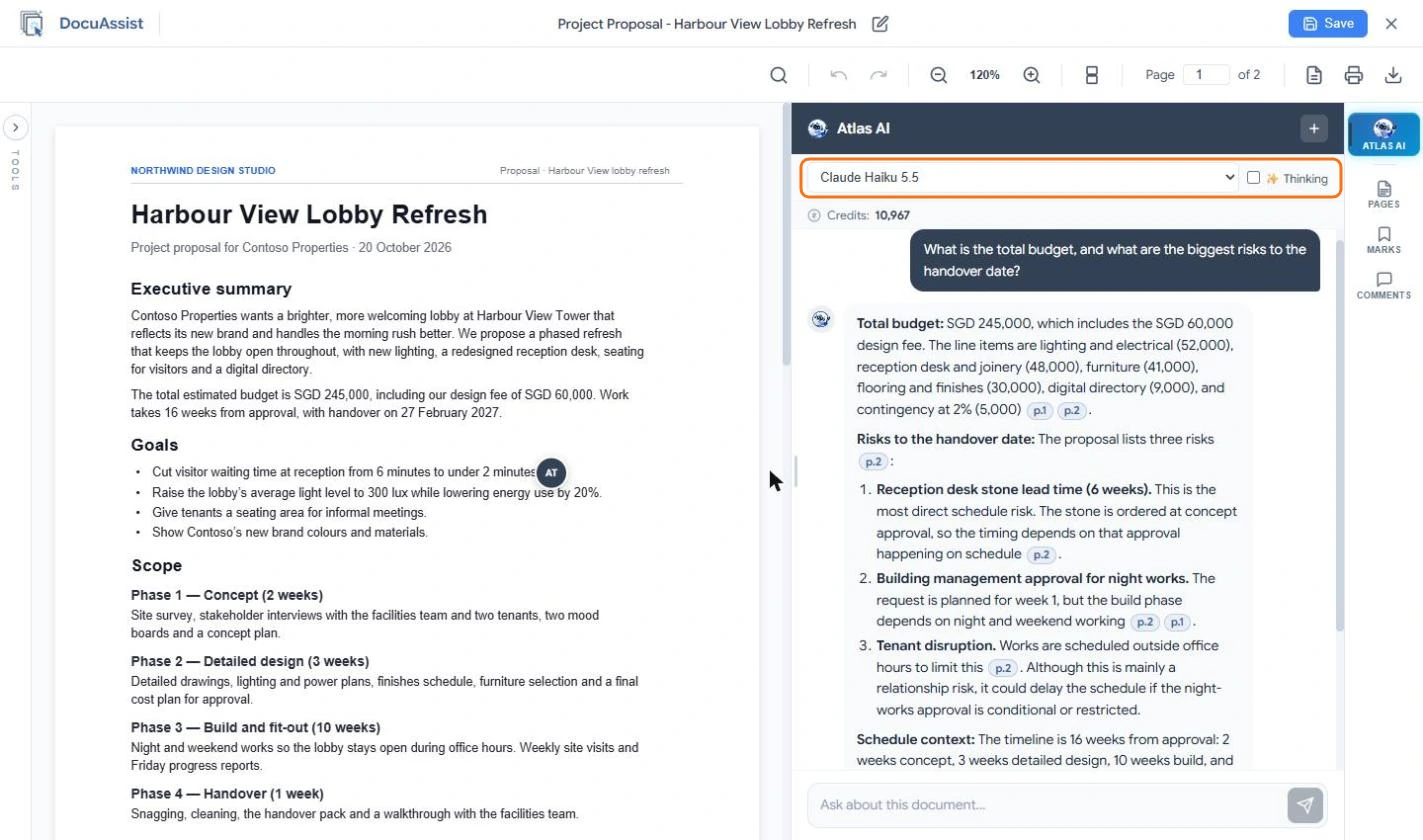
- Choose how it answers
Pick the AI model from the list, and tick Thinking for long or complex documents.
- Ask
Type your question in Ask about this document and press Enter, or select one of the suggestions such as Summarize this document, List key action items or Identify risks and concerns.
- Check the answer
Select a reference such as p.2 to jump to that page. Ask follow-up questions in the same chat; Atlas AI remembers what you discussed.
Ask about selected text
Select text in a PDF with the Pointer and choose Ask AI in the small toolbar. Atlas AI answers about that passage.
Ask about several documents at once
In My Documents, tick the documents and select Chat with Atlas AI in the dark bar. To keep asking about a group of documents over time, put them in an AI Workspace project.
Start a new chat
Select + at the top of the Atlas AI panel to start a new conversation about the document. Earlier chats are kept and can be opened again.
Tips
Name what you want and in what form: List the payment milestones and their due dates as a table gets a better answer than payments?.
Atlas AI can read scanned pages and photos, because their text is recognised when you upload them. If a scan is very blurry, the answer may be incomplete.