 DocuAssist.AI Guide
Read and search emails
Open an email to read it with a short AI summary, preview its attachments and decide what to do next.
Read an email
Select an email in the list. You see:
- an AI summary and key points (AI-generated, so check anything important);
- the attachments as cards — select one to preview it in DocuAssist.AI without downloading;
- the email itself. Pictures from the internet are blocked until you select Load images;
- the rest of the conversation, if there is one.
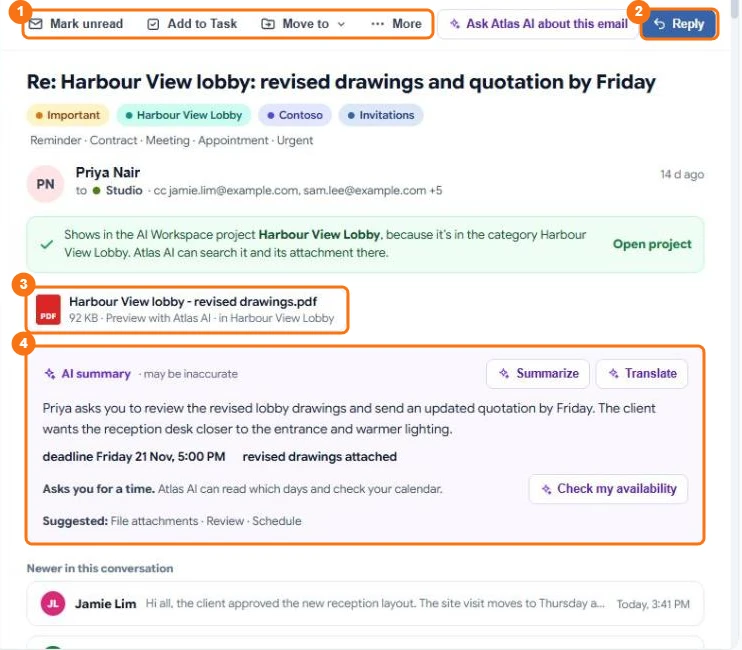
In the picture: 1 Mark unread, Add to Task, Move to and More, 2 Reply, 3 an attachment, 4 the AI summary with Summarize, Translate and Check my availability.
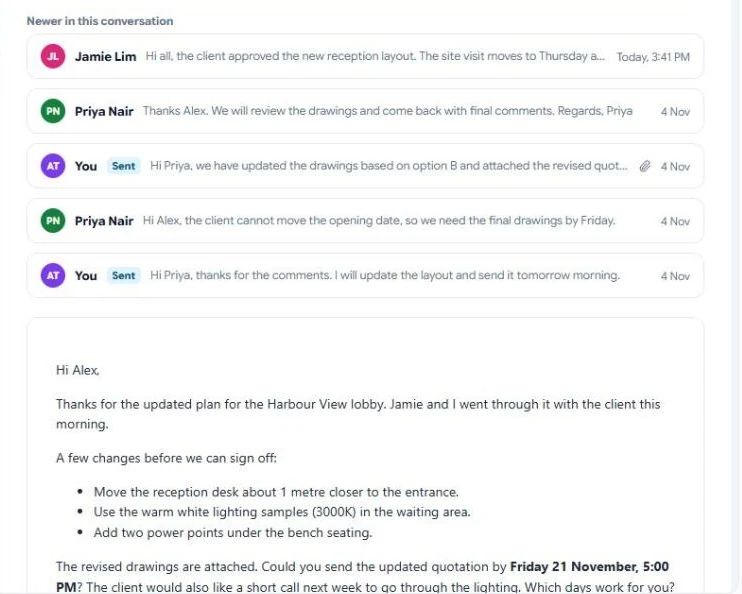
Further down: the rest of the conversation, then the email itself.
Opening an email marks it read. Use Mark as unread to keep it bold, or Mark all read on a tab.
Search and filter
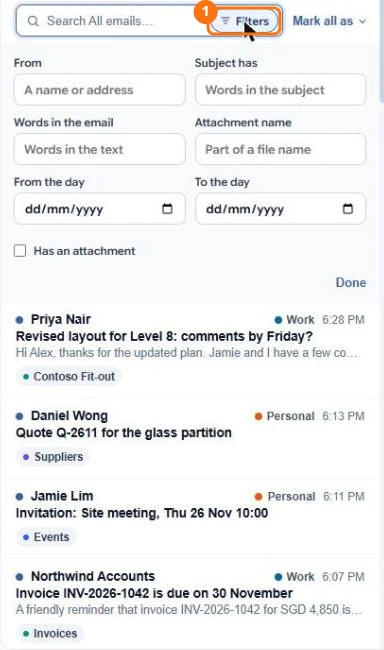
In the picture: 1 Filters.
Type in the search box at the top of the list. It searches the open tab: subjects, senders, the email text and attachment names. Select Filters to narrow by sender, subject, words, attachment name, emails with attachments, or dates.
Summarise or translate
- Summarize writes a summary, key points and what the email asks of you.
- Translate shows the subject and body in the language you choose.
Both are kept on the email, so opening it again costs nothing.
Work with attachments
From an attachment's preview you can save it to My Documents, open it in the PDF editor, sign it, or Ask Atlas AI about this attachment.
Turn an email into a task or a meeting
- Add to Task puts the email in your Tasks. AI Email suggests emails that look like they need you; select Not now to dismiss a suggestion.
- Add to Calendar adds a meeting from an invitation to your Calendar.
- Check my availability tells you whether you are free at the time the email asks for, and suggests other times.
Ask Atlas AI about your emails
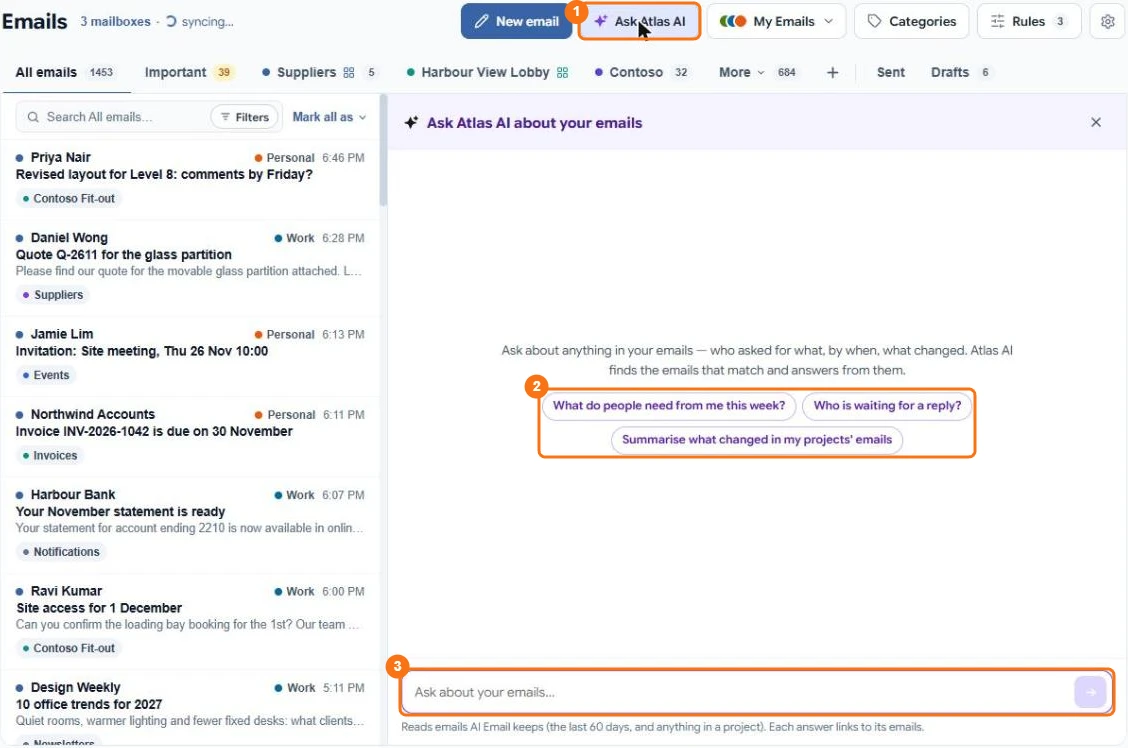
In the picture: 1 Ask Atlas AI, 2 suggested questions, 3 the question box.
Select Ask Atlas AI at the top of the page and ask, for example, "When did Contoso say the samples would arrive?". Choose where it looks: all your emails, the open tab or the open conversation. The answer links to the emails it used.