 DocuAssist.AI Guide
Reply and write emails
AI Email helps you answer faster, but you always decide what is sent. Every reply goes out from your own mailbox, so it appears in your Sent folder like any other email.
Reply to an email
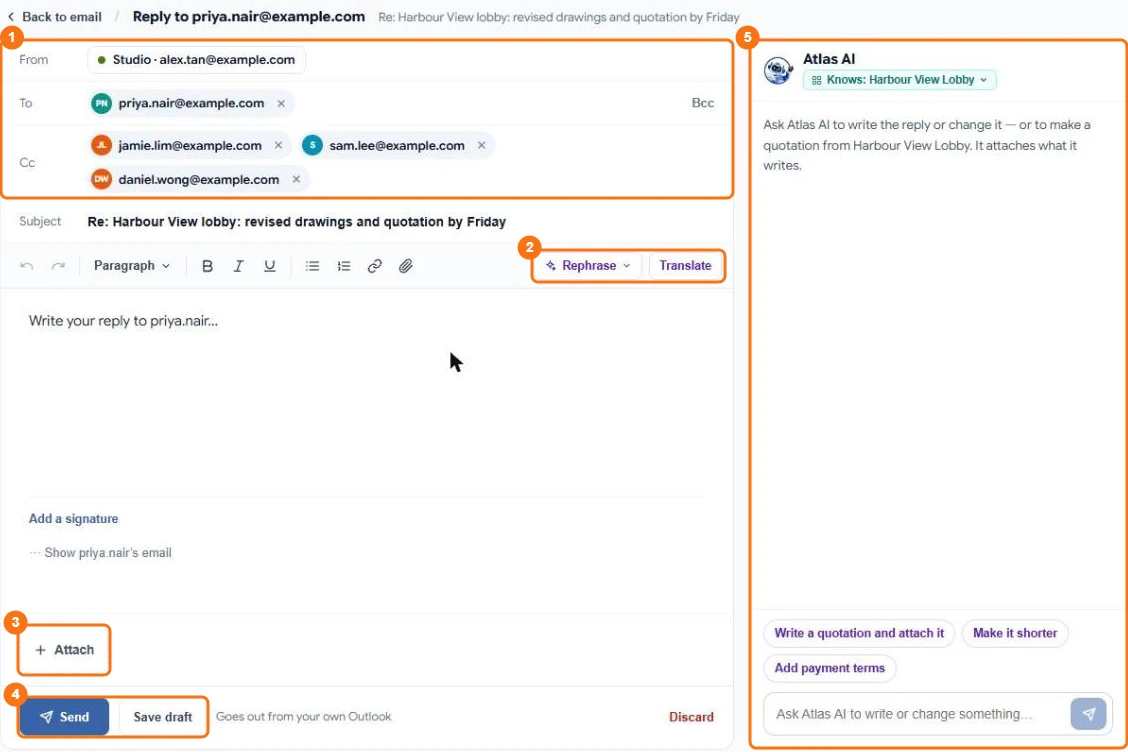
In the picture: 1 From, To and Cc, 2 Rephrase and Translate, 3 Attach, 4 Send and Save draft, 5 Atlas AI, which knows the project the email belongs to.
- Open the email and select Reply to the sender. You can also choose Draft a reply to start from a draft Atlas AI writes, or Reply with a quotation.
- Check the recipients. To, Cc and Bcc suggest people from your Contacts as you type.
- Write or edit the reply. Your draft is saved as you type.
- Select Send.
Get help from Atlas AI
- Rephrase rewrites the selected text, or the whole reply, to sound more formal, shorter or friendlier.
- Translate translates the selected text or the whole reply.
- The Atlas AI panel on the side can change the reply for you, using the email, its attachments and, if you choose, an AI Workspace project. It can also write a Word document and attach it. Undo reverts its last change.
Attachments
Select From my documents or Upload from my computer. Uploaded files are saved in an Email attachments folder in My Documents.
Your signature
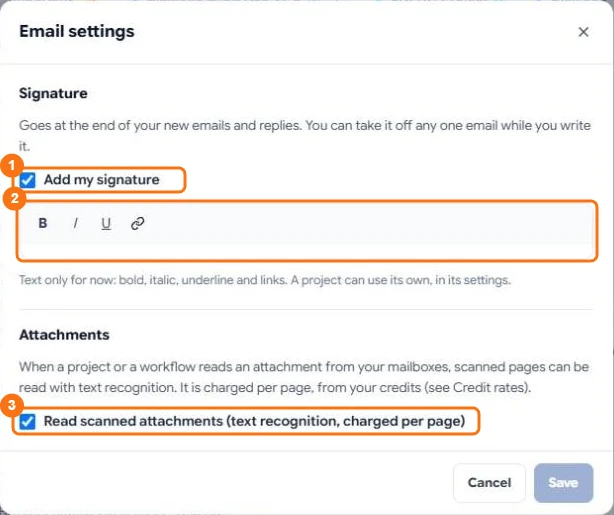
In the picture: 1 Add my signature, 2 your signature, 3 Read scanned attachments.
Select the cog on the Emails page to write your signature. It is added under your text when you send; you can remove it from a single email. A project can have its own signature: see Project settings.
The same window has Attachments: untick Read scanned attachments if you don't want scanned pages in your attachments read with text recognition when a project or a workflow reads them. See Scanned documents and text recognition (OCR).
Write a new email
Select New email, choose which mailbox it is from, and write it like a reply.
Drafts and sent mail
The Drafts tab lists emails you started but didn't send. The Sent tab lists what you sent, and each conversation shows your replies in place.
Replies drafted by a workflow
An AI Workflow can draft a reply and hand it to you. It appears on the email as a draft waiting for you; check it, edit it and send it yourself.