 DocuAssist.AI Guide
Redact a PDF
Redaction removes information from a PDF for good — names, account numbers, signatures — so it can't be copied, searched or uncovered. DocuAssist.AI removes the content itself, not just draws a black box over it.
Redact
-
Open the PDF in the editor and choose Redact Area in the Edit tools (shortcut R).
-
Mark what to remove:
- drag a box over an area, or
- select text, then choose Redact (or press R).
Marks show as outlines until you apply them, and a yellow bar reminds you that the content is still in the file.
-
Select Apply in the editor's header — it shows how many marks are waiting — or Apply now in the yellow bar.
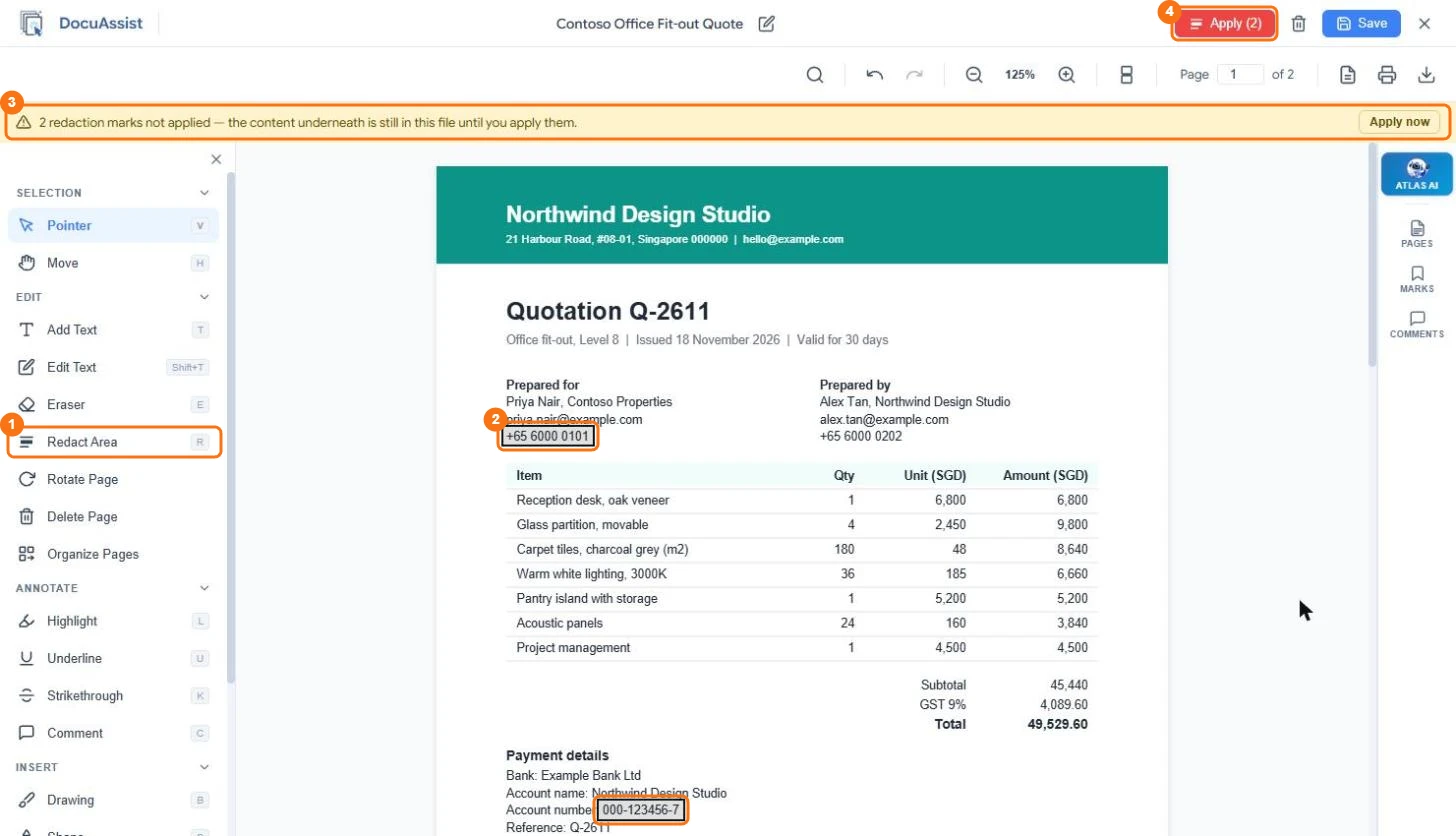
In the picture: 1 Redact Area, 2 a mark waiting to be applied, 3 the reminder bar with Apply now, 4 Apply with the number of marks.
DocuAssist.AI saves your changes, removes the marked text, images and drawings, checks that nothing is left, and saves a copy named like the original with "_redact" at the end, in the same folder. When it is done, the copy opens in the editor. The original file isn't changed.
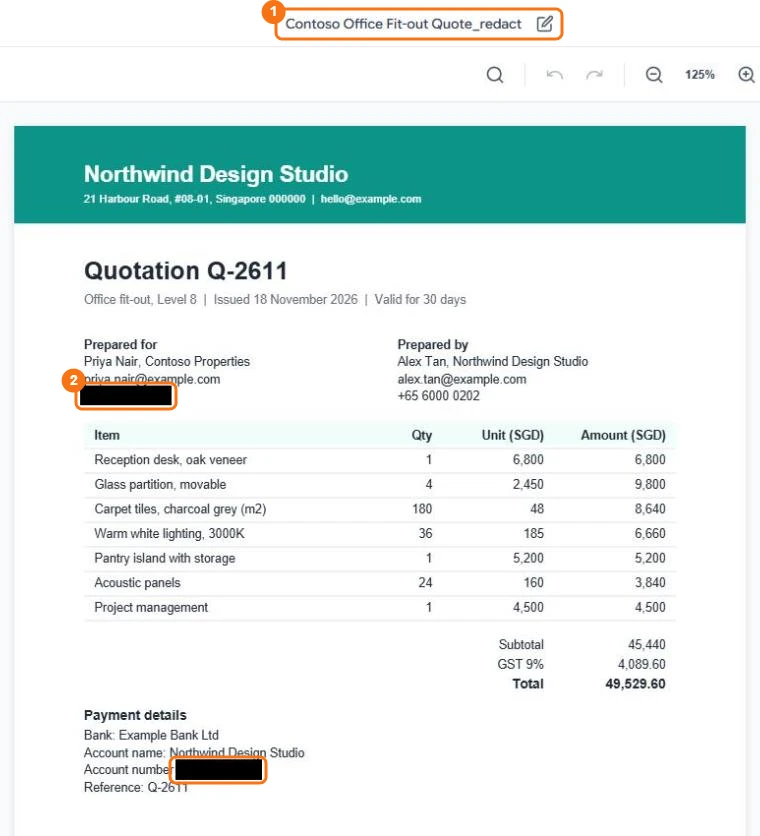
In the picture: 1 the copy, with _redact at the end of its name, 2 what was removed, now a solid black box.
Check the redacted copy before you share it. Keep the original private, or delete it if nobody should see what was removed.
When you can't redact
Redaction isn't available on a file that is password-protected, watermarked, signed, or currently shared with Protect & Send. Remove the protection or watermark first.
Credits
Each redaction run uses 100 credits.