 DocuAssist.AI Guide
Bulk Protect and Send
Bulk Protect & Send protects many documents in one go — files or whole folders — and sends each to its own recipients.
Send in bulk
- Select Send → DRM Documents in the menu, then Bulk Protect & Send. The steps are Documents, Recipients, Settings, Watermark and Review.
- Pick the documents and folders. Folders are expanded to the PDFs inside.
- Choose recipients:
- Same recipients for all documents — everyone gets every document.
- Per-document mapping (CSV) — select Download CSV template. Each document's id and name are already filled in; don't change them. Add a row for each recipient of a document with their email in Target Email Address. Recipient Name is optional (left blank, the matching contact's name is used), and so is Custom Watermark, a text you can place on that person's copy in the Watermark step. The optional Title, Publisher, Published Date, ISBN and Copyright Holder columns show in the recipient's Library. Then select Upload filled CSV. DocuAssist.AI checks the file and shows any problems.
- Choose the settings and watermark, as for a single send.
- Review and send.
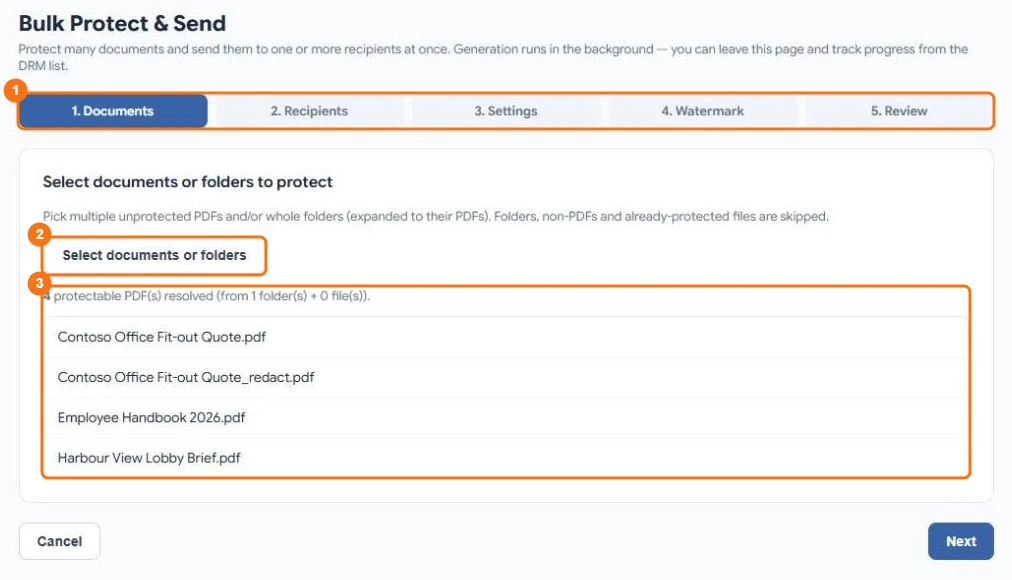
In the picture: 1 the five steps, 2 Select documents or folders, 3 the PDFs found.
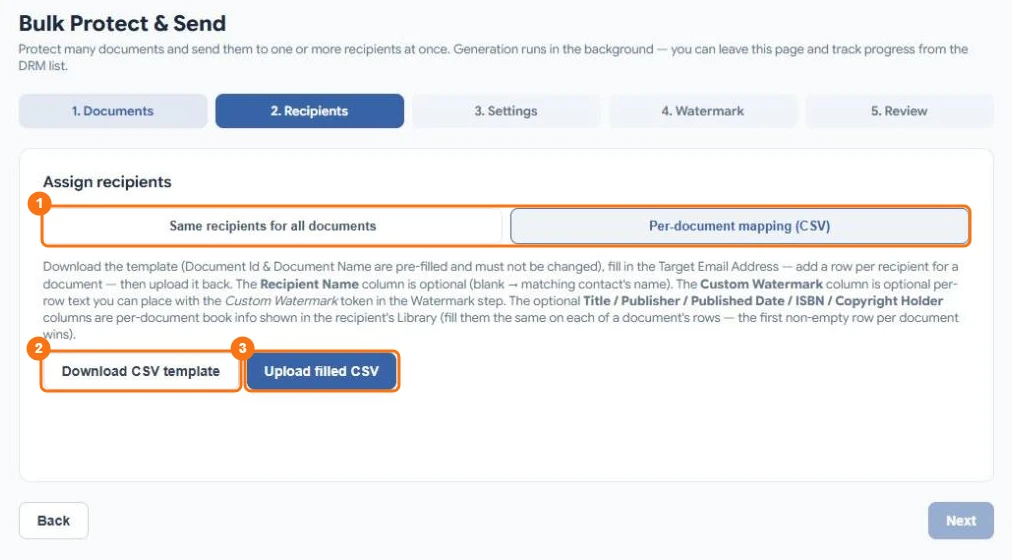
In the picture: 1 the two ways to choose recipients, 2 Download CSV template, 3 Upload filled CSV.
DocuAssist.AI prepares the copies in the background. The share shows its progress in the list; settings can't be changed until it is done.
What recipients get
Each document is its own share: every recipient gets one email per document, with a separate secure link. You can revoke access to one copy, to one document for everyone, or to the whole batch.
What it costs
The same as a single send for each document: 200 credits per document, plus 5 credits per page for each recipient for each year. Copies that couldn't be made aren't charged.