 DocuAssist.AI Guide
Tasks
Tasks is one list of everything waiting for you, wherever it came from. The number beside Tasks in the menu shows how many are open.
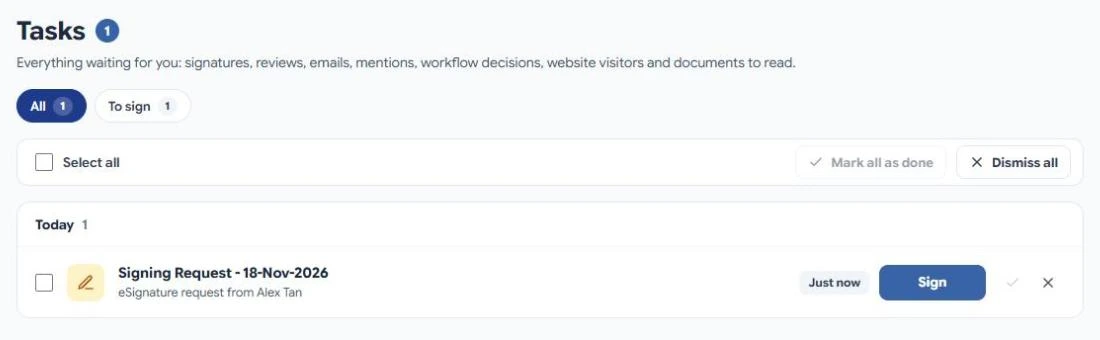
What appears in Tasks
| Task | Where it comes from | How it is done |
|---|---|---|
| To sign | A signing request sent to you | Select Sign and sign the document. |
| To review | A review request sent to you | Select Review, comment and complete the review. |
| Emails | Emails you added with Add to Task in AI Email | Reply, or mark it done. |
| Decisions | An AI Workflow that asks a person to approve something | Open it and choose. |
| Project items | Tracker items given to you in AI Workspace projects | Mark the item done. |
| Mentions | Someone mentioned you in a project note, tracker item or chat | Open it. |
| Messages | A website visitor your chatbot handed over to a person | Open the chat and mark it handled. |
| To read | Documents sent to you with Protect & Send | Open and read it, or mark it done. |
Work through your list
- Tasks are grouped into Today, This week and Earlier. Switch between Newest first and Oldest first.
- Select a chip such as To sign or To review to see one kind only. If your tasks come from several projects, choose a project to see only its tasks.
- A coloured date shows when a decision is due: red for today or late, amber for the next two days.
Mark tasks done or dismiss them
- Select ✓ to mark a task done. A signing or review request is done when you sign or review it, so those tasks finish by themselves.
- Select ✕ to dismiss a task: it leaves your list, and nothing else changes — an email stays in your inbox, a document still waits to be signed.
- Tick several tasks, or Select all, and use Mark all as done or Dismiss all. You can undo straight away.
- Show done this week and Show dismissed bring them back into view. Select Put back to restore a dismissed task.
Related
Last updated on November 18, 2026