 DocuAssist.AI Guide
Your Home
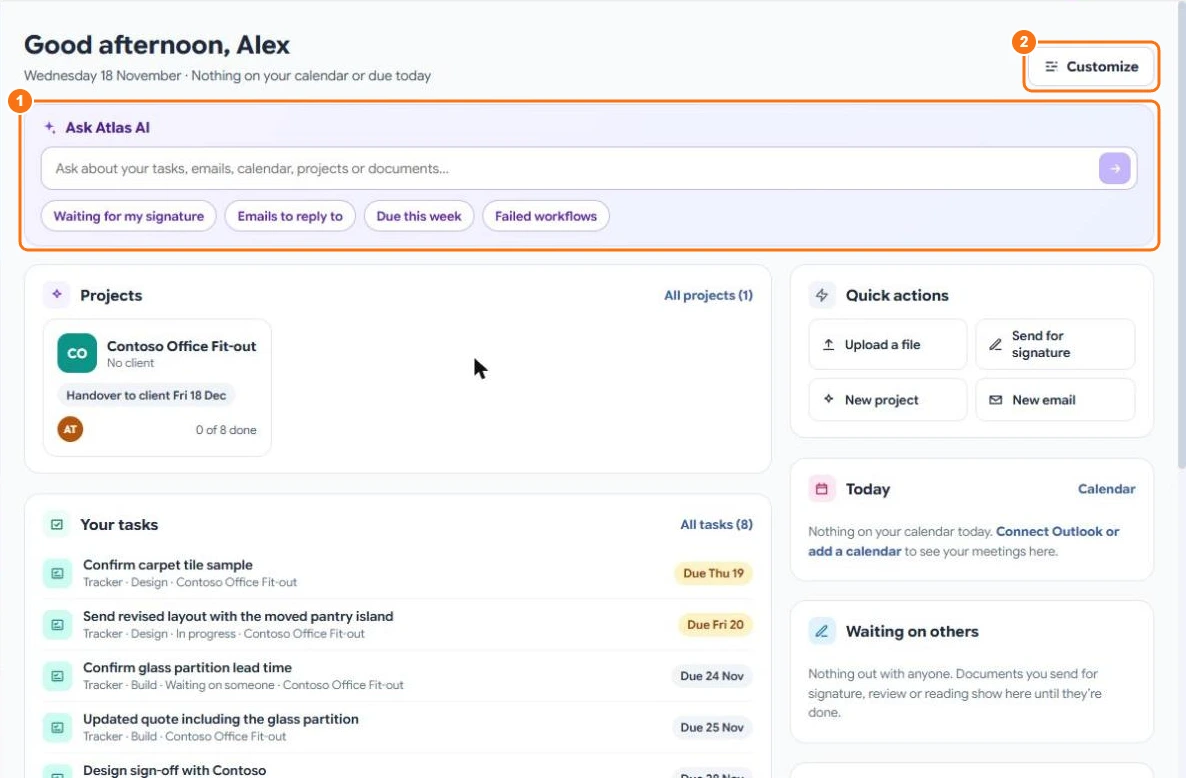
Home is the first page you see after you sign in. It shows what needs your attention today, and lets you ask Atlas AI about your work.
When you are new
Until you have tried a few things, Home shows a short tour: what DocuAssist.AI can do, and a Getting started checklist.

Select Skip the tour to go straight to your Home. You can see the tour again any time from the More you can do widget.
Ask Atlas AI
Type a question in Ask Atlas AI (1), or pick a suggestion such as Waiting for my signature, Emails to reply to, Due this week or Failed workflows. Atlas AI looks through your tasks, emails, calendar, projects and documents to answer, with chips that open what it found.
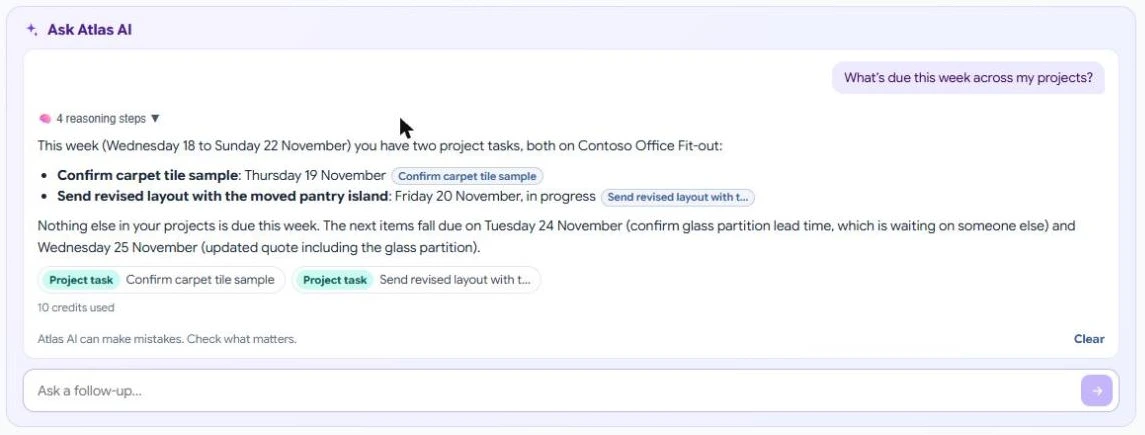
When Atlas AI suggests something to do, such as replying to an email or sending a document for signature, it shows a button that takes you to the right page. Nothing happens until you select it. Type a follow-up question in the box below, or select Clear to start over.
Widgets
| Widget | What it shows |
|---|---|
| Projects | Your most recent AI Workspace projects. |
| Quick actions | Upload a file, send for signature, start a project, write an email. |
| Your tasks | Tasks waiting for you, soonest first. |
| Today | Today's meetings and free time. |
| Important emails | Unread emails AI Email marked Important. |
| Waiting on others | Documents you sent for signature, review or reading that aren't done yet. |
| Recent files | Files you opened lately, and where they are. |
| Contacts to follow up | People whose important emails are still waiting for a reply. |
You can also add More you can do, Credits and storage, AI Workflows, Website Chatbot, Recent notes and Shared with me.
Arrange your Home
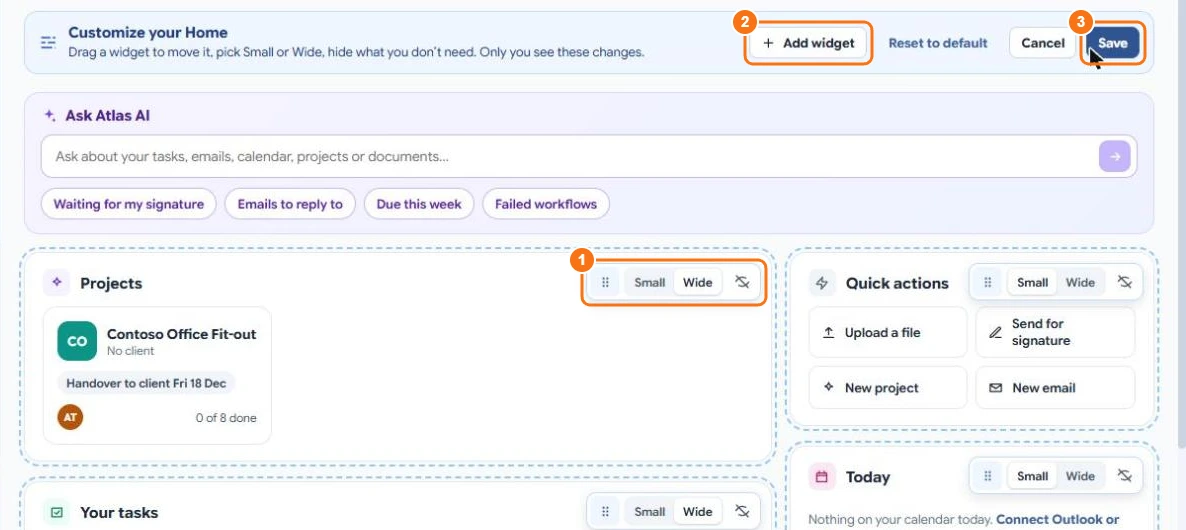
- Select Customize (2 in the first picture).
- Drag a widget by its handle to move it, choose Small or Wide, or hide it (1).
- Select Add widget (2) to add one back.
- Select Save (3). Cancel leaves your Home as it was, and Reset to default brings back the standard layout.
Only you see your Home's layout.