 DocuAssist.AI Guide
Create a project
A new project takes five short steps. Only the name is required, and you can finish later: every step can be changed afterwards in the project's settings.
- Name the project
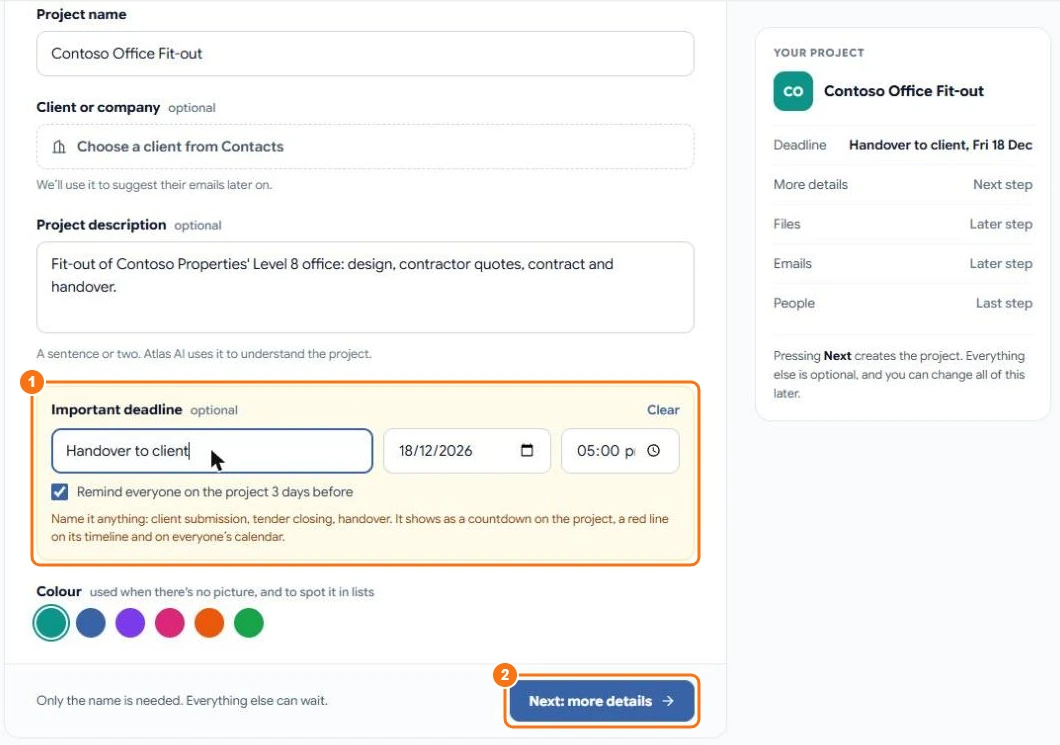
Select AI Workspace → New project. Enter a Project name. Optionally add a picture or logo, a client from your Contacts and a short description: Atlas AI uses the description to understand the project.
To track one key date, fill in Important deadline (1), for example "Handover to client". It shows as a countdown on the project, a red line on its timeline and on everyone's calendar. With Remind everyone on the project 3 days before ticked, everyone on the project gets a reminder.
Select Next: more details (2). This creates the project.
- Add more details
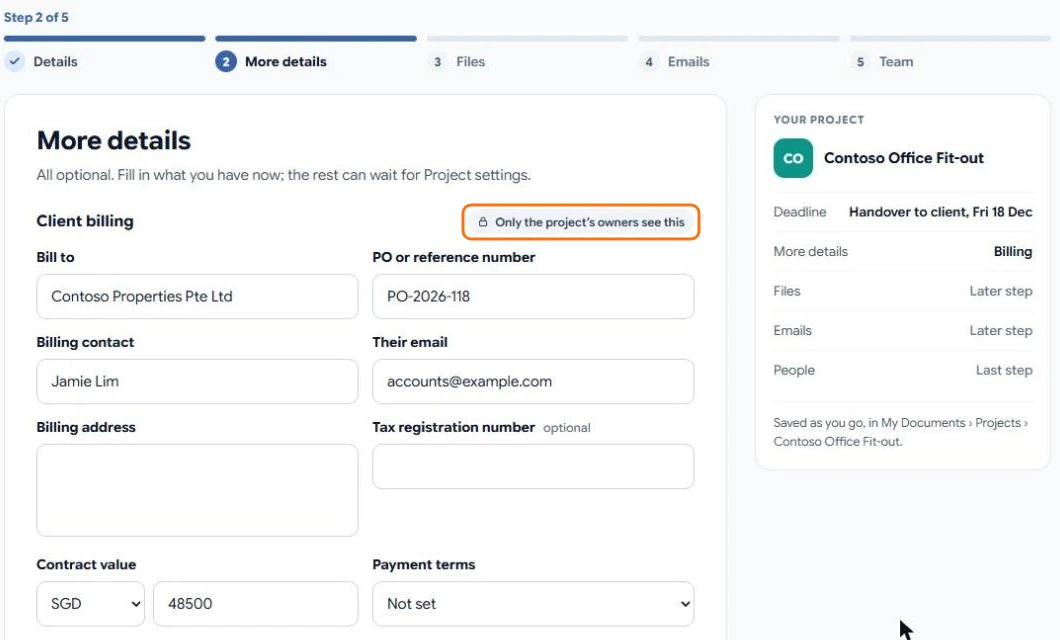
Fill in what you have now: client billing details (only the project's owners see these), remarks, and your own fields such as a site address. Select Next: add files, or Skip this step.
- Add files
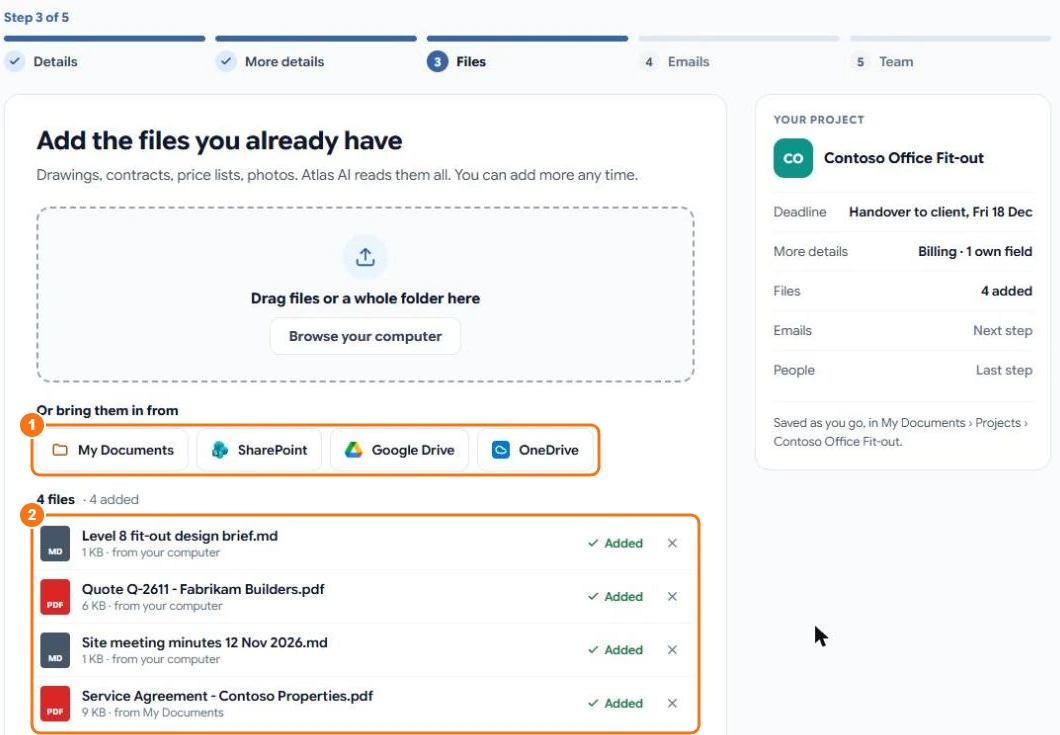
Drag files or a whole folder onto the box, or select Browse your computer. You can also bring files in from My Documents, SharePoint, Google Drive or OneDrive (1). Files are saved in My Documents → Projects → your project's name, and Atlas AI reads them all (2).
A file you add from My Documents is attached, not copied: it stays where it is and also shows in the project.
- Choose the project's emails
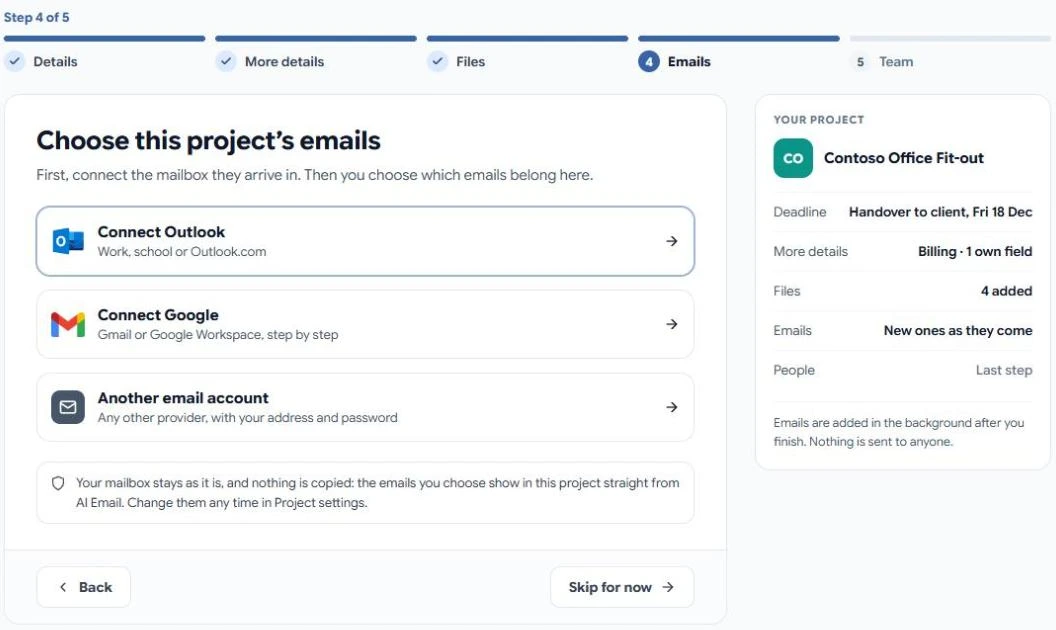
If you haven't connected a mailbox yet, select Connect Outlook, Connect Google or Another email account. Then choose which emails belong to the project: emails from certain people or companies, emails that mention a word such as the project's name, or emails Atlas AI picks from a description. Emails found from the last 90 days are added in the background, and new ones keep coming in.
Your mailbox stays as it is and nothing is copied. You can skip this step and set it up later. See Project emails.
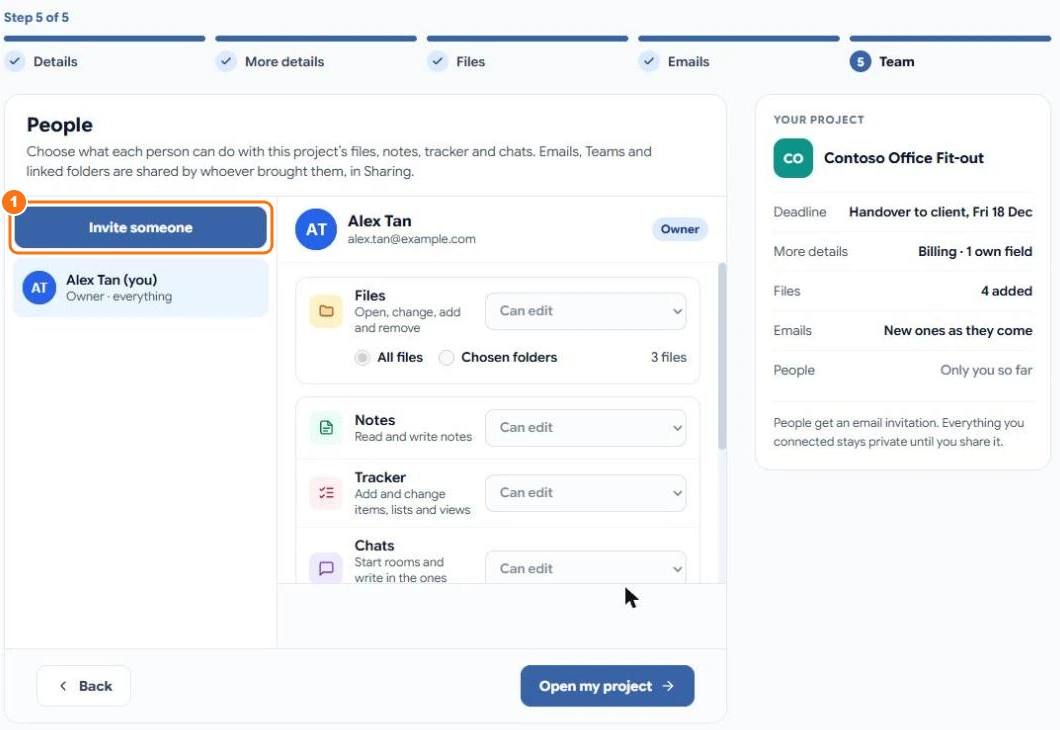
- Invite your team
Select Invite someone (1) to add people, and choose what each person can do with the project's files, notes, tracker and chats. See People and sharing. Select Open my project when you are done.
Selected Finish later by mistake? Nothing is lost: everything you entered is saved, and you can carry on from Project settings.