 DocuAssist.AI Guide
Connect Gmail and other email
You can connect Gmail, Google Workspace email or a mailbox from any other provider that supports IMAP.
Gmail and Google Workspace
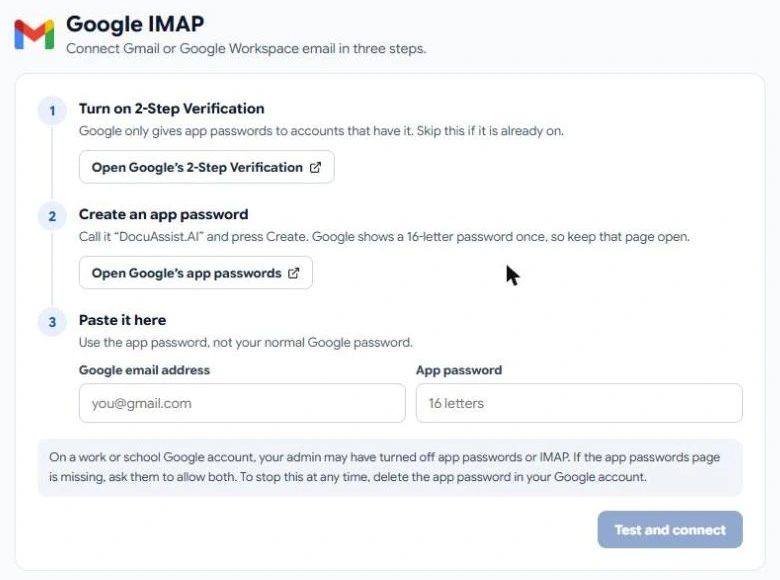
- Select Integrations, then Connect on the Google IMAP card.
- Turn on 2-Step Verification for your Google account, if it isn't on already. Google only gives app passwords to accounts that have it.
- Create an app password: select Open Google's app passwords, name it "DocuAssist.AI" and select Create. Google shows a 16-letter password once — keep that page open.
- Paste it here: enter your Google email address and the app password (not your normal Google password), then select Test and connect.
Note
On a work or school Google account, your admin may have turned off app passwords or IMAP. If the app passwords page is missing, ask them to allow both.
To stop DocuAssist.AI reading your Gmail at any time, delete the app password in your Google account.
Any other email provider
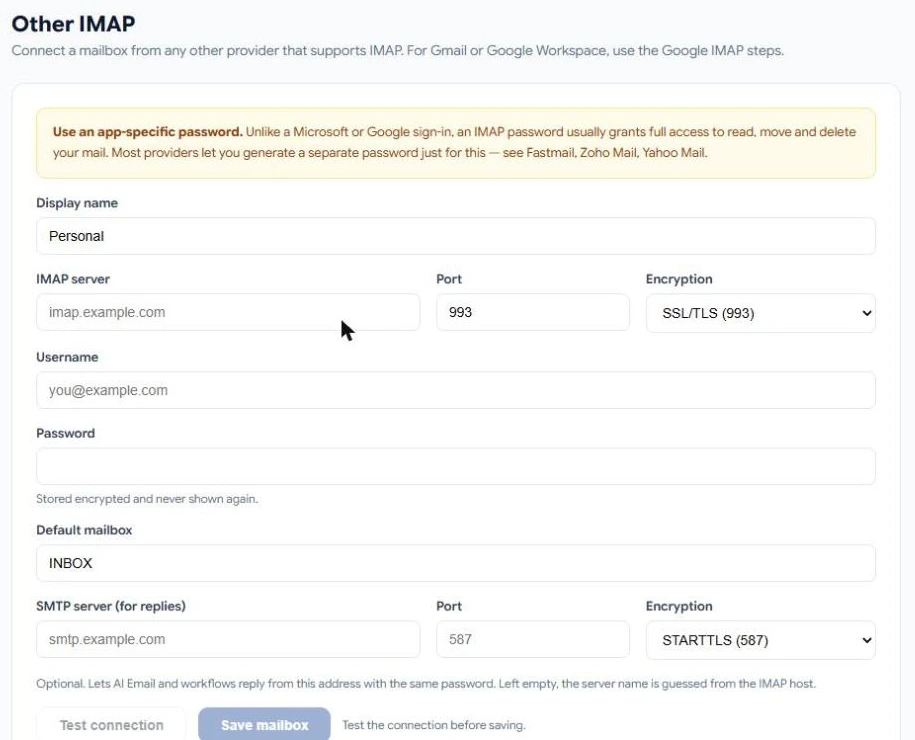
- Select Integrations, then Connect on the Other IMAP card.
- Fill in the details from your email provider:
- Display name — how the mailbox is named in DocuAssist.AI.
- IMAP server, Port and Encryption — for example SSL/TLS on port 993.
- Username and Password.
- Default mailbox — usually INBOX.
- SMTP server (for replies) — optional; lets AI Email reply from this address. Left empty, DocuAssist.AI guesses it from the IMAP server.
- Select Test connection, then Save mailbox.
Warning
Use an app-specific password if your provider offers one (Fastmail, Zoho Mail and Yahoo Mail do). An IMAP password usually gives full access to read, move and delete your mail. DocuAssist.AI stores it encrypted and never shows it again.
Related
Last updated on November 18, 2026