 DocuAssist.AI Guide
Project links
The Links tab keeps the websites and online files a project uses in one place: a supplier's page, a Google Doc, a Figma design or a Jira ticket.
Add a link
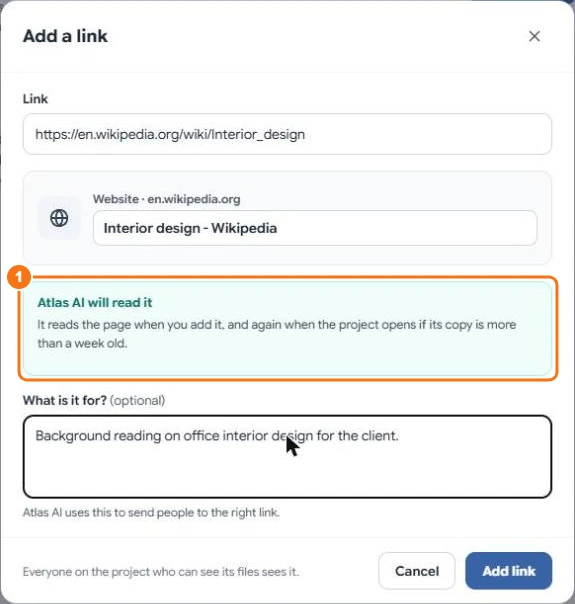
- Open the project and select Links → Add link.
- Paste the link. DocuAssist.AI checks it straight away and tells you what Atlas AI will be able to do with it (1).
- Optionally, say what it is for, for example "the latest layout". Atlas AI uses your note to point people to the right link.
- Select Add link.
What Atlas AI can read
| Link | What Atlas AI does |
|---|---|
| A public web page or PDF | Reads it and can quote it. |
| A Google Doc, Sheet or Slides shared with anyone who has the link | Reads it. |
| Figma, Jira, Confluence or a Claude artifact | Knows its name and your note only, because these need a sign-in. |
| A page that needs a sign-in, or can't be reached | Knows its name and your note only. |
Atlas AI reads a page when you add it, and again when the project opens if its copy is more than a week old.
See what Atlas AI knows
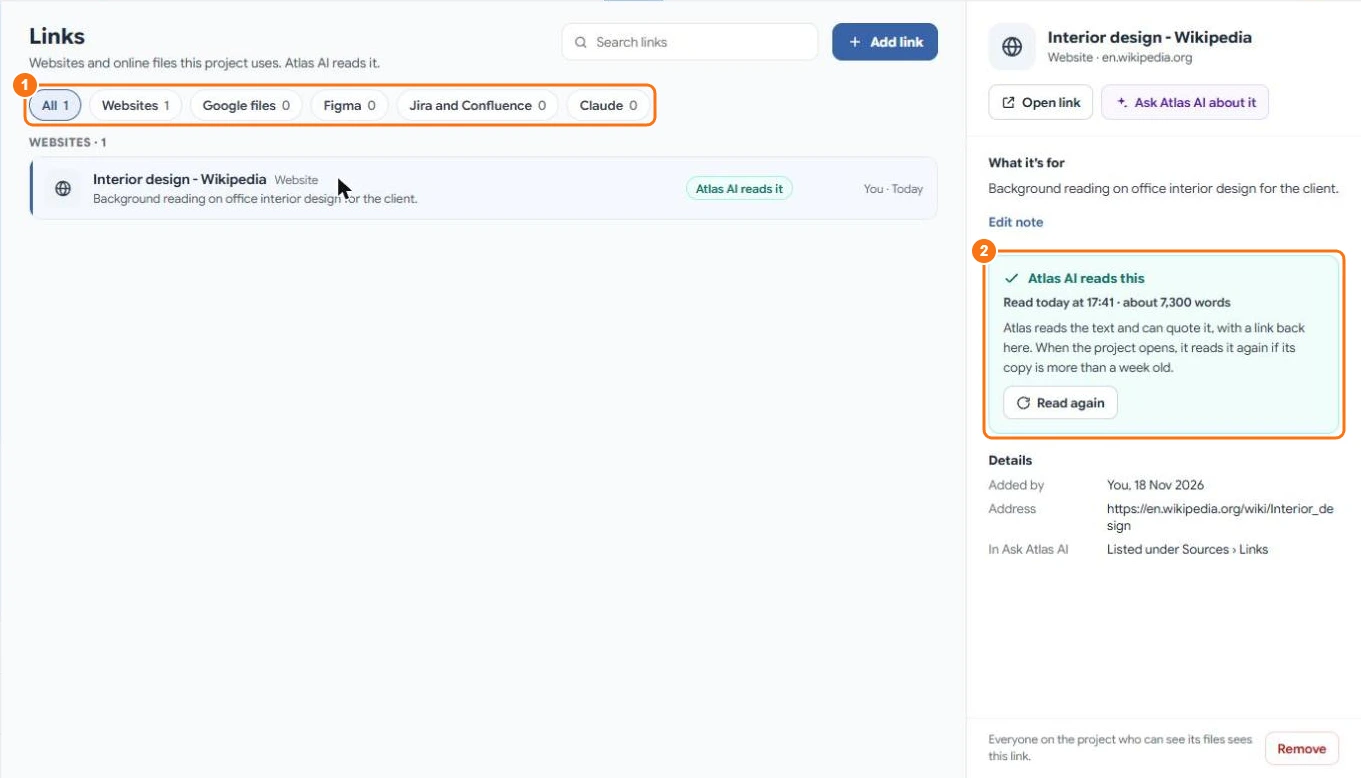
Filter links by kind (1). Select a link to see what it is for and what Atlas AI read from it (2). From there you can Open link, Ask Atlas AI about it, Read again, Edit note or Remove it.
Who sees links
Everyone on the project who can see its files sees its links.
Credits
Reading a link is free. Getting its text ready for Atlas AI uses a few credits.
Related
Last updated on November 18, 2026