 DocuAssist.AI Guide
Password and two-factor authentication
Keep your account safe with a strong password and two-factor authentication (2FA).
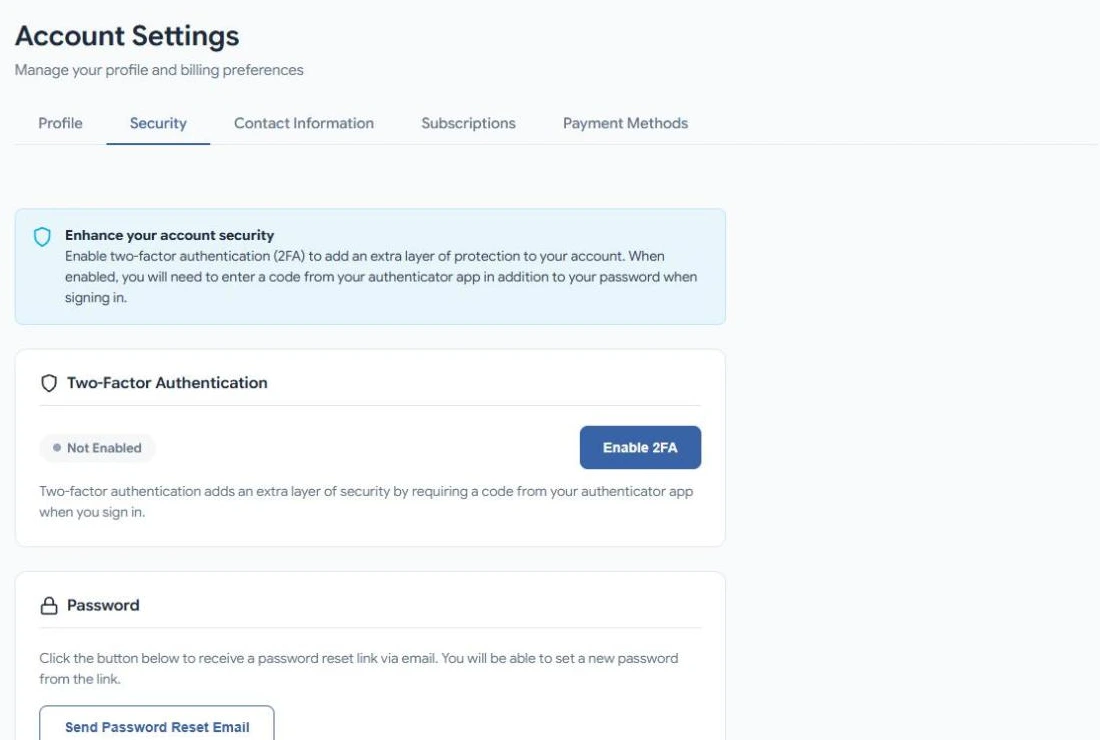
Change or reset your password
- Open your account menu and select Account → Security.
- Under Password, select Send Password Reset Email.
- Open the email and follow the link to set a new password.
Forgot your password and can't sign in? On the sign-in page, select Forgot password? and enter your email address.
Turn on two-factor authentication
With 2FA on, you enter a code from an authenticator app (such as Google Authenticator or Microsoft Authenticator) after your password each time you sign in. Someone who learns your password still can't get in.
- Start
Open Account → Security and select Enable 2FA under Two-Factor Authentication.
- Scan the code
Open your authenticator app and scan the QR code DocuAssist.AI shows. If you can't scan it, type the key shown under it into the app.
- Confirm
Enter the 6-digit code your app shows. Two-factor authentication is now on.
Keep your phone, or a backup of your authenticator app, safe. If you lose access to your codes, contact support to get back into your account.