 DocuAssist.AI Guide
Track and manage signing requests
Every request you send is listed in Send → For eSignatures. Open one to see exactly who has signed and to nudge anyone who has not.
Find a request
Use the tabs to filter by status — All, Draft, Pending, In Progress, Completed, Cancelled and Rejected — or search by name or reference. Select the eye icon to open a request.
Follow a request
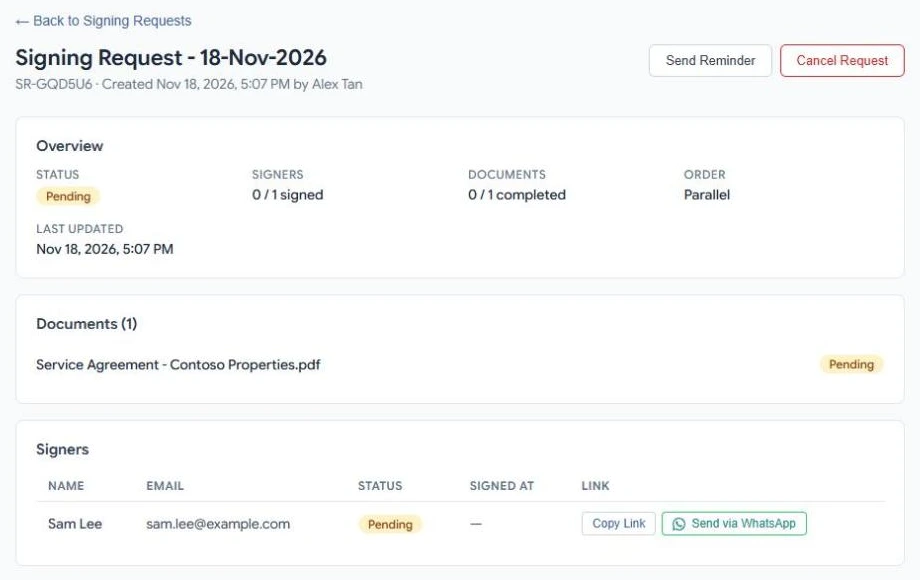
The request page shows:
- Overview — the status, how many signers have signed, how many documents are complete, and the signing order.
- Documents — each document and its own status.
- Signers — each person, their status and when they signed.
Help a signer who cannot find the email
- Copy Link copies that signer's personal link so you can send it another way.
- Send via WhatsApp opens WhatsApp with the link ready to send.
Warning
A signer's link is personal. Send it only to that person.
Remind or cancel
- Send Reminder emails everyone who has not signed yet.
- Cancel Request stops the request. Signers can no longer sign, and they are told.
When everyone has signed
- The request and its documents show Completed.
- Everyone gets an email with the signed document.
- The signed copy is saved in My Documents → Signed Documents for you, and for each signer who has an account, in their own workspace.
Statuses
| Status | Meaning |
|---|---|
| Draft | Saved but not sent. |
| Pending | Sent; nobody has signed yet. |
| In Progress | Some signers have signed. |
| Completed | Everyone has signed. |
| Rejected | A signer declined to sign. |
| Cancelled | You stopped the request. |
Related
Last updated on November 18, 2026