 DocuAssist.AI Guide
Merge and split PDFs
Combine several PDFs into one, or take pages out of a PDF into a new file.
Merge PDFs
- In My Documents, tick the PDFs to combine and select Merge in the bar that appears — or choose PDF Tools → Merge from one file's row menu. The Merge PDF page opens.
- Select Add Files to add more PDFs, from your recent files, a search, My Documents, your computer or a connected app.
- Every page is shown as a numbered thumbnail. Drag the pages into the order you want, across files too. Use Rotate 90° to turn a page or Exclude to leave it out.
- Under Output, type the file name and choose the folder with Change….
- Select Merge. The button shows how many pages the new file will have.
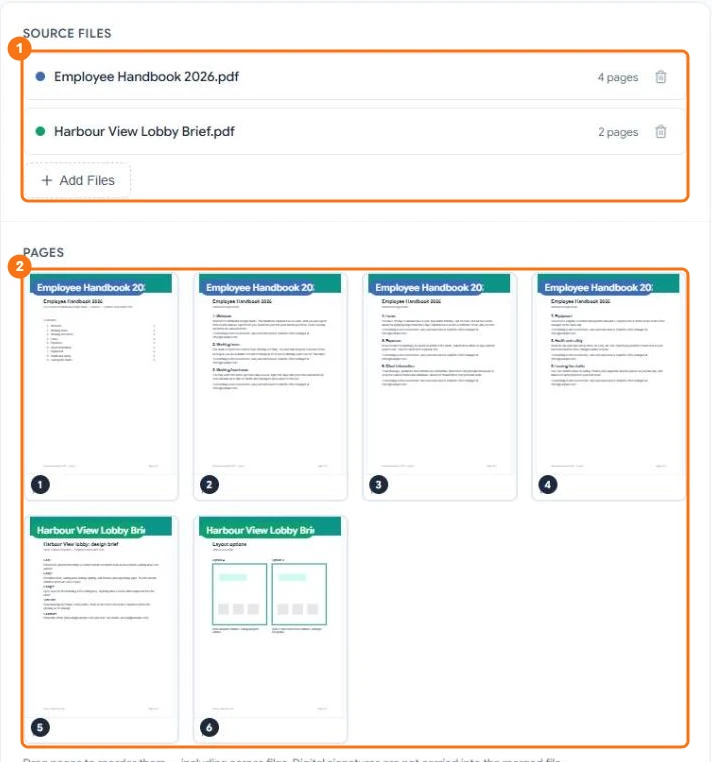
In the picture: 1 the source files and Add Files, 2 the pages, ready to drag into order.
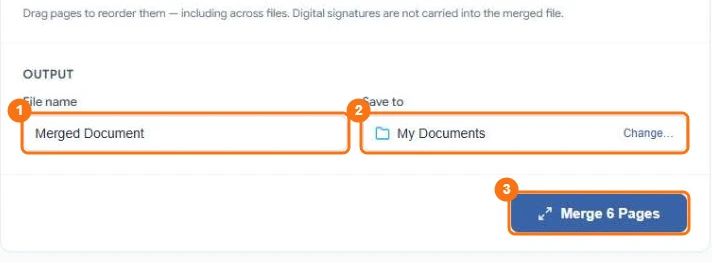
In the picture: 1 the file name, 2 the folder it is saved to, 3 Merge.
The new PDF is saved; the original files stay as they are. Digital signatures aren't carried into the merged file.
Split or extract pages
- Select the PDF's row menu (⋯) → PDF Tools → Split / Extract. The Split PDF page opens.
- Under Split Ranges, type the pages as single numbers or ranges, for example 1-3, 5, 8-10 — or tap the page thumbnails to add or remove them. Each range becomes its own file, with its own name.
- Select Add Range for another file.
- Under Output, choose the folder for all files, or tick Choose a different folder for each range.
- Select Split into N Files.
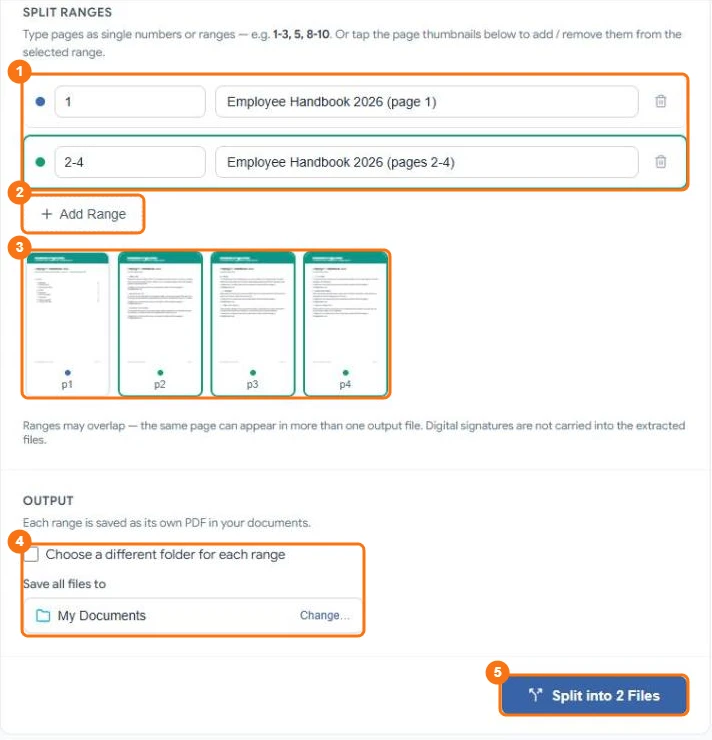
In the picture: 1 the ranges and their file names, 2 Add Range, 3 the pages, coloured by range, 4 where the files are saved, 5 Split into 2 Files.
Ranges may overlap: the same page can go into more than one file. The original PDF isn't changed, and digital signatures aren't carried into the new files.
Reorder, rotate or delete pages instead
To change the pages of one PDF in place, open it in the editor and use the page tools. See Pages and bookmarks.