 DocuAssist.AI Guide
Project emails
The Emails tab shows the project's emails straight from AI Email. Nothing is copied out of your mailbox: when a new email arrives that belongs to the project, it shows up here, and Atlas AI can read it and its attachments.
Before you start
Connect your mailbox in AI Email first. See Get started with AI Email.
Choose which emails come in
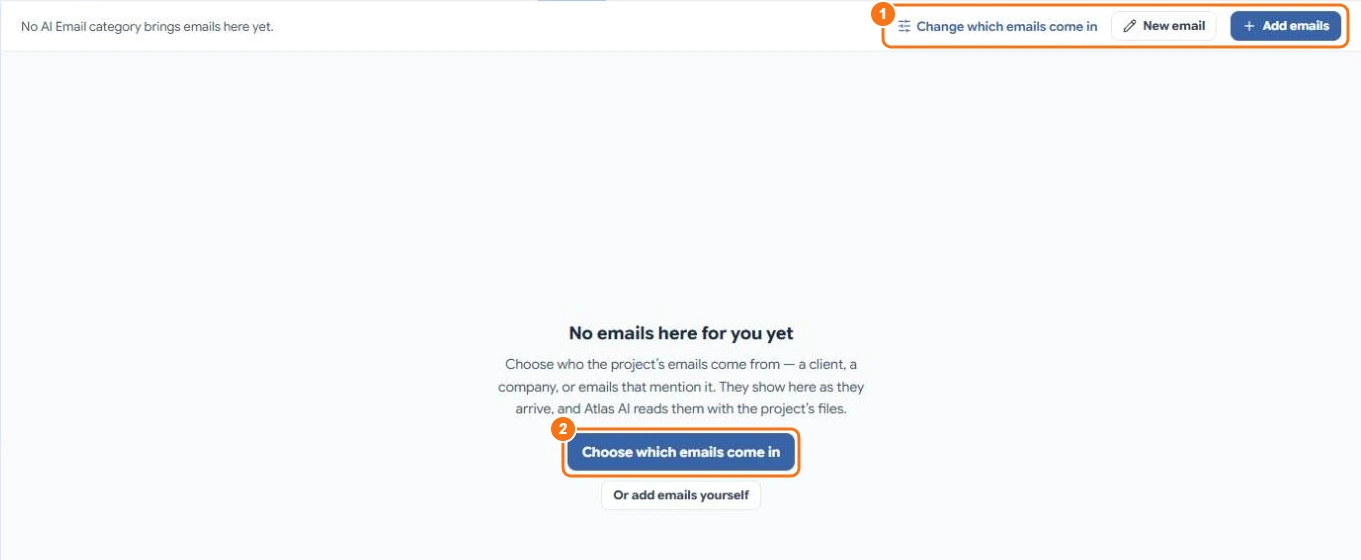
Select Choose which emails come in (1, 2). Then set the rule:
- Emails from — people or whole companies (for example everyone at a client's domain). Leave it empty for anyone.
- Which of their emails?
- All of them.
- Only ones that mention a word — for example the project's name or a job number. You choose whether to look in the subject, attachment names or the email text.
- Only ones the AI picks — describe the emails in a sentence and Atlas AI decides for each email.
- Keep adding — new emails that match keep coming in. Turn it off to add only the emails found now.
DocuAssist.AI shows how many emails from the last 90 days match before you save, and adds them in the background.
Behind the scenes, the rule is an AI Email category linked to the project, so the same emails show under that category in AI Email.
Add or remove emails yourself
- Select Add emails, search your emails, tick the conversations you want and add them.
- To take a conversation out of the project, tick it and select Remove from project. It stays in AI Email.
A whole conversation always moves together, including your replies.
Read, reply and ask
- Select a conversation to read it. Attachments open in the viewer.
- Reply or New email writes from your own mailbox. The project's signature is used if it has one.
- Add to tracker turns an email into a tracker item.
- Ask Atlas AI about it opens the chat with that email.
What Atlas AI reads in attachments
Atlas AI reads the text in a project email's attachments. A note beside an attachment tells you when it is not ready or not read:
| The attachment says | What it means |
|---|---|
| scanned — Atlas AI is reading it | A scanned file is being read with text recognition in the background. The rest of the email is ready already. |
| scanned — not read, text recognition is off in AI Email settings | The person whose mailbox it came to turned off Read scanned attachments. See Scanned documents and text recognition (OCR). |
| a picture — Atlas AI doesn't read pictures attached to emails | Photos, logos and screenshots are kept so you can open them, but Atlas AI doesn't read them. |
| couldn't be read | The file couldn't be opened. It is skipped so the rest of the email still works. |
Who sees the emails
Emails you bring into a project are private to you until you share them in Project settings → Sharing. When you share them, each email shows only to the people who were part of that conversation.
Credits
Getting emails and their attachments ready for Atlas AI uses a small number of credits per email, and scanned pages in attachments use credits per page. See Credit rates.