 DocuAssist.AI Guide
Chatbot knowledge
Your chatbot answers only from the knowledge you give it, and says so when it doesn't know.
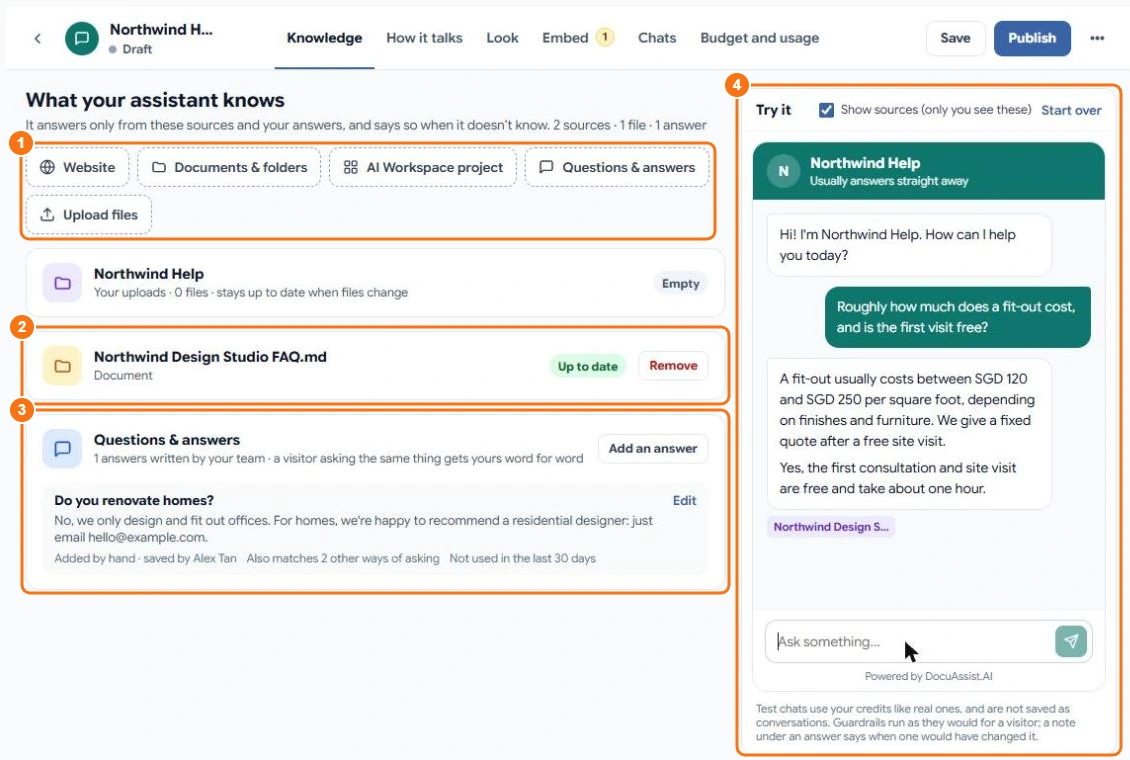
Add knowledge
On the Knowledge tab, choose (1):
- Website — it reads your public web pages and keeps up with changes every week. You choose which parts of the site to read.
- Documents & folders — files and folders from My Documents. Folders stay up to date when files change.
- AI Workspace project — the files of a project.
- Questions & answers — answers you write yourself.
- Upload files — files that go into the chatbot's own folder in My Documents (Assistants → its name).
Each source shows whether it is Up to date (2). Files are prepared for the chatbot in the background; a new file can take a minute before it is used.
Saved answers
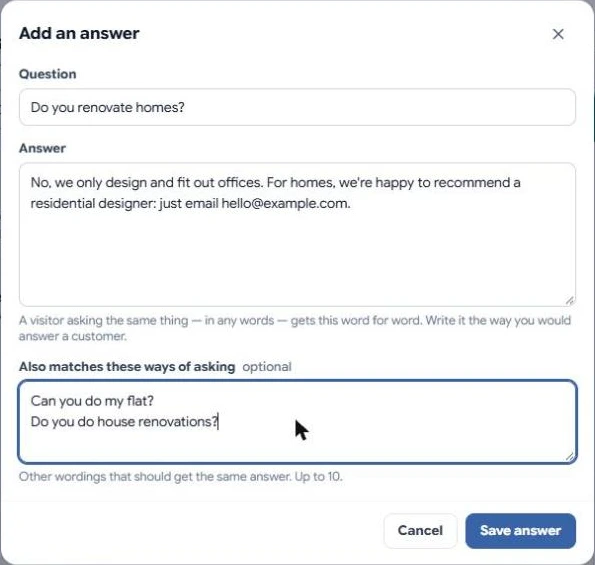
For questions you get often, write the answer yourself (3): select Add an answer, type the question and the answer, and add other ways people ask the same thing. A visitor asking the same question, in any words, gets your answer word for word — no AI involved, and no credits used.
Each saved answer shows how often it was used. When a document it relies on changes, DocuAssist.AI suggests you review the answer.
Test it
Ask questions in Try it (4). Your test uses the latest settings straight away, even before you publish. With Show sources ticked, you see which file or saved answer each reply came from — visitors never see file names. Select Start over to clear the chat.
Test chats use credits like real ones, but aren't saved as conversations.
Questions it couldn't answer
Questions the chatbot couldn't answer are collected so you can add the missing information or write a saved answer.