 DocuAssist.AI Guide
Use your calendar
Your Calendar shows your meetings, time away, lunch breaks and working hours, together with deadlines and dated items from your AI Workspace projects. It is yours alone — nobody else in the workspace sees your events. Atlas AI uses it to answer questions such as Am I free on Thursday afternoon?
Find your way around
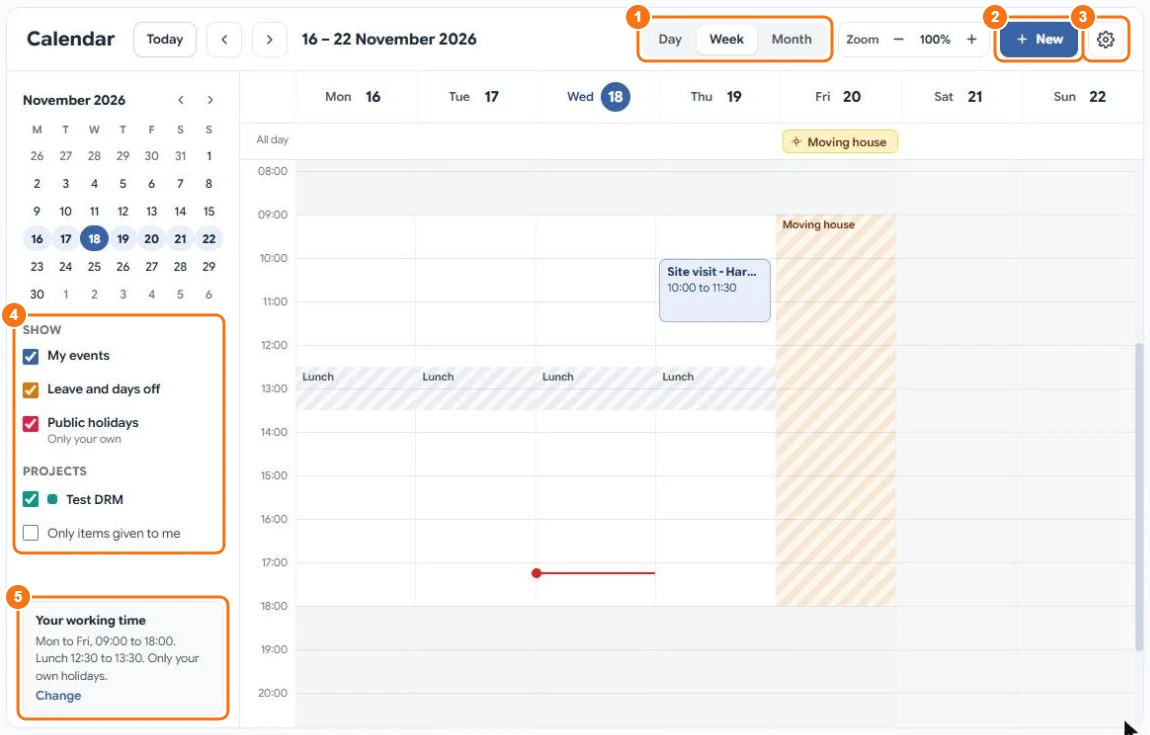
- Day, Week or Month view. Use Today and the arrows to move, or select a date in the small month on the left. Zoom makes the hours taller or shorter.
- + New adds an event, a timeline, leave or a day off.
- The gear opens Calendar settings.
- Show — tick what to see: My events, Leave and days off, Public holidays, and each project. Only items given to me hides project items assigned to other people.
- Your working time — the hours DocuAssist.AI treats as working time. Select Change to edit them.
A red line marks the current time. Lunch and other breaks appear as striped bands.
Add an event, leave or a day off
- Select + New
Choose what to add:
- Event — a meeting or appointment with a time. Tick All day for an all-day event.
- Timeline — a span of several days, such as a trade fair or a project phase.
- Leave or Day off — time away. Choose the whole day, the morning or the afternoon.
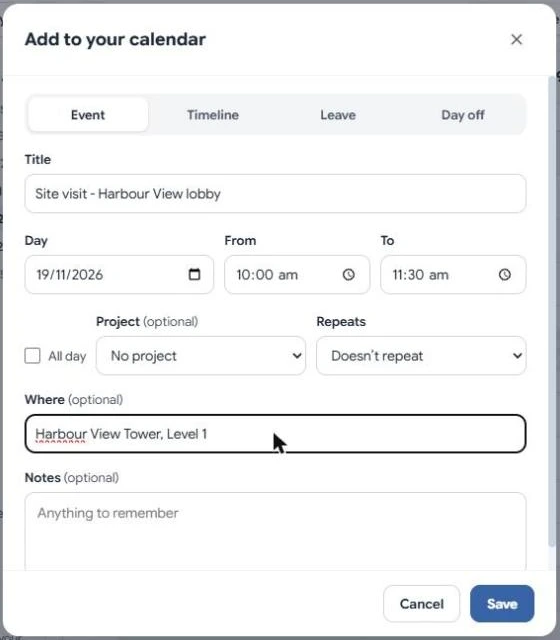
- Fill it in
Give it a title, the day and times, and optionally a project, how it Repeats, a place or meeting link in Where, and Notes.
- Save
Select Save. Select the item later to change or delete it.
Leave and days off count as away: availability checks and Atlas AI treat that time as busy.
Project items in your calendar
Dated items from the Tracker of every AI Workspace project you can see, and each project's important deadline, appear in the project's colour. They are changed in the project, not here. See Project tracker.
Ask Atlas AI about your time
On your Home, or in a project's Ask Atlas AI, ask questions such as When am I free for an hour this week? Atlas AI reads your calendar, working hours and time away to answer.