 DocuAssist.AI Guide
Organize files and folders
Keep your files tidy with folders, and move or copy files wherever you need them. You can pick files from several folders at once and move or copy them together.
Create a folder
- Start a new folder
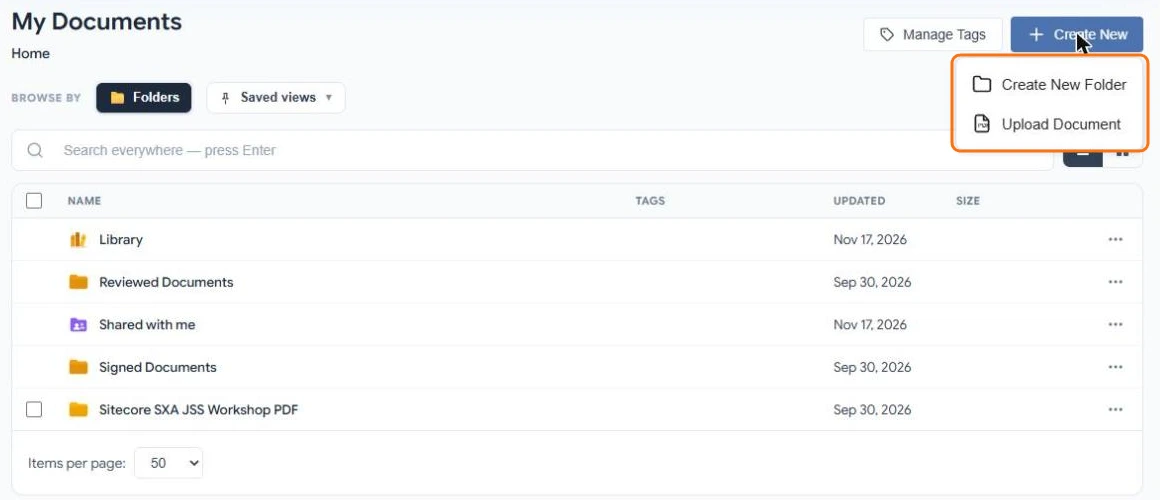
In My Documents, open the folder that should hold the new one. Select Create New → Create New Folder.
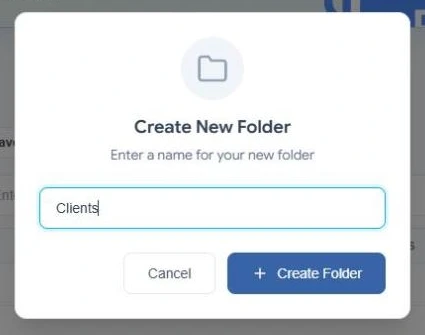
- Name it
Type a name and select Create Folder. The name must be different from the other items in the same folder.
Open a folder by selecting its name. The path at the top, for example Home / Clients / Contoso Properties, takes you back up one or more levels.
Switch between list and grid
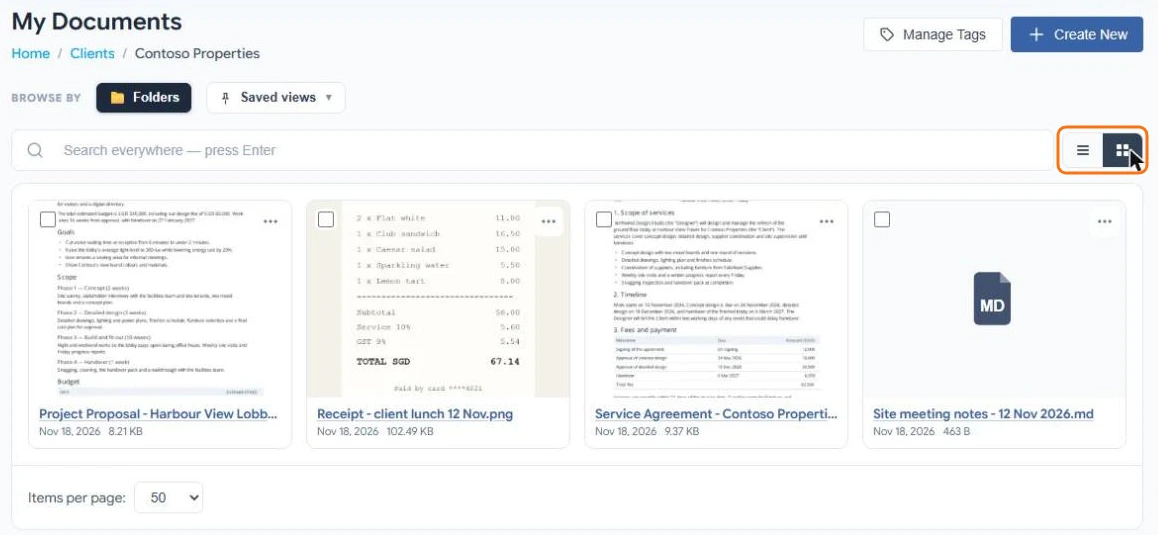
Use the two buttons beside the search box. List shows names, tags, dates and sizes. Grid shows a preview of each PDF and picture, which helps when you are looking for a scan or a photo.
Act on one file
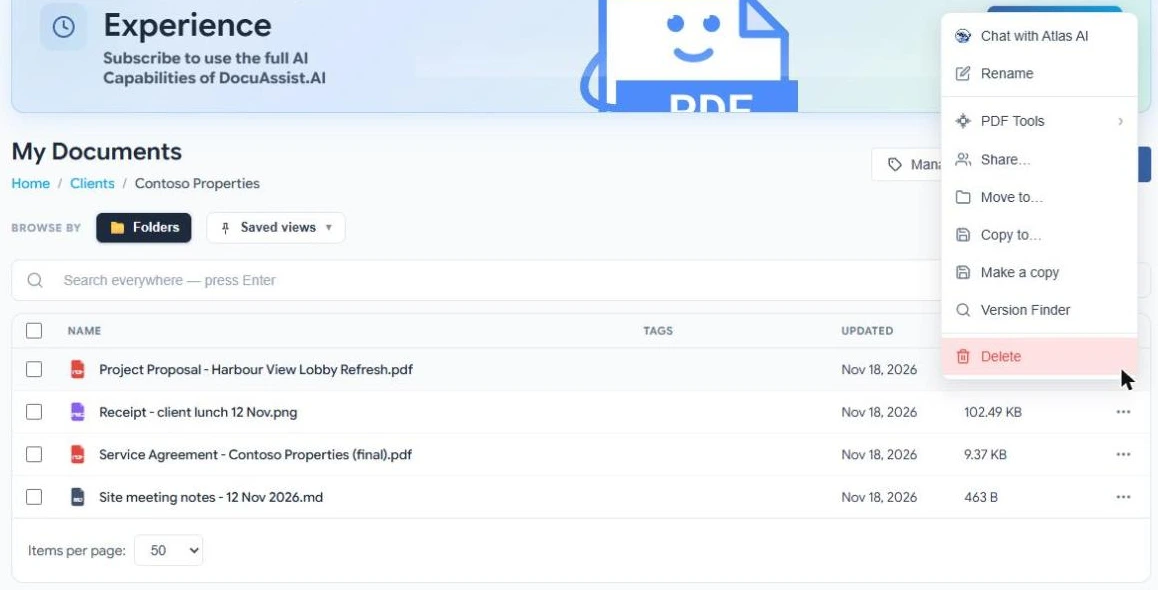
Select ⋯ at the end of a row to:
- Chat with Atlas AI — ask questions about the file. See Ask Atlas AI about a document.
- Rename the file.
- PDF Tools — compress, merge, split, watermark, add a password, restrictions or an expiry date. See PDF tools.
- Share — give people access. See Share documents and folders.
- Move to or Copy to another folder.
- Make a copy in the same folder.
- Version Finder — find other copies of the same document and compare them. See Version Finder.
- Delete — delete the file permanently. DocuAssist.AI asks you to confirm, because it cannot be undone. See Delete files and folders.
You can also right-click a row to open the same menu.
Select several files
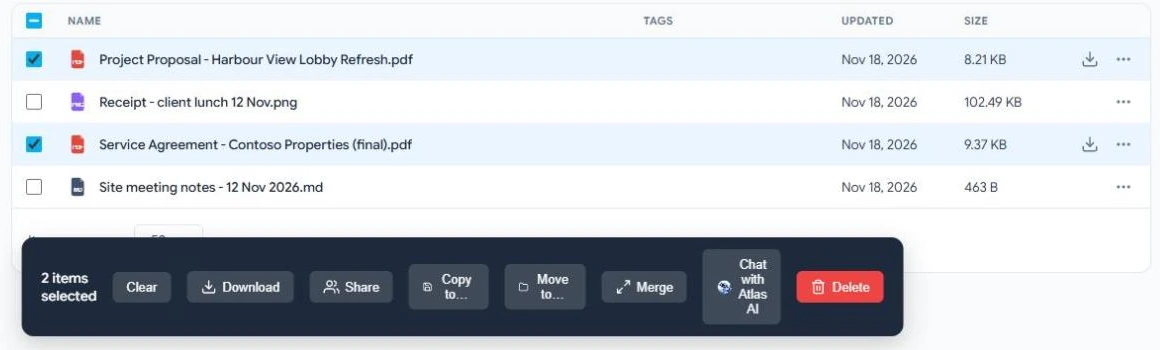
Tick the box at the start of each row you want, or:
- Click a row to select only that item.
- Ctrl+click (Cmd+click on a Mac) to add or remove one item.
- Shift+click to select everything between two items.
A dark bar appears at the bottom with Download, Share, Copy to, Move to, Merge, Chat with Atlas AI and Delete.
Your selection stays when you open another folder, so you can pick files from several folders and move or copy them together.
Move or copy files
- Choose what to move or copy
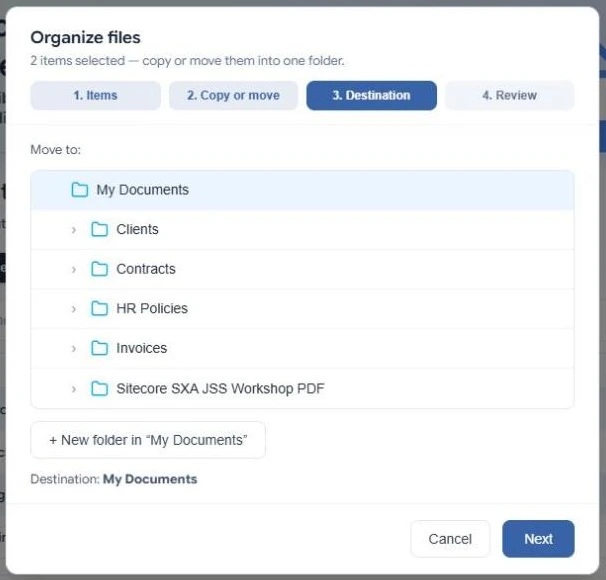
Select the files and folders, then select Move to or Copy to in the dark bar, or in a row's ⋯ menu.
- Pick the destination
In Organize files, choose the folder to move or copy into. Select New folder to create one on the spot. Then select Next.
- Review and confirm
The last step lists what will be moved or copied and anything that cannot be, with the reason. If a name is already used in the destination, choose Keep both or Skip. Then confirm.
- Moving happens at once. You need permission to edit every item you move.
- Copying runs in the background, and a notice tells you when it is done. A copy does not take over the original's sharing, comments or signing history.
On a computer, drag selected rows onto a folder in the list to move them there.
Folders DocuAssist.AI creates for you
| Folder | What it holds |
|---|---|
| Library | Protected documents other people sent you with Protect & Send. |
| Shared with me | Documents and folders other people shared with you. |
| Signed Documents | Signed copies of documents you sent or signed. |
| Reviewed Documents | Documents that finished a review. |
You cannot rename, move or delete these folders.