 DocuAssist.AI Guide
Highlight, draw and add text
Mark up a PDF the way you would with a pen: highlight important lines, add your own text, draw, and drop in shapes or pictures. Your markup stays editable in DocuAssist.AI, so you can change or remove it later.
Before you start
You need Edit access to the document. Open it from My Documents and select TOOLS on the left edge if the tools panel is closed.
Highlight, underline or strike through text
- Choose the tool
Select Highlight (L), Underline (U) or Strikethrough (K). The settings panel lets you pick the colour and how see-through it is.
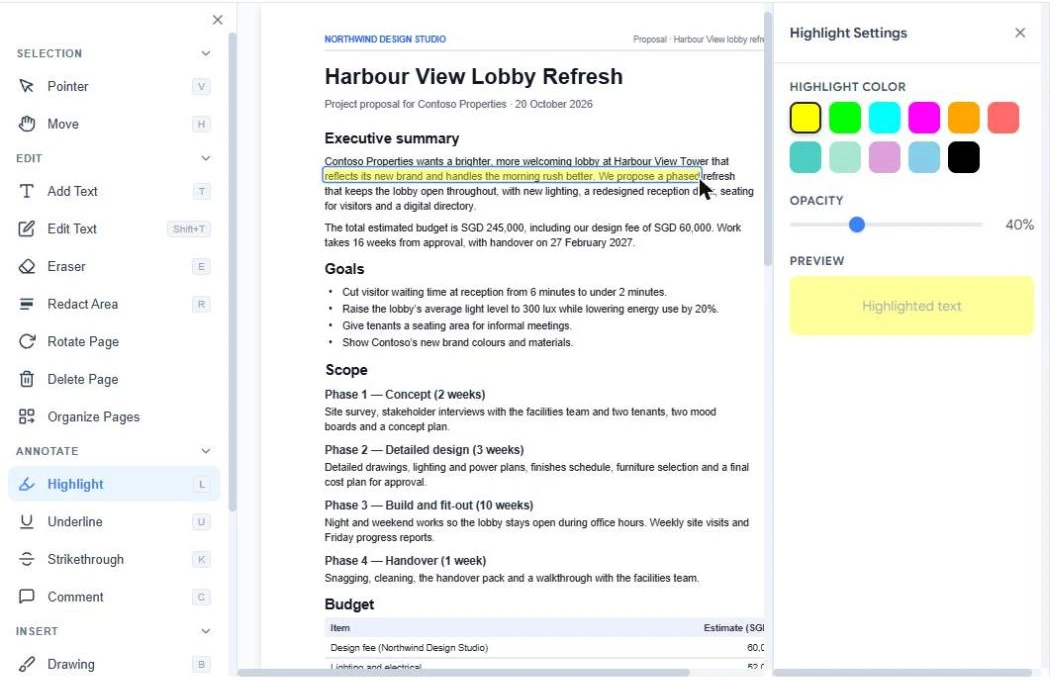
- Drag across the text
Drag over the words you want to mark. Repeat for as many lines as you need.
You can also select text with the Pointer and use the small toolbar that appears above it.
Add text
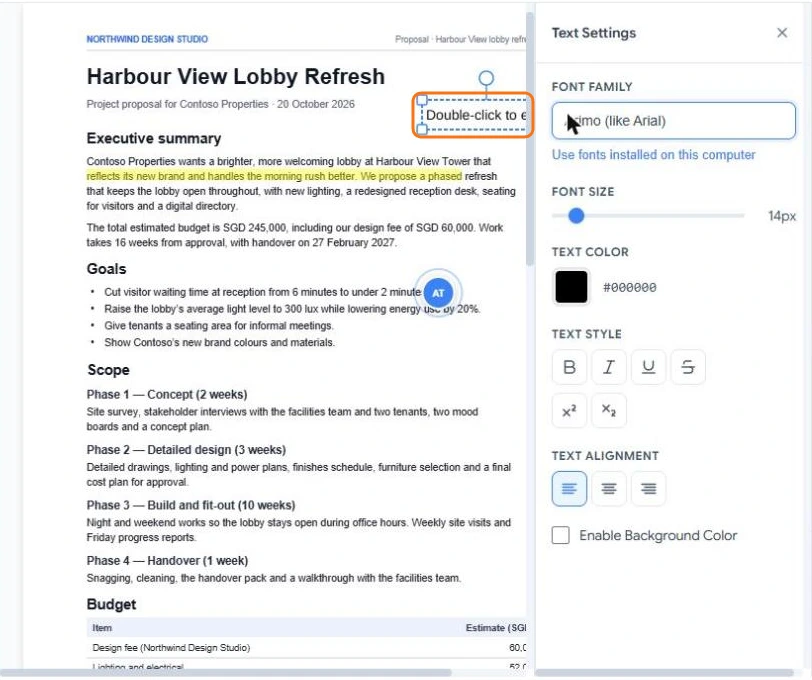
- Select Add Text (T) and click where the text should go.
- Double-click the new text box and type.
- Use Text Settings to choose the font, size, colour, bold, italic, underline, alignment and a background colour.
Drag the box to move it, drag a corner to resize it, or use the round handle above it to rotate it.
The font list offers fonts that can be stored inside the PDF, so the file looks the same on every computer. Select Use fonts installed on this computer to add your own fonts (Chrome and Edge only).
Draw, add shapes and pictures
- Drawing (B) — draw freehand with your mouse, pen or finger.
- Shape (S) — add rectangles, circles, lines and arrows.
- Image (I) — place a picture, such as a logo or a stamp.
- Eraser (E) — remove markup you added.
Select any item you added to move, resize or delete it.
Save your work
Select Save at the top right. Until you save, your changes are only in your browser. See Save, download and print.