 DocuAssist.AI Guide
Manage mailboxes
AI Email can show up to five mailboxes together or one at a time. Each mailbox has its own colour, shown beside its name on every email.
Switch mailbox
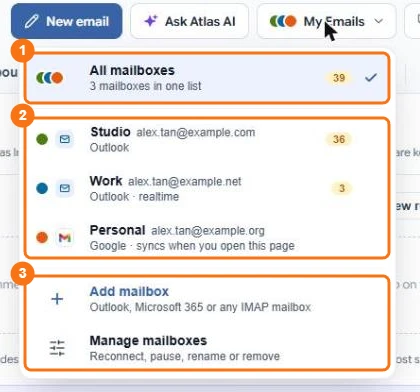
In the picture: 1 All mailboxes, 2 each mailbox with its colour and Important count, 3 Add mailbox and Manage mailboxes.
Select My Emails at the top of the Emails page and choose All mailboxes or one mailbox. The number beside each is its unread Important emails.
Add a mailbox
Select My Emails → Add mailbox, then Outlook, Google IMAP or Other IMAP. See Connect Outlook and Connect Gmail and other email.
Manage mailboxes
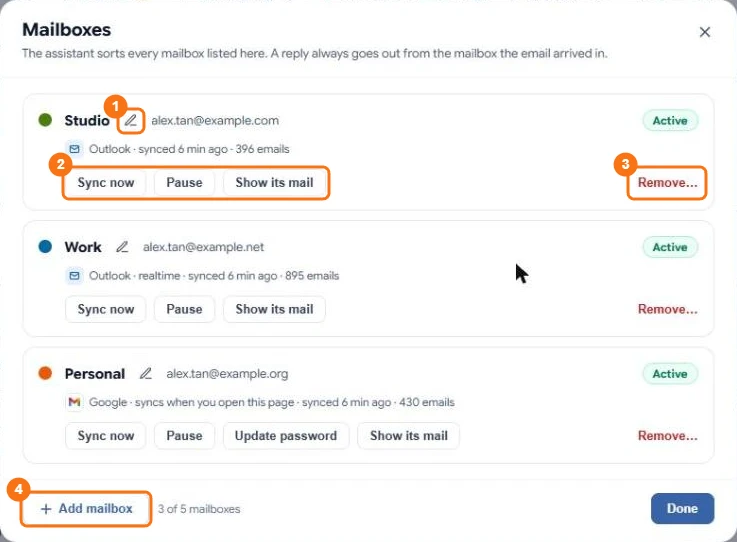
In the picture: 1 rename, 2 Sync now, Pause and Show its mail, 3 Remove, 4 Add mailbox.
Select My Emails → Manage mailboxes to:
- Rename a mailbox, for example "Work" or "Support";
- Pause it — AI Email stops reading it until you resume;
- Reconnect it when its sign-in or password stopped working (Sign in again or Update password);
- Remove it.
Removing a mailbox deletes DocuAssist.AI's sorted copies, drafts and rules for it. Nothing in the mailbox itself is touched. You can also disconnect the account at the same time.
Get new mail now
New mail is checked when you open the Emails page. To check now, select the sync icon next to "synced ... ago" at the top of the page. Outlook mailboxes also receive new mail as it arrives.
How long emails are kept
AI Email keeps its sorted copies of your emails for 60 days, and longer for emails in a category linked to an AI Workspace project. Your mailbox keeps everything as before.