 DocuAssist.AI Guide
How it talks
The How it talks tab sets the chatbot's personality, the shape of the conversation and the AI model it uses.
Conversation
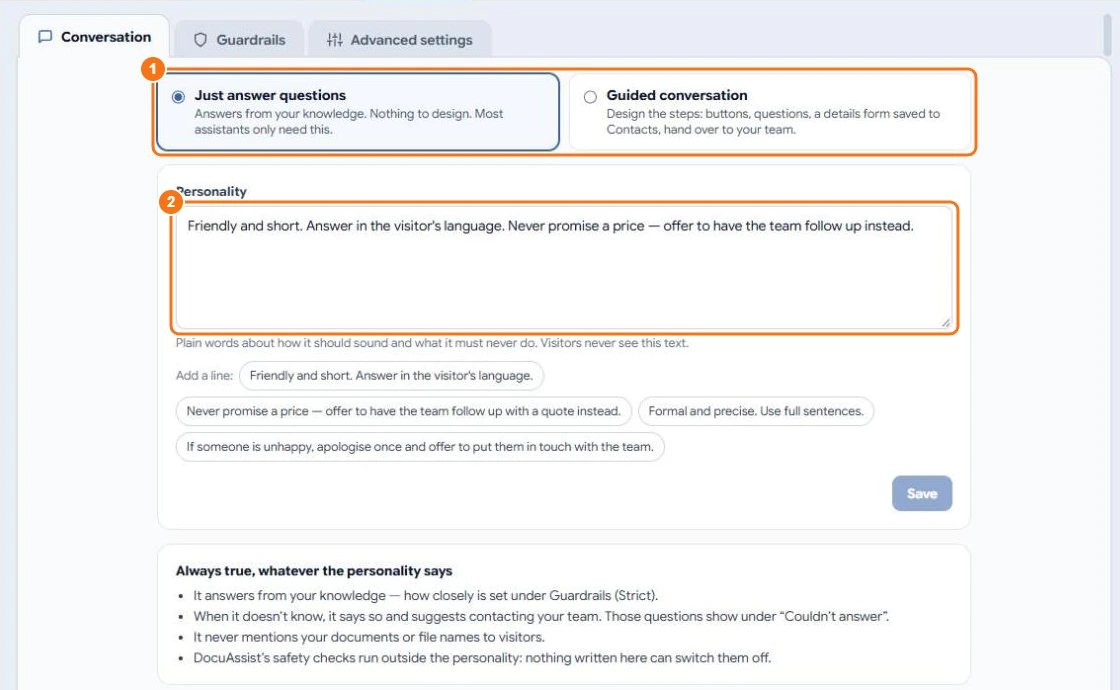
Choose one (1):
- Just answer questions — it answers from your knowledge. Most chatbots only need this.
- Guided conversation — design the steps: buttons, questions, a details form saved to Contacts, an email to your team, or a hand-over to a person. Questions typed in between are still answered from your knowledge.
Personality
Describe in plain words how it should sound and what it must never do (2), for example "Friendly and short. Answer in the visitor's language." Select a suggestion under the box to add a line. Visitors never see this text.
Some things are always true, whatever the personality says: it answers from your knowledge, says when it doesn't know, never mentions your documents or file names, and the safety checks can't be switched off.
Guided conversations
In the designer, add steps such as Say a message, Ask a question, Show buttons, Collect details, Answer from knowledge, Save as a contact, Email my team, Hand over to a person and End the chat. Each button or answer leads to the next step. The Leads and bookings template is a good start.
Advanced settings
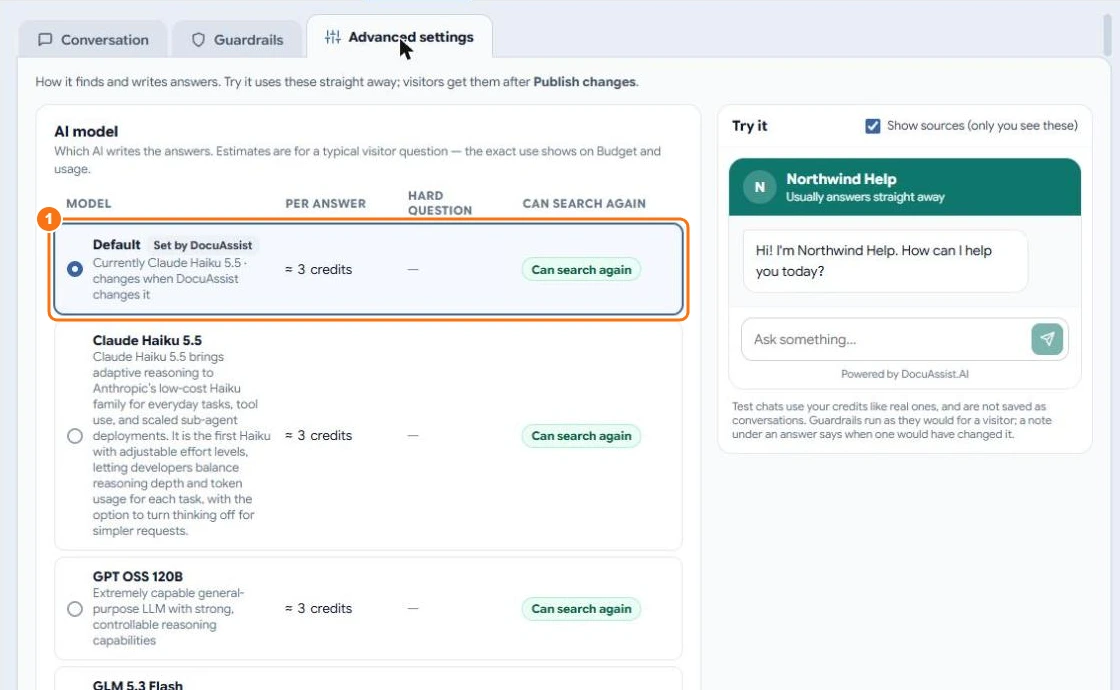
- AI model — which AI writes the answers, with the credits per answer for each (1). Default follows the model DocuAssist.AI picks.
- Thinking effort — how hard it searches before answering: Automatic, Fast, Balanced or Thorough. More effort finds answers spread over several documents but uses more credits.
Try it uses these settings straight away; visitors get them after you publish.