 DocuAssist.AI Guide
Quick start
This page takes you through the things most people do first in DocuAssist.AI. Each step takes a few minutes and links to the full guide.
1. Sign in
Go to portal.docuassist.ai and sign in, or create a free account. See Sign up and sign in. You land on your Home.
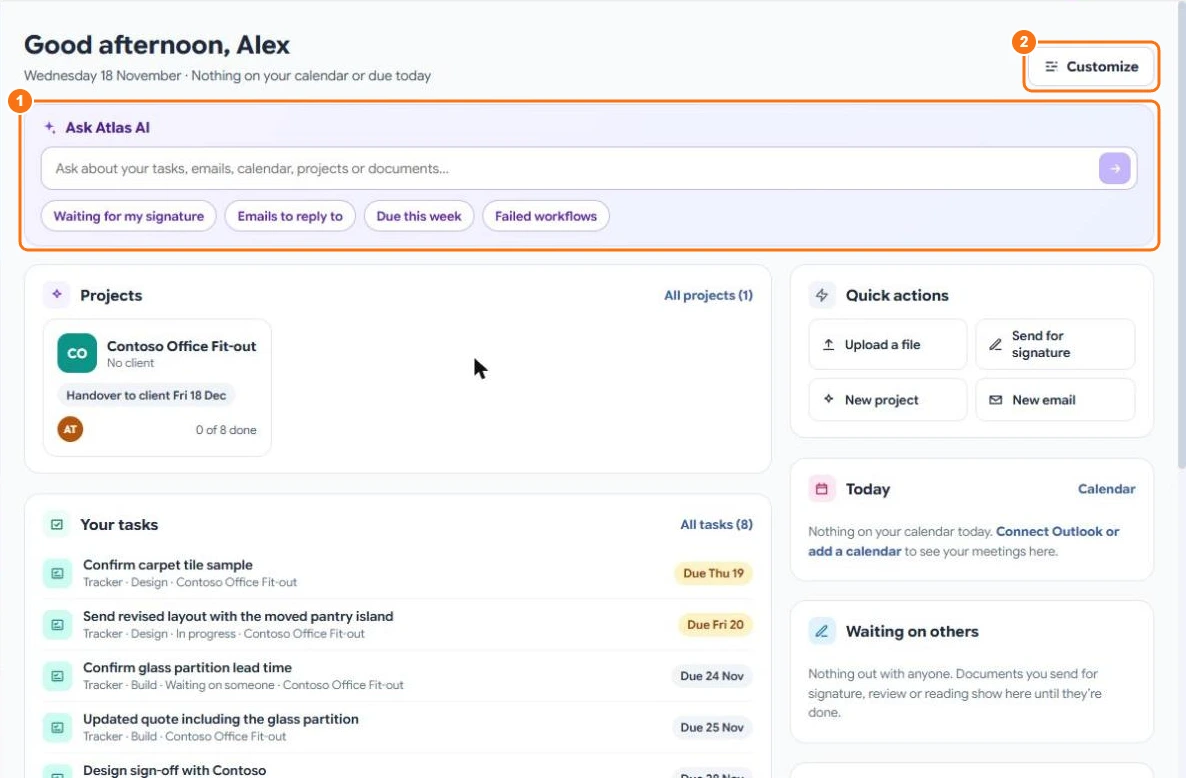
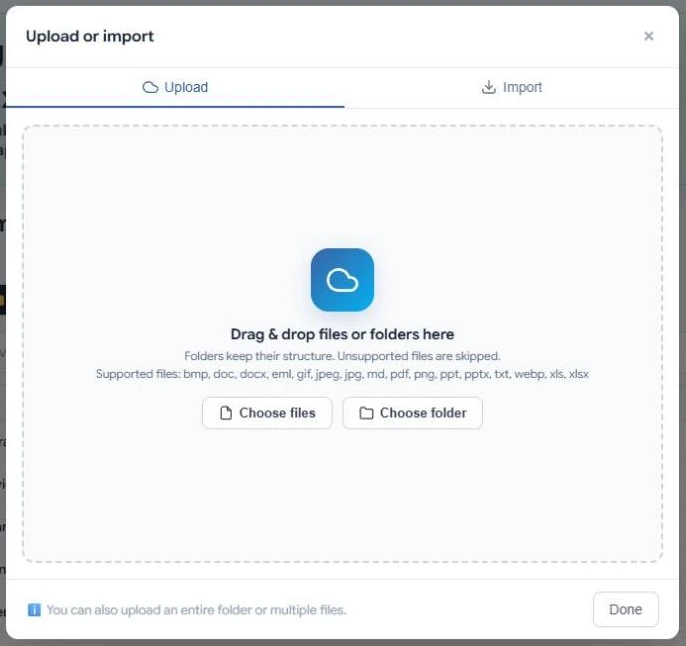
2. Upload a document
Select My Documents, then Create New → Upload Document, and choose a file from your computer. PDFs, Word, Excel, PowerPoint, text, email and picture files are all supported. See Upload files.
3. Open and edit a PDF
Select the PDF to open it in the editor. Add text, highlight, draw, comment or fill in a form, then select Save. See Open and view PDFs and Annotate PDFs.
4. Get it signed
Sign the document yourself, or send it to others for their signature and follow each signer's progress. See Send for signature.
5. Ask Atlas AI
In the editor, open Atlas AI on the right and ask a question about the document, for example "What is the payment term?". The answer shows where in the document it came from. See Ask Atlas AI about a document.
6. Start a project
For a client or a job, create a project in AI Workspace: it keeps the files, emails, notes, tracker and team together, and Atlas AI can answer questions about all of it. See Create a project.
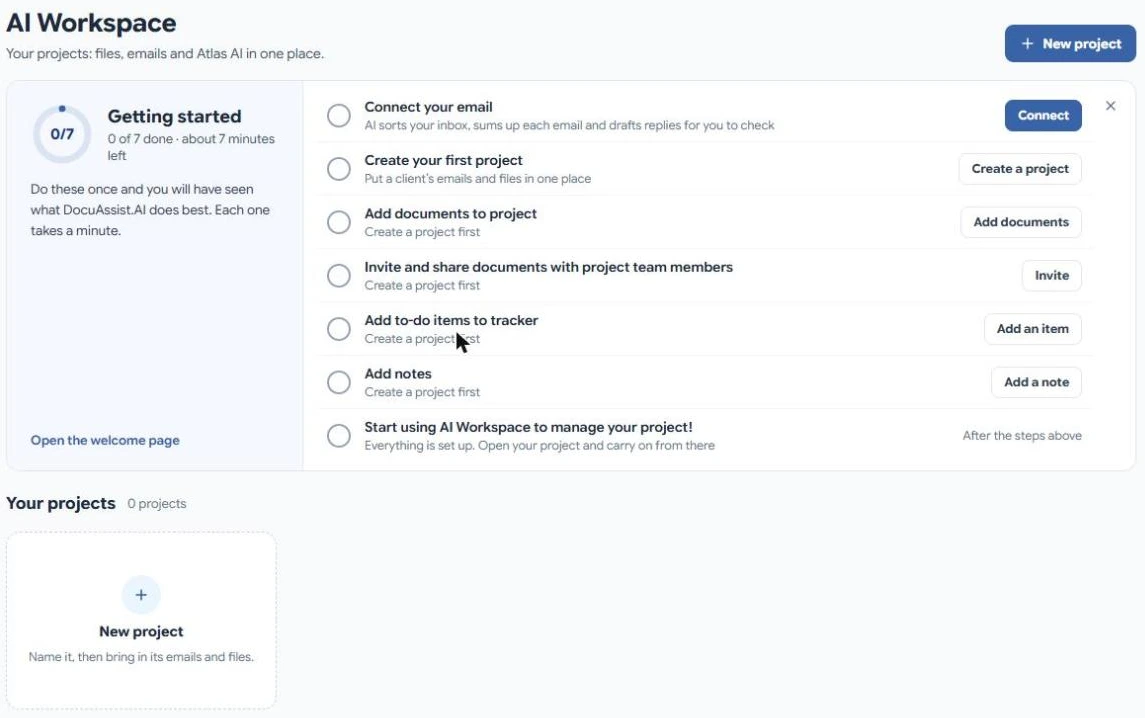
7. Connect your email
Connect Outlook, Gmail or another mailbox so AI Email can sort your inbox, sum up each email and draft replies. See Get started with AI Email.
Credits and plans
The free Basic plan includes 1,000 credits every month. Credits pay for AI, the PDF tools, signing requests and secure sharing. See How credits work and Plans and pricing.
Need help?
Select Contact Support at the bottom of the menu, or email [email protected].