 DocuAssist.AI Guide
People and sharing
You decide who is on each project and what each person can do. Emails, Teams chats and linked folders you connect stay private to you until you share them.
Invite someone
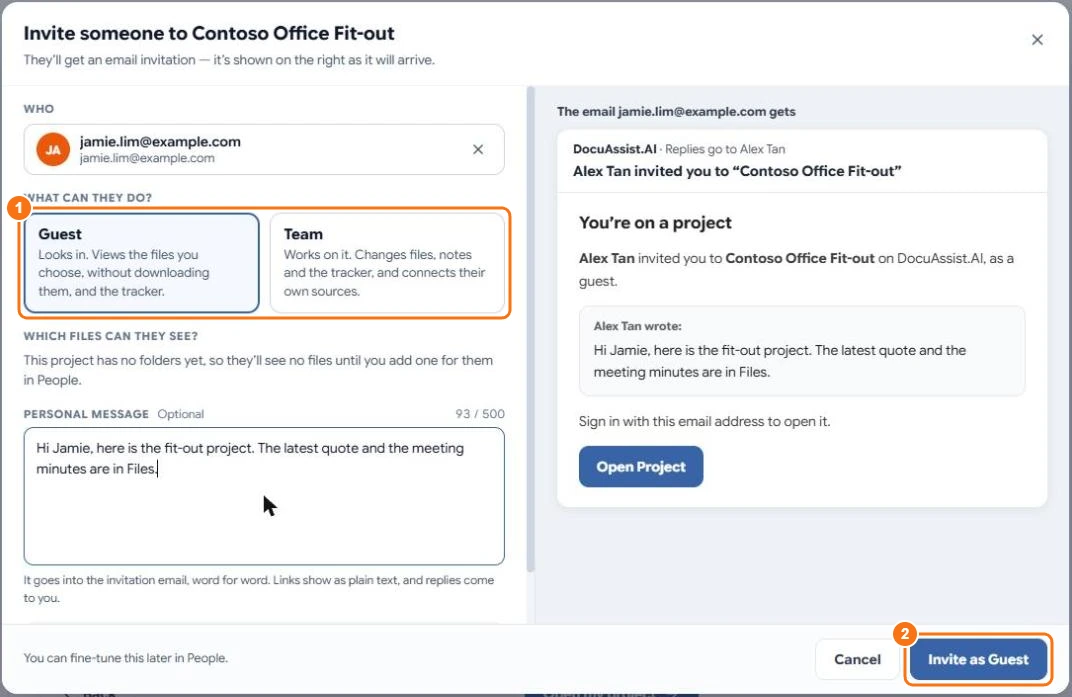
- Open the project. Select Invite on the Team card, or Project settings → People → Invite someone.
- Enter their name or email address.
- Choose what they can do (1):
- Guest — looks in: views the files you choose, without downloading them, and the tracker.
- Team — works on it: changes files, notes and the tracker, and connects their own sources.
- Optionally add a personal message. It goes into the invitation email word for word, and replies come to you.
- Select Invite (2).
They get an email invitation and sign in with that address to open the project. Someone without a DocuAssist.AI account can sign up with it.
Change what someone can do
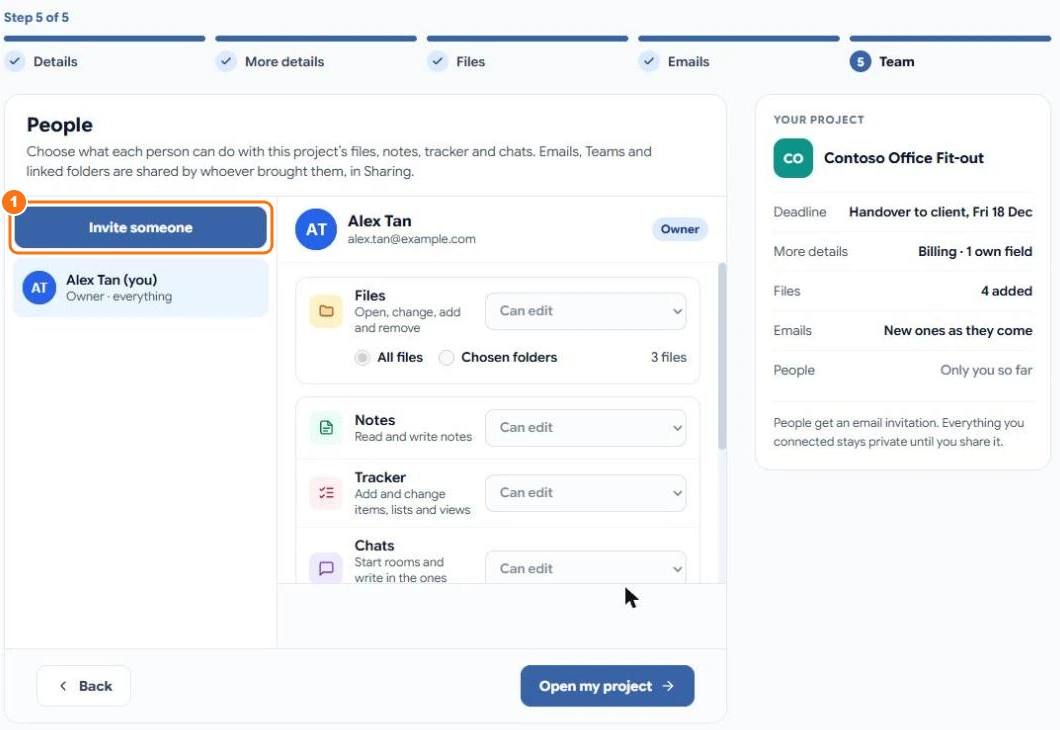
In Project settings → People, select a person and set each part separately:
| Part | Choices |
|---|---|
| Files | No access, Can view, Can view and download, Can review and comment, Can edit — for all files or chosen folders |
| Notes | No access, Can view, Can edit |
| Tracker | No access, Can view, Can edit |
| Chats | No access, Can view, Can edit |
| Connect their own sources | Whether they may add their own emails, Teams chats and folders |
Can view lets someone open files but not download or print them. Someone who can only view the tracker can still mark their own items done.
Share what you connected
In Project settings → Sharing, you see everything you brought into the project — emails, Teams chats and linked folders — and can share each one or keep it to yourself. When you share:
- Emails show only to the people who were part of each conversation.
- Teams chats and channels show only to people who are in them in Teams.
- Linked folders show to everyone who can see the project's files.
This applies to everyone, including the project's and the workspace's owners: other people's private sources stay private.
Remove someone
In Project settings → People, select the person and remove them. They lose access straight away. What they added stays in the project.