 DocuAssist.AI Guide
Comments and @mentions
Leave notes on a document for yourself or your team. Comments are kept in threads beside the page, so a discussion stays next to the line it is about.
Before you start
You need Comment or Edit access to the document.
Add a comment
- Place the comment
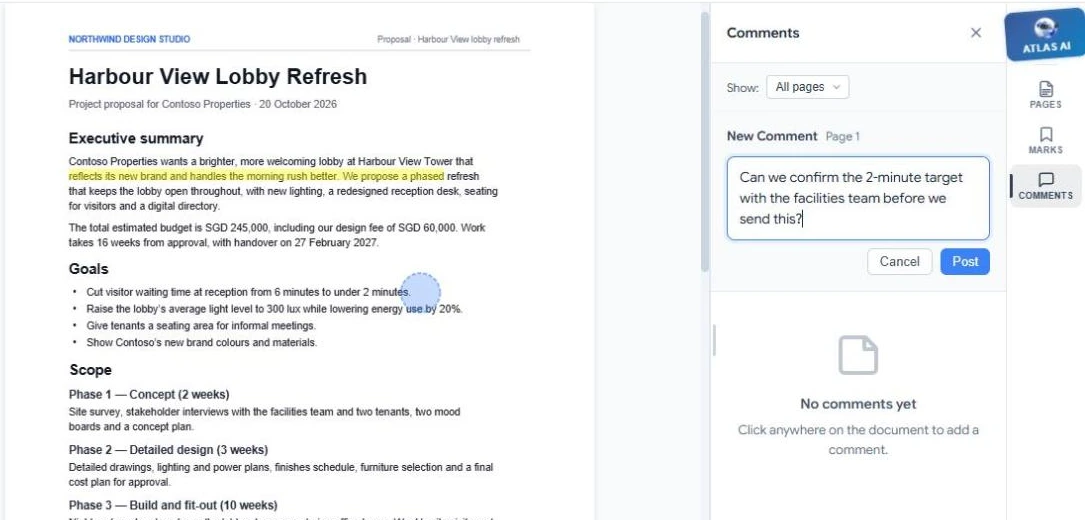
Select Comment (C) and click the spot on the page you want to talk about. Or select some text and choose Comment in the small toolbar.
- Write and post it
Type your comment in New Comment and select Post. Type @ followed by a name to mention someone.
- Discuss in the thread
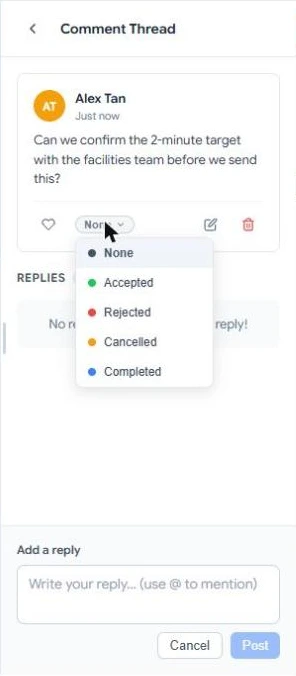
Select a comment to open its thread. Reply in Add a reply, like it with the heart, edit or delete it, or set its status: Accepted, Rejected, Cancelled or Completed.
Mention someone
When you mention a person with @:
- Someone who can open the document gets a notification and an email with your comment.
- Someone who cannot open it gets an email with a link to ask for access. Your comment is not included until they have access.
See every comment
Select Comments in the right-hand panel. Use Show to see comments on all pages or only the page you are on. Select a comment to jump to its place on the page.