 DocuAssist.AI Guide
Download files and folders
Download one file straight away, or select several files and folders and download them together as a ZIP file that keeps their folder structure.
Download one file
- In My Documents, hover over a file and select the download icon at the end of its row.
- Or open the file and select Download at the top right.
For PDFs, you choose whether your markup and signatures stay editable in the downloaded copy. See Save, download and print.
On the free Basic plan you have a small number of downloads in total, and the download button shows how many are left. Paid plans have unlimited downloads.
Download several files or a folder as a ZIP
- Choose what to download
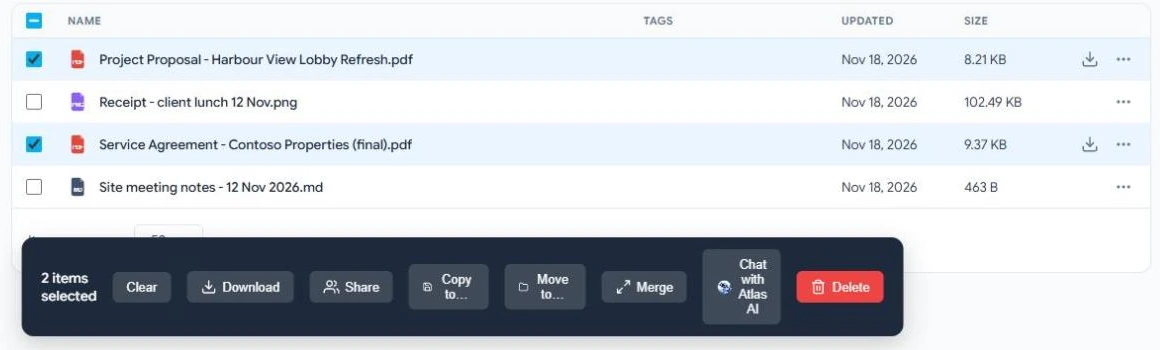
Tick the files and folders you want and select Download in the dark bar. For a single folder, you can also select ⋯ → Download as ZIP on its row.
- Check and start
DocuAssist.AI shows how many files will be included, their total size, and any files that will be left out with the reason. Select Download to start.
- Get your ZIP
The ZIP is prepared in the background. Follow it in the Activity panel on the My Documents page. When it is ready it downloads by itself, and a link stays in the Activity panel for a while if you need it again.
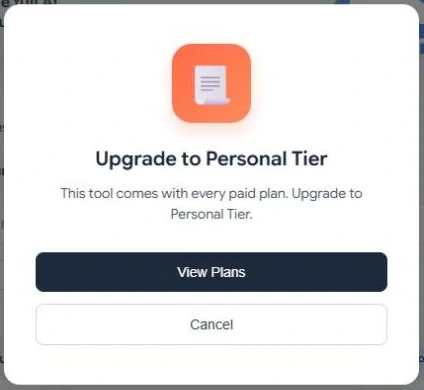
Downloading as a ZIP is included in paid plans. On the free Basic plan, DocuAssist.AI offers to upgrade.
Files left out of a ZIP
A file is listed as skipped, with the reason, when for example:
- the person who shared it with you turned off downloading,
- it has an expiry date that has passed,
- it is being changed by a background task at that moment.
Password-protected files are included exactly as they are, still with their password.
Credits
Downloading one file is free. A ZIP download uses credits for each archive and for its size. See Credit rates.