 DocuAssist.AI Guide
Calendar settings and connected calendars
Tell DocuAssist.AI when you work and when you do not, and bring in the calendars you already use. Atlas AI and availability checks use all of it.
Working hours, breaks and time zone
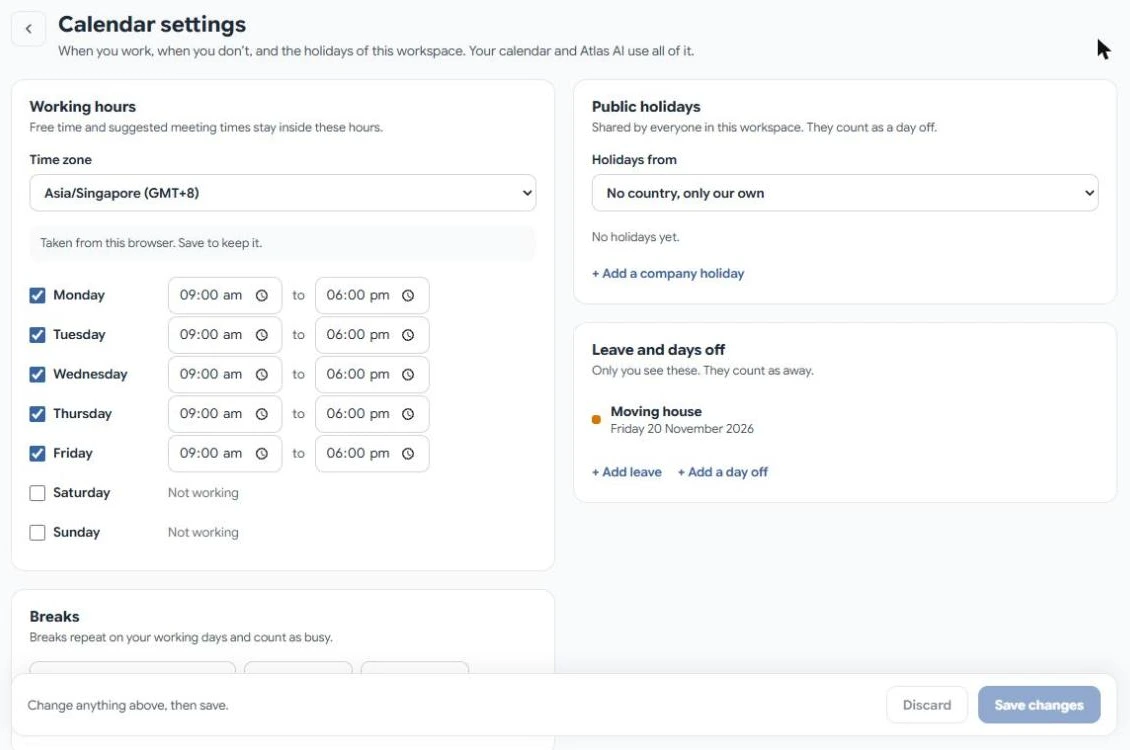
- Open Calendar and select the gear at the top right.
- Under Working hours, choose your Time zone and tick the days you work, with their start and end times.
- Under Breaks, add breaks such as lunch. Breaks repeat on your working days and count as busy.
- Select Save changes. Discard throws away what you changed.
Public holidays
Public holidays are shared by everyone in the workspace and count as days off.
- Under Holidays from, choose your country to bring in its public holidays.
- Select Add a company holiday for your own days, such as a company day off.
If your country is not in the list, choose No country, only our own and add your holidays as company holidays.
Leave and days off
Under Leave and days off, select Add leave or Add a day off. Only you see these. They count as away.
Show your other calendars
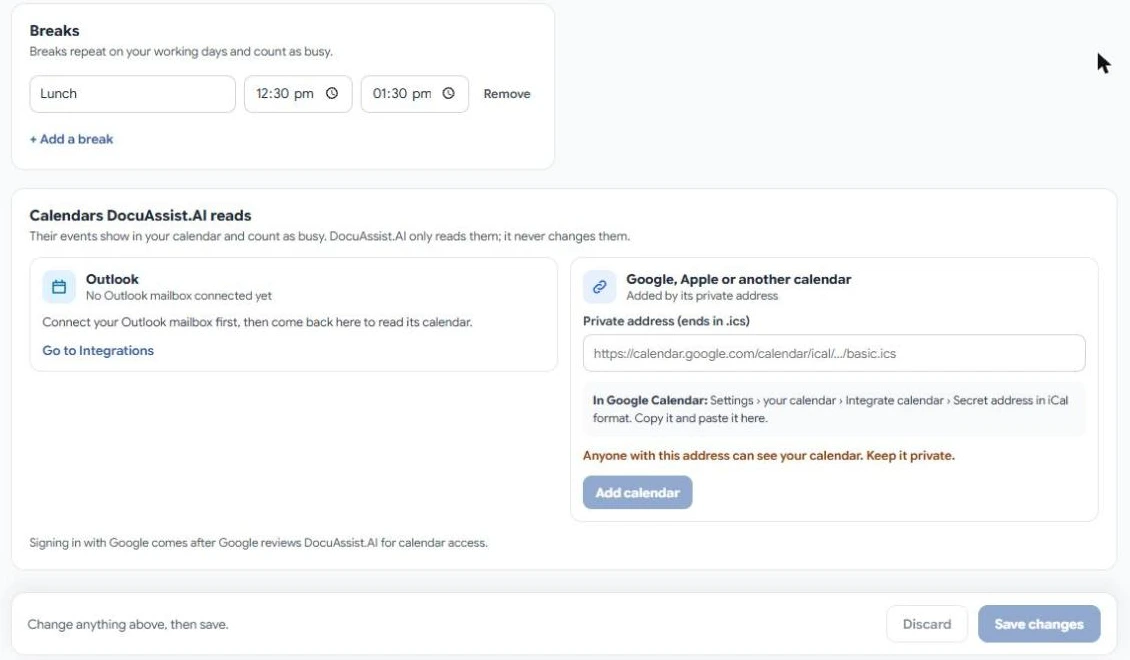
DocuAssist.AI can read your existing calendars so their events show in your calendar and count as busy. It only reads them; it never changes them.
- Outlook — connect your Outlook mailbox first in Integrations, then come back and allow DocuAssist.AI to read its calendar. See Connect Outlook.
- Google, Apple or another calendar — paste the calendar's private address (it ends in .ics) and select Add calendar. In Google Calendar, you find it under Settings › your calendar › Integrate calendar › Secret address in iCal format.
Anyone with a calendar's private address can see that calendar. Keep it private, and do not share it with other people.
Connected calendars are read again each time you open the calendar.