 DocuAssist.AI Guide
Project notes
The Notes tab is where you write down meetings, calls, scope and decisions. Atlas AI reads notes together with the project's files and emails.
Write a note
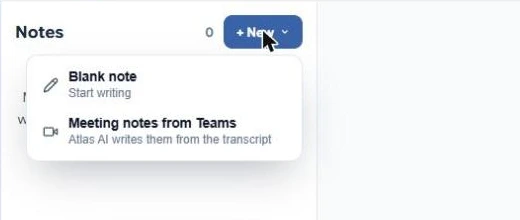
- Open the project and select Notes.
- Select New → Blank note.
- Type a title, then write the note. It saves as you type.
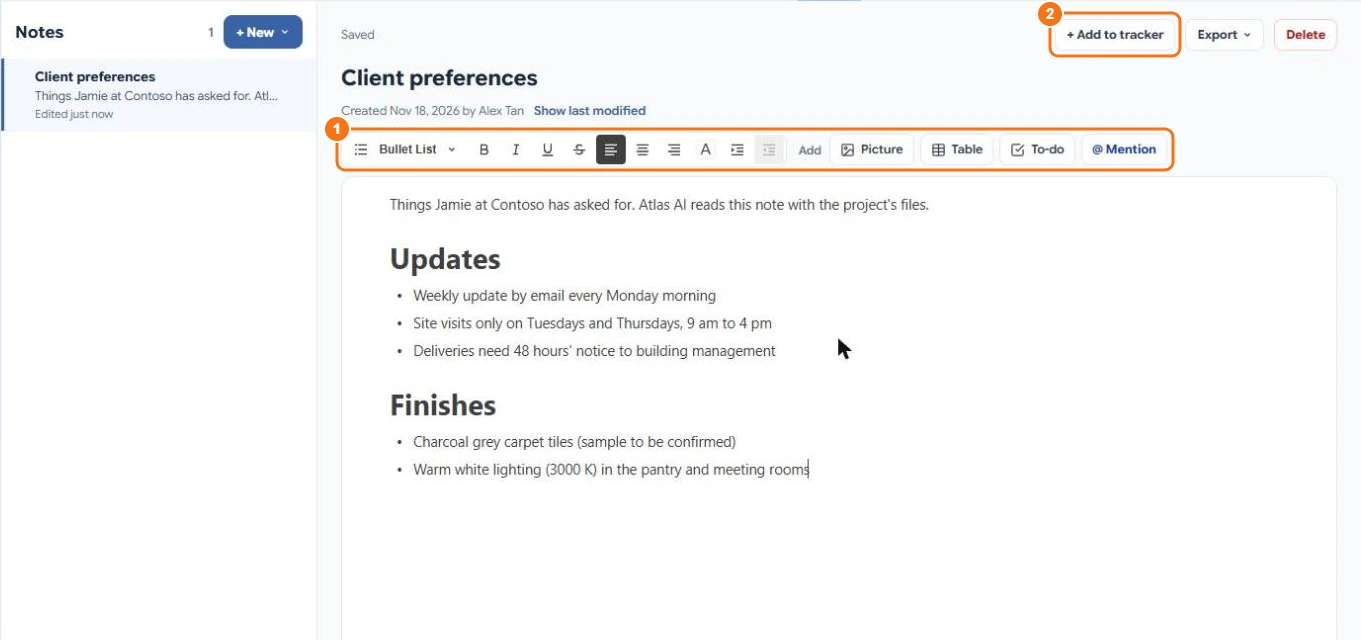
Use the toolbar (1) for headings, bold, italic, lists, colours and alignment. Add inserts a picture, a table or a to-do list. Type / for more blocks. Markdown shortcuts work too: start a line with ## for a heading or a hyphen for a bullet.
Mention someone
Select Mention, or type @, and pick someone on the project. They get a notification and a task to read the note. People who can't open the project's notes can't be picked.
Organise notes
You can put a note under another note, up to three levels deep. Under each note you can see who made it and when.
Turn a note into tracker items
Select Add to tracker (2) to add an item linked to the note.
Export or delete
- Export saves the note as a Markdown file or as a PDF.
- Delete removes the note and any notes underneath it.
What Atlas AI reads
Atlas AI reads a note's text and the captions of its pictures, but not what the pictures show. Add a caption to any picture that matters.
Meeting notes from Teams
Select New → Meeting notes from Teams to have Atlas AI write a note from a Teams meeting's transcript. See Meeting notes from Teams.