 DocuAssist.AI Guide
Add a watermark to a PDF
Add a watermark such as CONFIDENTIAL or your logo to every page of a PDF.
Add a watermark
- In My Documents, select the PDF's row menu (⋯) → PDF Tools → Watermark.
- Set up to three areas:
- Body — large text or an image across the middle of the page;
- Header and Footer — smaller text or an image at the top or bottom.
- For each, choose Text or Image, then the font, size, colour, style, opacity and rotation. The preview shows page 1; drag the watermark on it to move it.
- Select Apply Watermark.
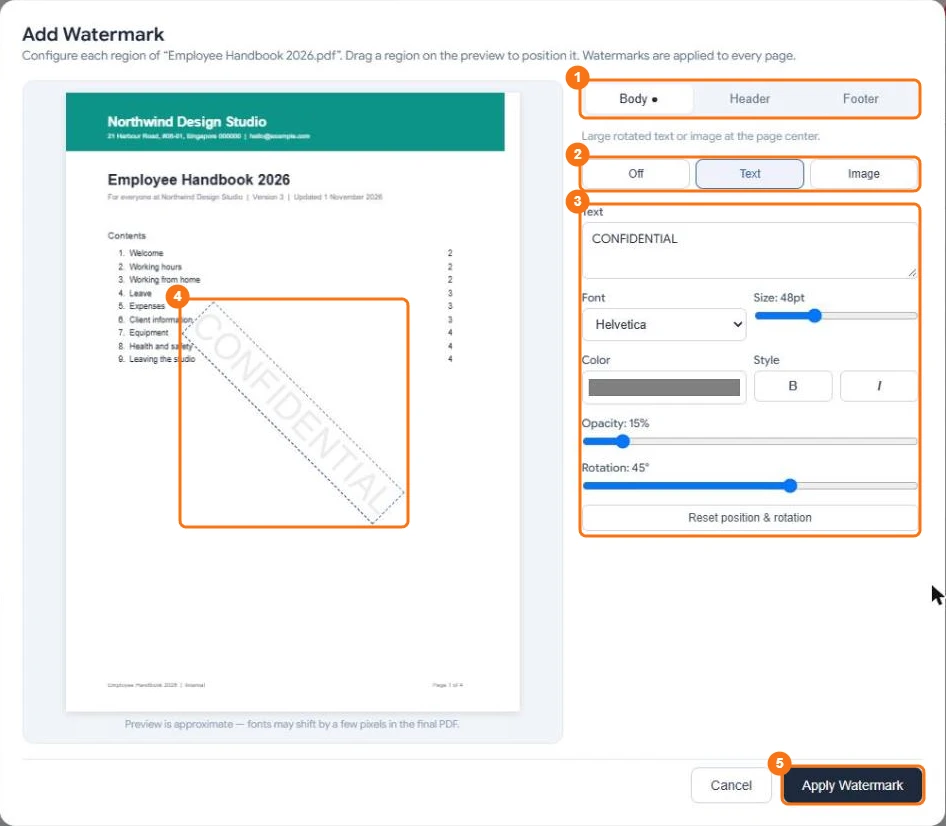
In the picture: 1 Body, Header and Footer, 2 Off, Text or Image, 3 the text settings, 4 the watermark on the preview, 5 Apply Watermark.
Remove a watermark
Select PDF Tools → Remove Watermark. The file goes back to how it was before the watermark.
Good to know
- A watermarked PDF can't be sent for signing until you remove the watermark.
- To watermark many PDFs at once — even with a different watermark per document — use Bulk PDF tools.
- To give each recipient a copy with their own name on it, use Protect and Send instead.
- Adding or removing a watermark uses 20 credits per document.
Related
Last updated on November 18, 2026