 DocuAssist.AI Guide
Bulk PDF tools
Run one PDF tool on every PDF in a folder, including its subfolders — up to 500 files at a time.
Start a bulk run
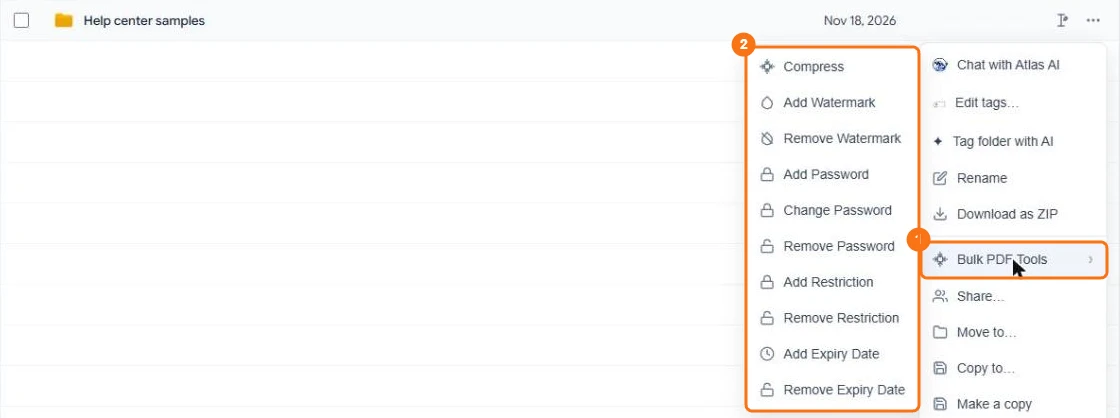
In the picture: 1 Bulk PDF Tools on a folder, 2 the tools you can run on every PDF inside.
- In My Documents, select a folder's row menu (⋯) → Bulk PDF Tools, and choose the tool: Compress, add, change or remove a password, add or remove a restriction, add or remove a watermark, or add or remove an expiry date.
- DocuAssist.AI checks the folder first and shows how many PDFs it will change and which it will skip, with the reason (for example a file that is being edited by another task).
- If some PDFs have passwords, enter them — one for all, or one per file. Passwords are used for this run only and never stored.
- Choose the options, the same as for one file.
- Check the summary and start.
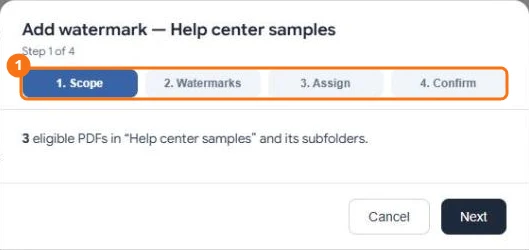
First DocuAssist.AI says how many PDFs it found. In the picture: 1 the four steps.
Different watermarks for different files
For watermarks, you can create several watermarks in one run and choose which files get which. Files you don't assign get the first watermark, unless you choose to skip them.
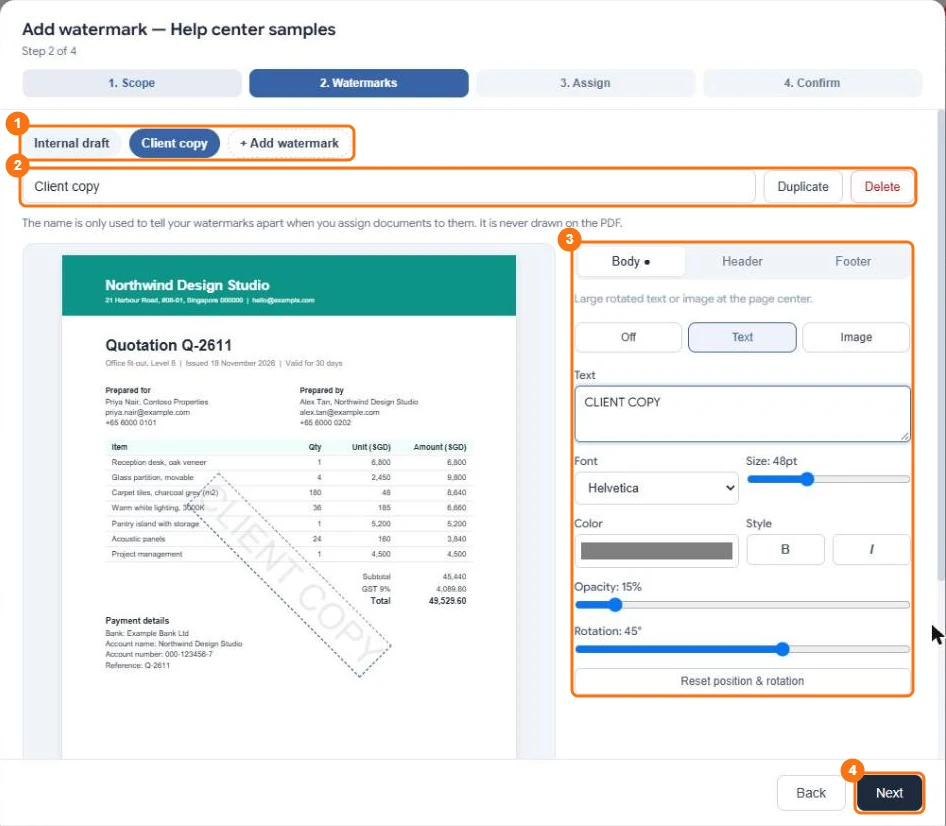
In the picture: 1 your watermarks and Add watermark, 2 the name (only you see it), Duplicate and Delete, 3 the settings for the one you picked, 4 Next.
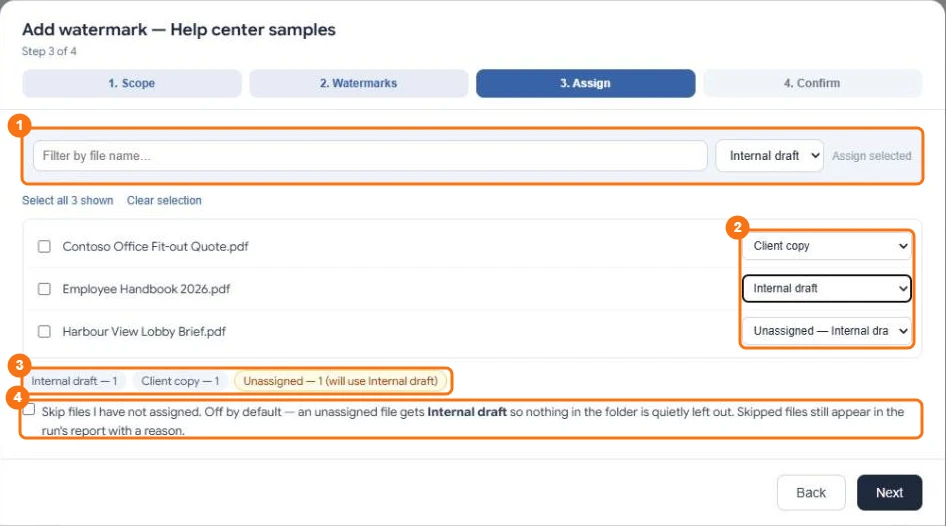
In the picture: 1 filter by name and assign several files at once, 2 the watermark for each file, 3 how many files each watermark gets, 4 skip the files you have not assigned.
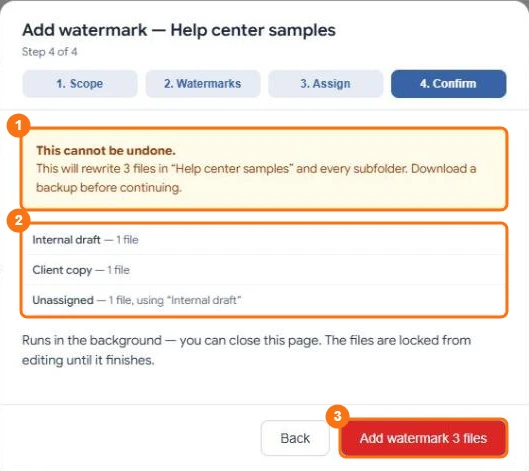
In the picture: 1 the warning, 2 how many files get each watermark, 3 the button that starts the run.
Follow the progress
The Activity panel at the top of My Documents shows the run: how many files are done, which file it is working on, and any that failed or were skipped, with the reason. You get a notification when it finishes. While a file is being processed, nobody can save changes to it.
What it costs
The same as running the tool on each file. Files that fail or are skipped aren't charged.