 DocuAssist.AI Guide
Sign a document yourself
When only you need to sign — a form, a letter or a contract the other side has already signed — add your signature straight in the PDF editor.
Add your signature
- Open the PDF and choose Add Sign
Open the document from My Documents and select Add Sign in the tools panel.
- Create your signature
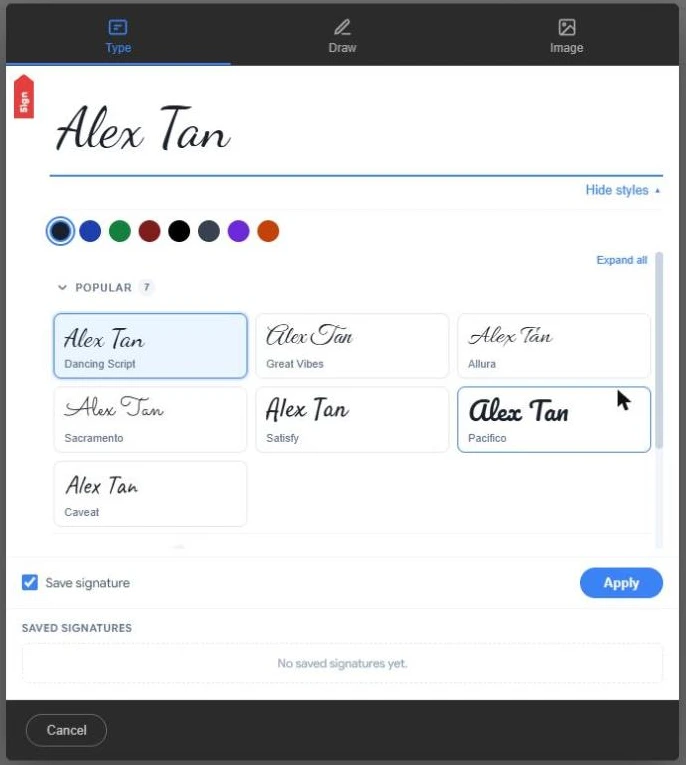
- Type — type your name and pick one of the handwriting styles. Select Change style to see them all, and pick an ink colour.
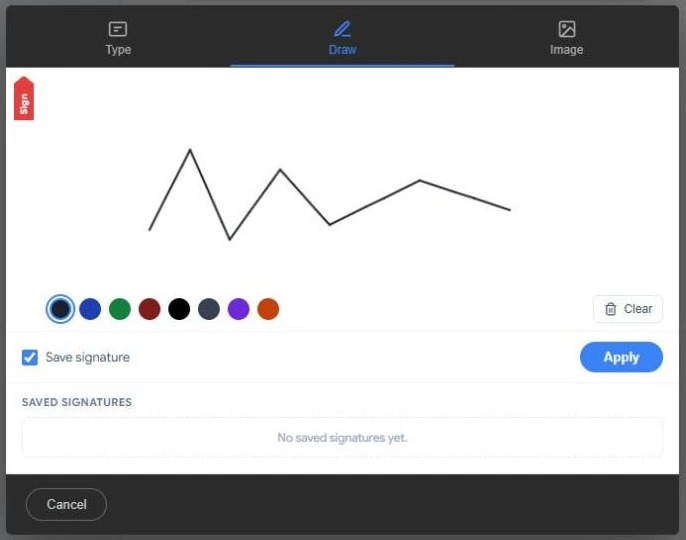
- Draw — draw with your mouse, pen or finger. Clear starts again.
- Image — upload a picture of your signature.
- Place it
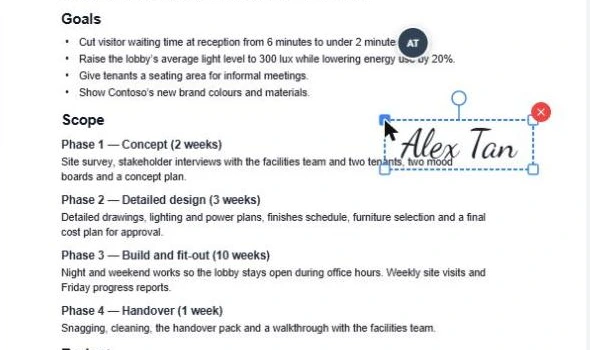
Select Apply, then click on the page where the signature goes. Drag it to move it, drag a corner to resize it, or select the red × to remove it.
- Save
Select Save in the editor.
Save signatures to reuse
Tick Save signature before you select Apply. Next time, your signature is listed under Saved signatures: select Use to place it, or rename or delete it.
Note
A typed signature is stored in the PDF as real text in a handwriting font, so it stays sharp at any zoom and in any PDF reader.
Credits
Signing a document yourself uses a small number of credits. See Credit rates.
Related
Last updated on November 18, 2026