 DocuAssist.AI Guide
Tags and views
Folders put each file in one place. Tags let the same file belong to several groups at once — for example Document type: Contract and Client: Contoso Properties. You decide the tag types and their values; on paid plans, AI can fill them in for you.
Create your tag types
- Open Tags management
In My Documents, select Manage Tags.
- Add a tag type and its values
Under New tag type, type a name such as Document type, choose whether a document gets exactly one value or several, and select Create. Then type each value and select Add.
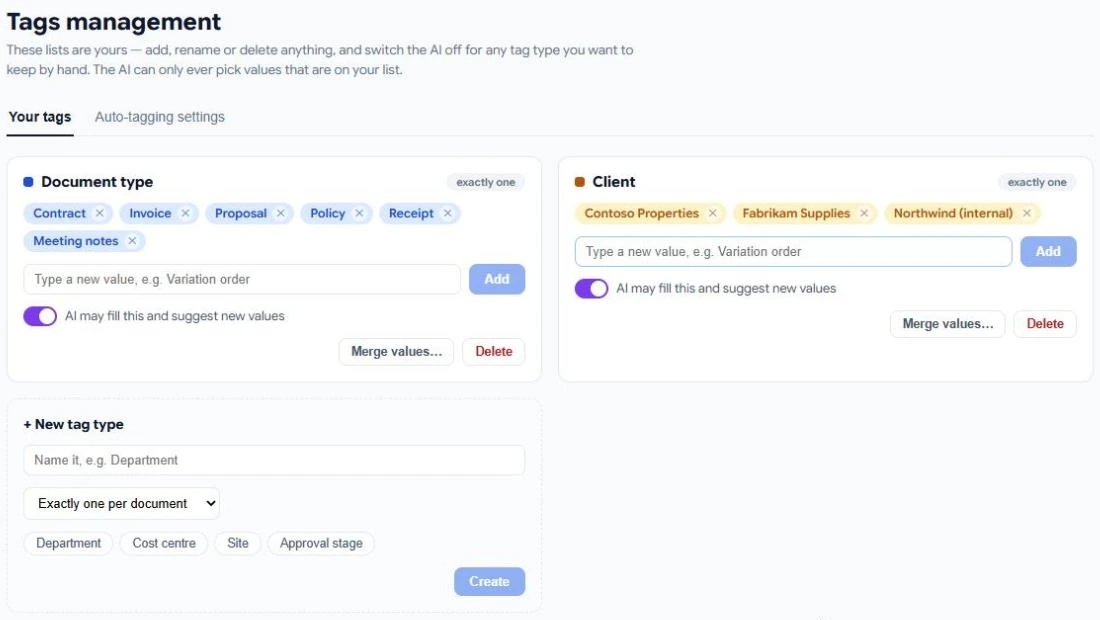
On each tag type you can:
- Switch AI may fill this and suggest new values off to keep it for people only. The AI never touches those.
- Merge values that mean the same thing, for example Invoice and Invoices.
- Delete the tag type.
Tag a file by hand
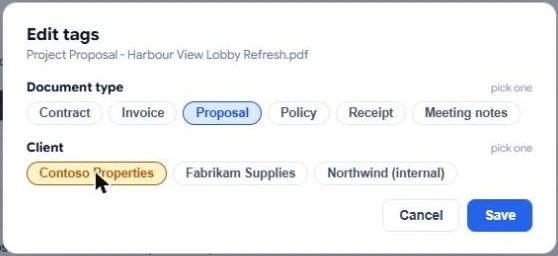
Right-click a file in My Documents and choose Edit tags. Pick a value for each tag type and select Save. The tags appear as coloured chips in the Tags column.
Tag a folder and everything inside it gets the same tags. Chips that come from a folder show a folder icon.
Browse and filter by tag
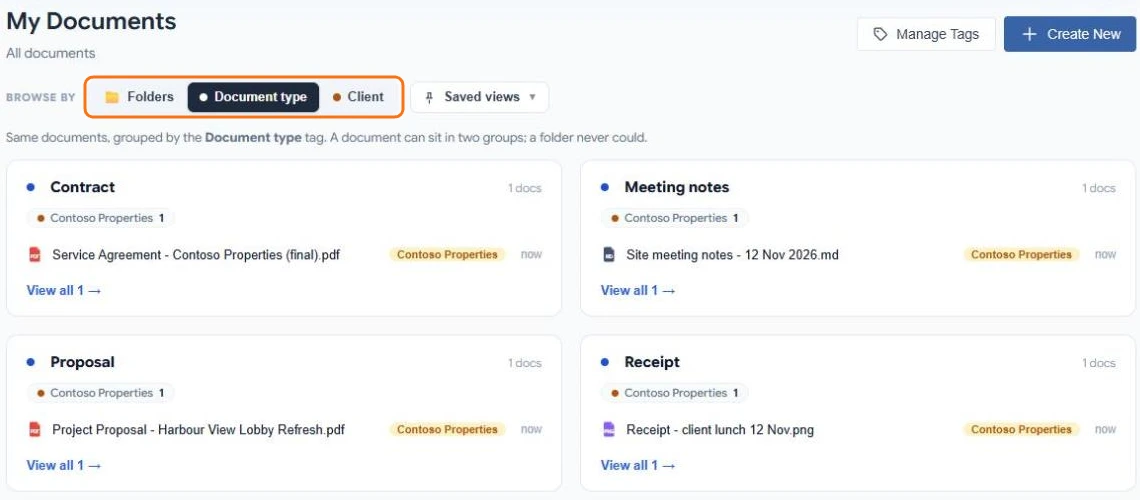
Next to Browse by, select a tag type instead of Folders. Your documents are grouped by that tag's values, wherever they are stored. A document with two values appears in both groups. Select View all to see a whole group.
To combine tags, filter by them above the file list, then open Saved views to save that filter as a view you can come back to. Tag filters also work on the search page.
Let AI tag your documents
On paid plans, Atlas AI can tag new documents for you. It only ever chooses values from your own lists.
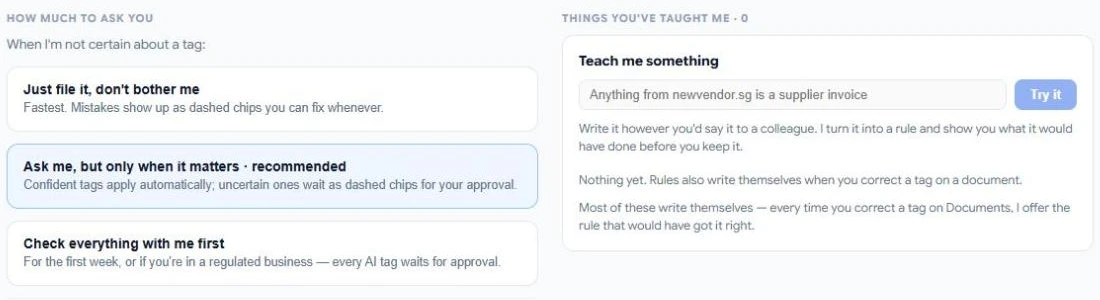
In Manage Tags → Auto-tagging settings, choose how much the AI should ask you:
- Just file it, don't bother me — tags are applied straight away. Mistakes show as dashed chips you can fix.
- Ask me, but only when it matters (recommended) — confident tags are applied, uncertain ones wait as dashed chips for your approval.
- Check everything with me first — every AI tag waits for you.
A dashed chip with ✓ and ✕ is a suggestion. Select ✓ to keep it or ✕ to reject it. The AI does not suggest a rejected value for that document again.
Teach it your rules
Under Teach me something, write a rule the way you would tell a colleague, for example Anything from newvendor.sg is a supplier invoice, and select Try it. DocuAssist.AI turns it into a rule and shows you which documents it would have tagged before you keep it. Rules run before the AI, and they are free. When you correct a tag by hand, DocuAssist.AI may offer to make a rule from it.
Credits
Tagging by hand and rules are free. AI tagging, teaching a rule and suggesting new values use credits. See Credit rates.