 DocuAssist.AI Guide
Rules and teaching
Rules tell AI Email what to do with mail from certain senders. Teaching lets it learn from the emails you move.
Open Rules
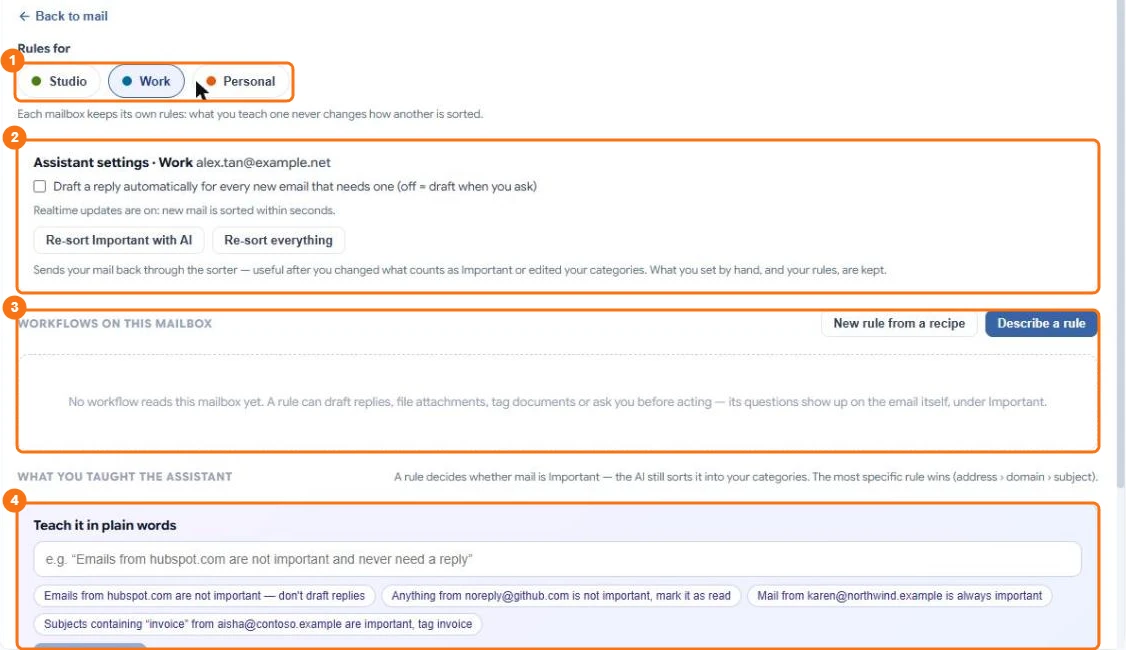
In the picture: 1 the mailbox, 2 its assistant settings, 3 workflows that read this mailbox, 4 Teach it in plain words.
Select Rules at the top of the Emails page. You can:
- turn automatic reply drafts on or off;
- see the AI Workflows that run on this mailbox;
- see, change and delete your rules.
Sender rules
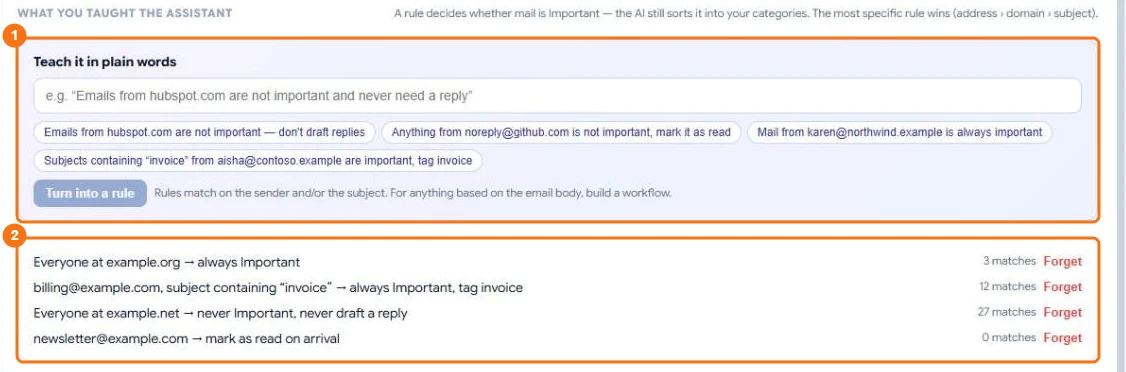
In the picture: 1 teach a rule in plain words, 2 your rules, each with how many emails it matched.
A rule says, for a person, a domain or any sender with certain words in the subject:
- always Important or never Important;
- which tags to add;
- never draft a reply;
- mute — new mail from them is marked read and stays out of your way.
Each rule is shown as a sentence, so you can see what it does.
Write a rule in plain words
Type what you want, for example "Newsletters from example.com are never important", and select Add. AI Email turns it into a rule and shows it to you before saving. This uses a few credits.
Teach AI Email from an email
When you move an email in or out of Important, or in or out of a category that Atlas AI picks, AI Email offers to learn from it:
- Mail like this... — Atlas AI writes a short lesson, such as "Supplier delivery updates are important", for you to check and save.
- Not this sender or Not anyone at a domain — a quick sender rule.
- Stop asking — turns the offer off. Turn it back on in Categories → Important.
Nothing is learned unless you select one of these. Your lessons are listed in the Categories window, where you can change or delete them.