 DocuAssist.AI Guide
Create and fill PDF forms
Turn any PDF into a form people can fill in on screen, or fill in a form someone sent you.
Add form fields
- Open the form tools
Select Add PDF Form (Shift+F) in the tools panel. Edit Form Fields opens on the right.
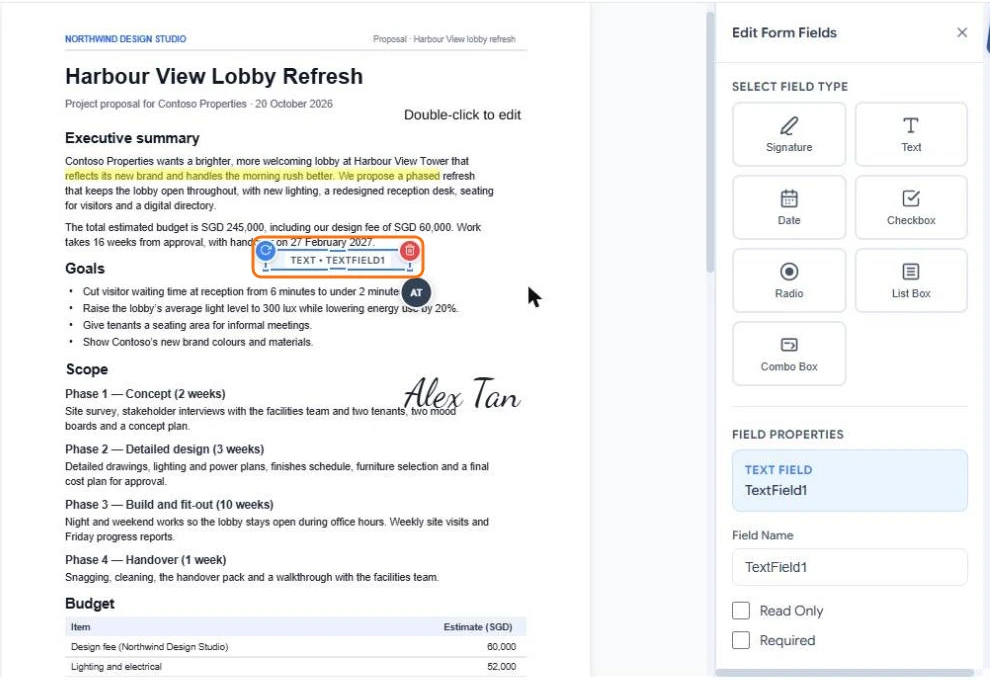
- Pick a field type and draw it
Choose Signature, Text, Date, Checkbox, Radio, List Box or Combo Box, then drag on the page where the field should be.
- Set its properties
With the field selected, give it a clear Field Name and tick Read Only or Required if needed. Drag the field to move it, or drag its edges to resize it.
- Save
Select Save. The fields are real PDF form fields, so the form also works in other PDF readers.
Fill in a form
Open the PDF and click into a field to type, tick a box or choose from a list. Select Save when you are done. To sign a form, see Sign a document yourself.
To collect signatures and form answers from other people, send the document for signature instead. Each signer fills in only the fields given to them. See Send documents for signature.