 DocuAssist.AI Guide
Ask Atlas AI in a project
On the Ask Atlas AI tab, Atlas AI answers questions using everything in the project that you can see: its files, emails, Teams chats, notes, links and tracker. Every fact comes with a source you can open.
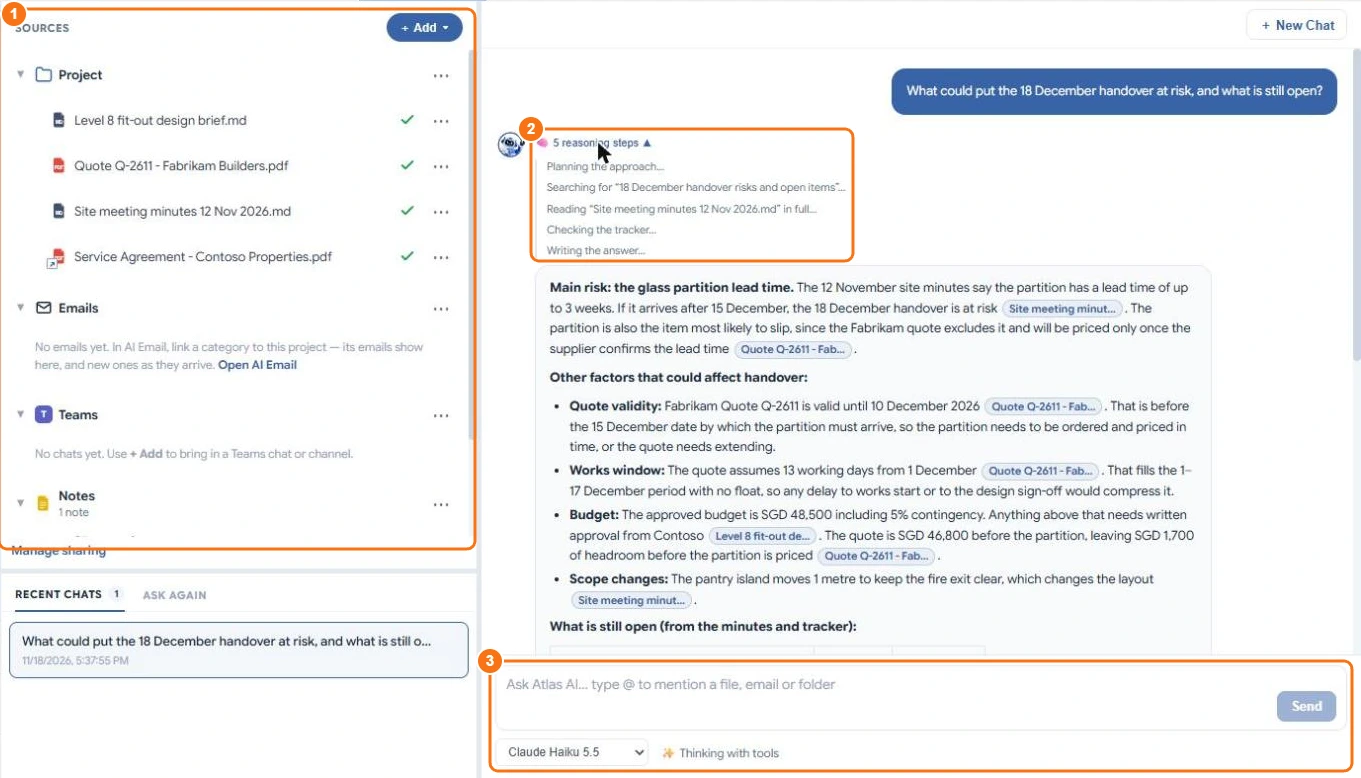
Ask a question
- Open the project and select Ask Atlas AI.
- Type your question in the box at the bottom (3) and press Enter. You can also pick one of the suggestions.
- Atlas AI looks through the project and writes the answer. Select reasoning steps (2) to see what it searched and read.
The Sources panel on the left (1) lists everything Atlas AI can read: the project's files, emails, Teams chats, notes and links. A green tick means a file is ready for Atlas AI.
Open a source
Each answer has small source chips. Select one to open the file in the preview on the right, at the place the answer comes from.
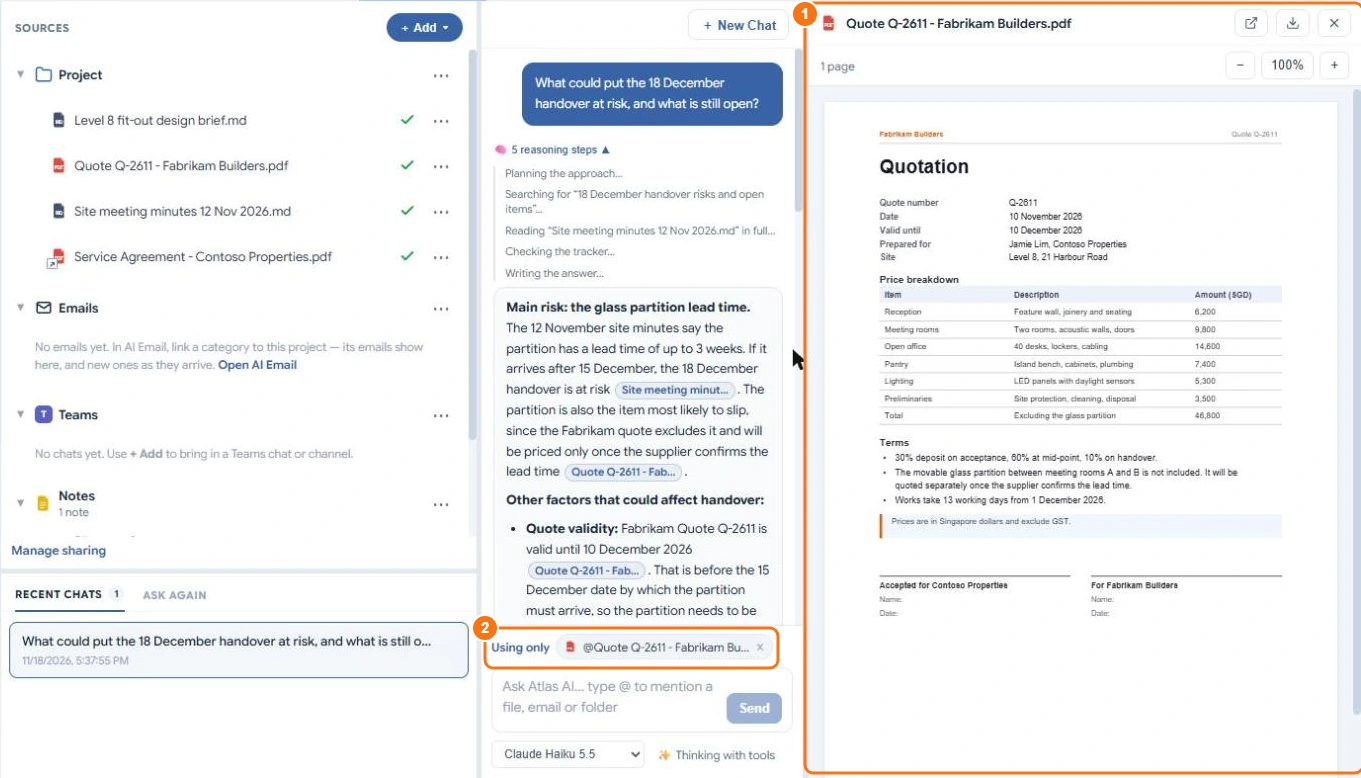
While a file is open in the preview, it is added to the question box as Using only (2): your next question is answered from that file alone. Select the cross on the chip to ask about the whole project again.
Ask about one file, email or folder
Type @ in the question box and choose files, folders, emails, notes or links. Atlas AI then answers only from what you mentioned.
After the answer
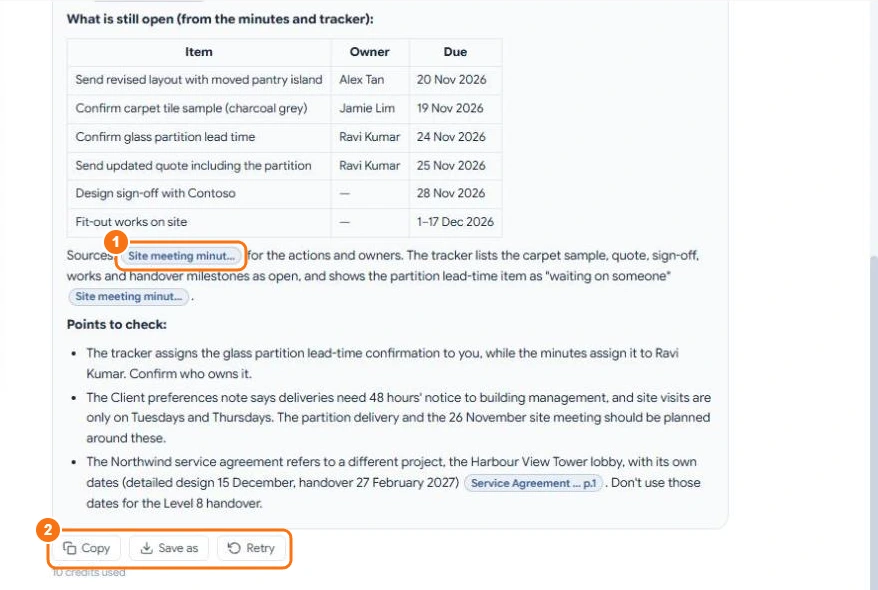
- Copy the answer, or Save as a document (2).
- Retry asks the same question again.
- The number of credits the answer used is shown under it.
Your chats with Atlas AI are private to you. Earlier chats are listed under Recent chats; Ask again lists questions you asked before, to send one again with one click.
Choose the AI model
Pick the model in the list under the question box. Faster models cost fewer credits; larger models are better at long or tricky questions. See Credit rates.
Add more for Atlas AI to read
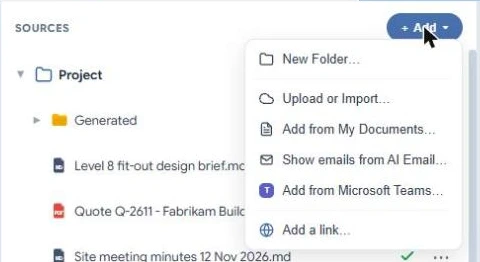
Select Add in the Sources panel to add a folder, upload or import files, add documents from My Documents, show emails from AI Email, add a Microsoft Teams chat or channel, or add a link.
Atlas AI can be wrong. Check important facts against the source before you rely on them.