 DocuAssist.AI Guide
Organize pages and bookmarks
Put pages in the right order, turn a sideways scan upright, add a blank page or remove one you do not need. Bookmarks let you and your team jump straight to the parts of a long document that matter.
Before you start
You need Edit access to the document. Page changes are kept when you select Save.
Rotate or delete the page you are on
In the tools panel, select Rotate Page to turn the current page a quarter turn, or Delete Page to remove it.
Organize all the pages
- Open Organize Pages
Select Organize Pages in the tools panel. Every page appears as a thumbnail.
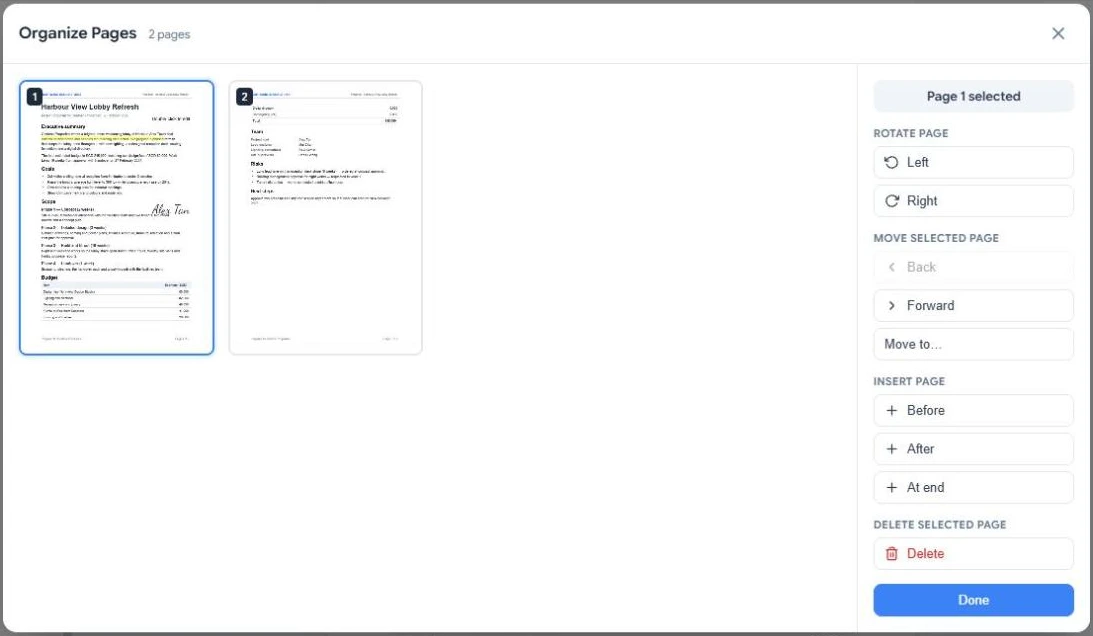
- Select a page and act on it
Click a thumbnail, then use the buttons on the right:
- Rotate Page — Left or Right.
- Move Selected Page — Back, Forward, or Move to a page number.
- Insert Page — a blank page Before, After or At end.
- Delete Selected Page.
- Finish
Select Done, then Save in the editor.
Bookmarks
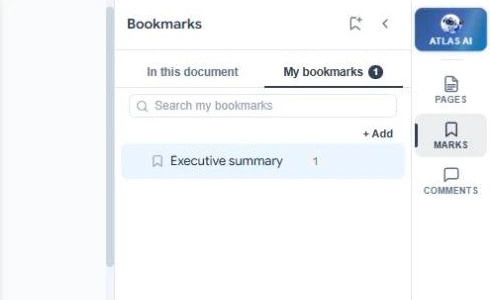
Select Marks in the right-hand panel.
- In this document shows the bookmarks that came with the PDF.
- My bookmarks holds the ones you add. Select + Add to bookmark the page you are on, and double-click a bookmark to rename it. Drag bookmarks to change their order or put one inside another.
- Select a bookmark to jump to its page.
Bookmarks are shared with everyone who can open the document, and they are included when you download the PDF. If you move or delete pages, bookmarks follow their pages.