 DocuAssist.AI Guide
Find your way around
DocuAssist.AI opens on your Home. The menu on the left takes you to every part of the app, and the bar along the top holds search, your storage and credits, notifications and your account. This page explains each part so you always know where to go next.
The main screen
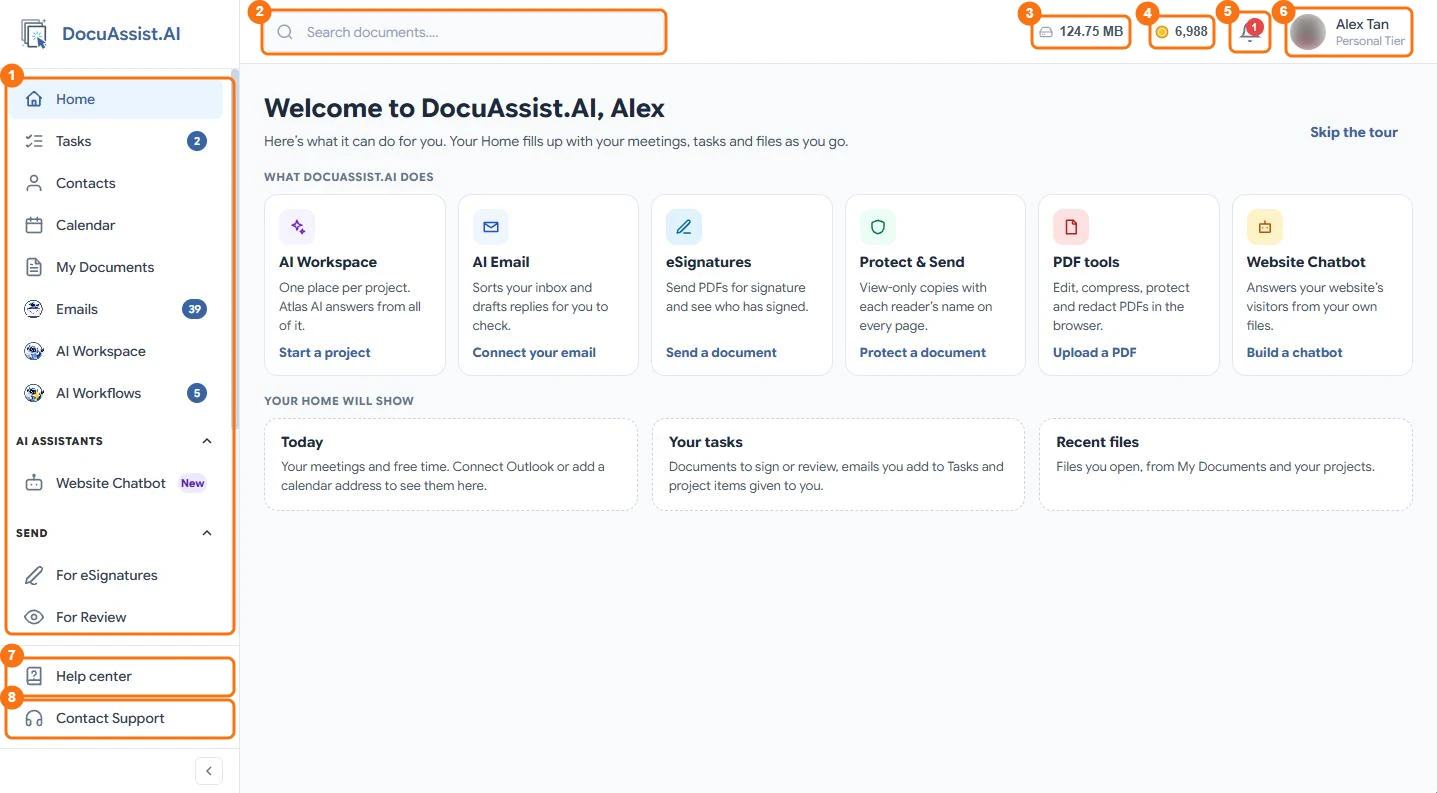
- Menu — every area of DocuAssist.AI. The sections further down are described in the next part of this page.
- Search documents — type a file name or a word from inside a document and press Enter. See Search your documents.
- Storage — how much of your plan's storage your files use.
- Credits — your credit balance. Select it to see your plan credits and top-up credits, when each expires, and a link to your credit history.
- Notifications — documents shared with you, signing and review requests, mentions, and finished background jobs such as a bulk compress or a ZIP download.
- Account menu — your name and plan. Select it for Account, Audit Trail, Credit Usage History and Sign Out.
- Help center — these guides, opened in a new tab.
- Contact Support — send a message to the DocuAssist.AI team.
Two more cards can appear just above Help center: an upgrade card on the free Basic plan (select it to compare plans), and Getting started, which shows how many setup steps you have done until you finish or close it (select it to open the checklist).
The menu
| Menu item | What you do there |
|---|---|
| Home | See your day at a glance: tasks, meetings, recent files and important emails, and ask Atlas AI anything. |
| Tasks | Everything waiting for you: documents to sign or review, emails you added as tasks, workflow decisions and project items. |
| Contacts | The people and companies you work with, with AI insights from your email. |
| Calendar | Your meetings, leave, days off and free time, with your project deadlines. |
| My Documents | Upload, organize, open, edit, share and download your files. |
| Emails | AI Email: your inbox sorted by Atlas AI, with summaries and replies drafted for you to check. |
| AI Workspace | Projects that keep a client's files, emails, notes, tasks and chats together, with Atlas AI answering from all of it. |
| AI Workflows | Automations that run on their own, such as filing email attachments into folders. |
| AI Assistants → Website Chatbot | A chatbot for your website that answers visitors from your own files. |
| Send → For eSignatures | Send documents for signature and see who has signed. |
| Send → For Review | Ask people to review documents and collect their comments. |
| Send → DRM Documents | Protect & Send: view-only copies that carry each reader's name and expire. |
| Integrations | Connect Outlook, Gmail, SharePoint, OneDrive, Google Drive, Microsoft Teams and your calendars. |
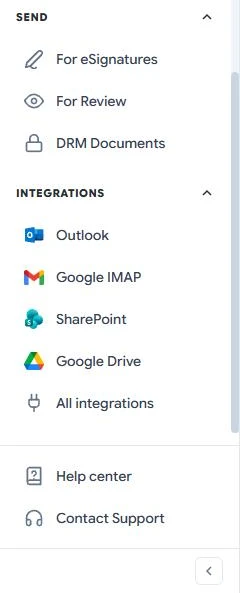
A number beside a menu item tells you something is waiting:
- Tasks — how many tasks are open.
- Emails — how many Important emails you have not read.
- AI Workflows — how many workflow decisions are waiting for you.
Select the arrow beside AI ASSISTANTS, SEND or INTEGRATIONS to fold that section away. Select ‹ at the bottom of the menu to make the whole menu narrow and give your documents more room.
Your account menu
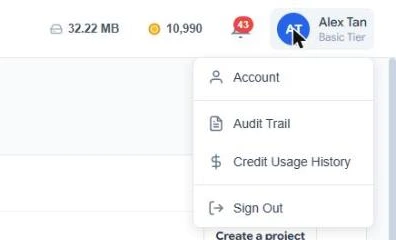
- Account — your profile and picture, password and two-factor sign-in, contact details, plan and payment methods. See Your profile and picture.
- Audit Trail — a record of what happened to your documents and who did it.
- Credit Usage History — every credit used or added, by feature. See Credit usage history.
- Sign Out — signs you out of DocuAssist.AI on this browser.
If you belong to more than one workspace, for example your personal workspace and your company's workspace, you also switch between them here. See Workspaces.
Your credits
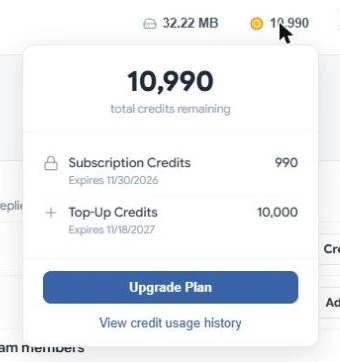
Select the credit balance in the top bar to see:
- Subscription Credits — the credits that come with your plan each billing period, and the date they expire.
- Top-Up Credits — credits you bought, and the date they expire.
- Upgrade Plan and View credit usage history.
To learn what uses credits, see How credits work.
On a phone or tablet
DocuAssist.AI works in your phone's browser. On a small screen the menu folds behind the menu button at the top left, and the search box becomes a search icon. Tables become lists you can scroll, and most dialogs open full screen.