 DocuAssist.AI Guide
Project settings and audit log
Select the cog at the top of a project to open Project settings.
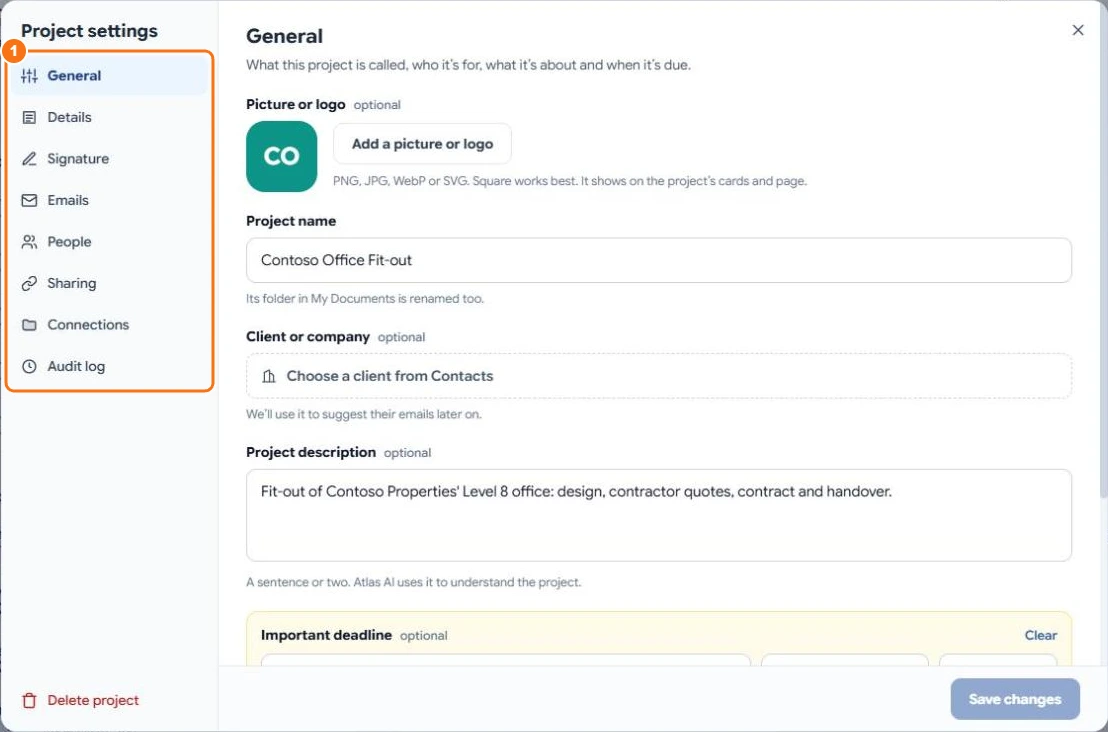
Sections
| Section | What you can change |
|---|---|
| General | Picture, name, client, description, important deadline and colour. Renaming the project renames its folder in My Documents too. |
| Details | Client billing details (only the project's owners see these), remarks and your own fields. |
| Signature | What emails written inside this project end with: each writer's own signature, a signature for this project, or none. |
| Emails | Which emails come into the project. See Project emails. |
| People | Who is on the project and what each person can do. |
| Sharing | Which of your emails, Teams chats and linked folders others can see. |
| Connections | SharePoint and OneDrive folders kept up to date, and Microsoft Teams chats. |
| Audit log | What people did in the project. |
Each section has its own Save changes button.
Audit log
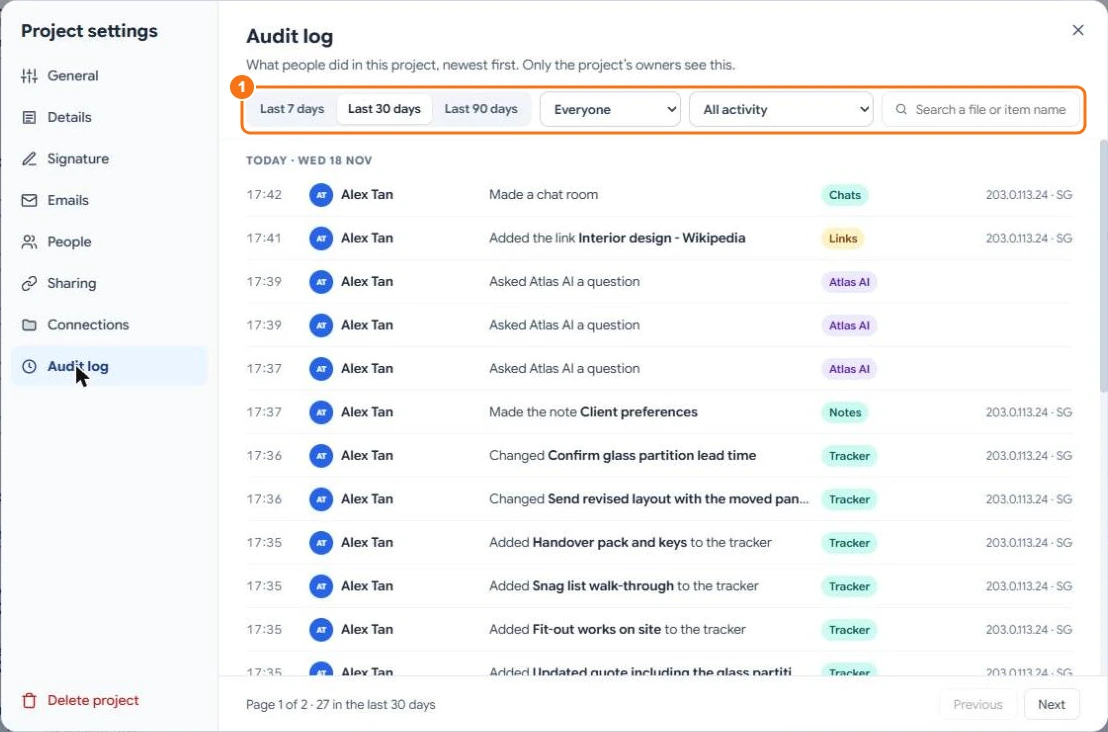
The audit log lists what people did in the project, newest first: files uploaded, moved or deleted, links and notes added, tracker changes, people invited, settings changed, and questions asked to Atlas AI (who asked, never what). Only the project's owners can see it.
Choose the last 7, 30 or 90 days, filter by person or kind of activity, or search for a file or item name (1). Entries are kept for 90 days.
Delete a project
Select Delete project, then Delete this project. The project's chats with Atlas AI, notes and tracker are deleted and can't be restored. Its files stay in My Documents, and its emails stay in AI Email.
Related
Last updated on November 18, 2026