 DocuAssist.AI Guide
Password-protect a PDF
Protect a PDF in two ways, separately or together:
- Add Password — nobody can open the file without the password.
- Add Restriction — anyone can open it, but you choose what they can't do: print, copy text, change the document, add or change comments and form fields, or fill in forms. An owner password protects these settings.
Add a password
- In My Documents, select the PDF's row menu (⋯) → PDF Tools → Add Password.
- Type the password in New Password and again in Confirm Password.
- Select Add Password. The file is protected in the background.
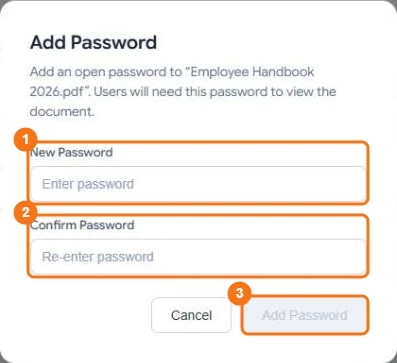
In the picture: 1 New Password, 2 Confirm Password, 3 Add Password.
Restrict what people can do
- Select PDF Tools → Add Restriction.
- Type an Owner Password. You need it later to change or remove the restrictions.
- Choose the Encryption Level. Higher levels need a newer PDF reader.
- Tick what to prevent: printing, changing the document, copying content, adding or changing comments and form fields, or filling in form fields. Under the list, DocuAssist.AI says what people can still do.
- Select Add Restrictions.
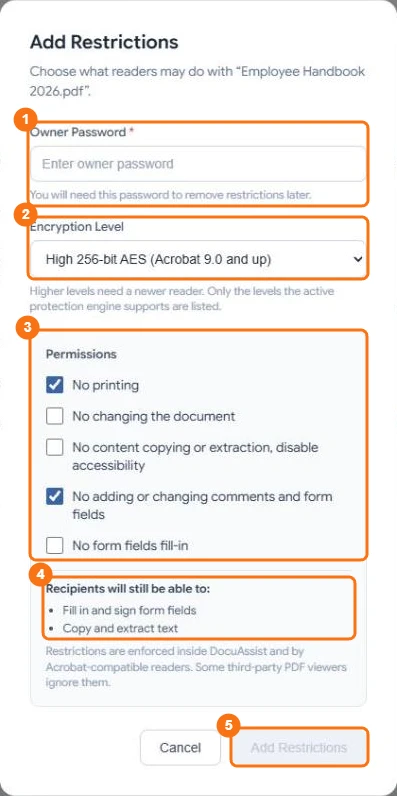
In the picture: 1 the owner password, 2 the encryption level, 3 the permissions, 4 what recipients can still do, 5 Add Restrictions.
Change or remove protection
From the same menu, choose Change Password, Remove Password or Remove Restriction. When a file has both a password and restrictions, removing one keeps the other — DocuAssist.AI then asks for the owner password too.
Good to know
- DocuAssist.AI never stores the passwords you type. If you forget a password, DocuAssist.AI can't recover it.
- You can't send a password-protected PDF for signing; remove the password first.
- A file with restrictions only can still be edited in DocuAssist.AI within what its restrictions allow, and keeps them when you save.
- Each change uses 20 credits per document.
Related
Last updated on November 18, 2026