 DocuAssist.AI Guide
Search your documents
DocuAssist.AI reads every file you upload, so you can search for a word or phrase and find it inside your documents — not just in their names. Scanned pages and photos are searchable too, because their text is recognised when you upload them.
Search
- Type what you are looking for
Type a word, phrase or file name in Search documents at the top of any page, and press Enter. In My Documents, you can also use Search everywhere above the file list.
- Read the results
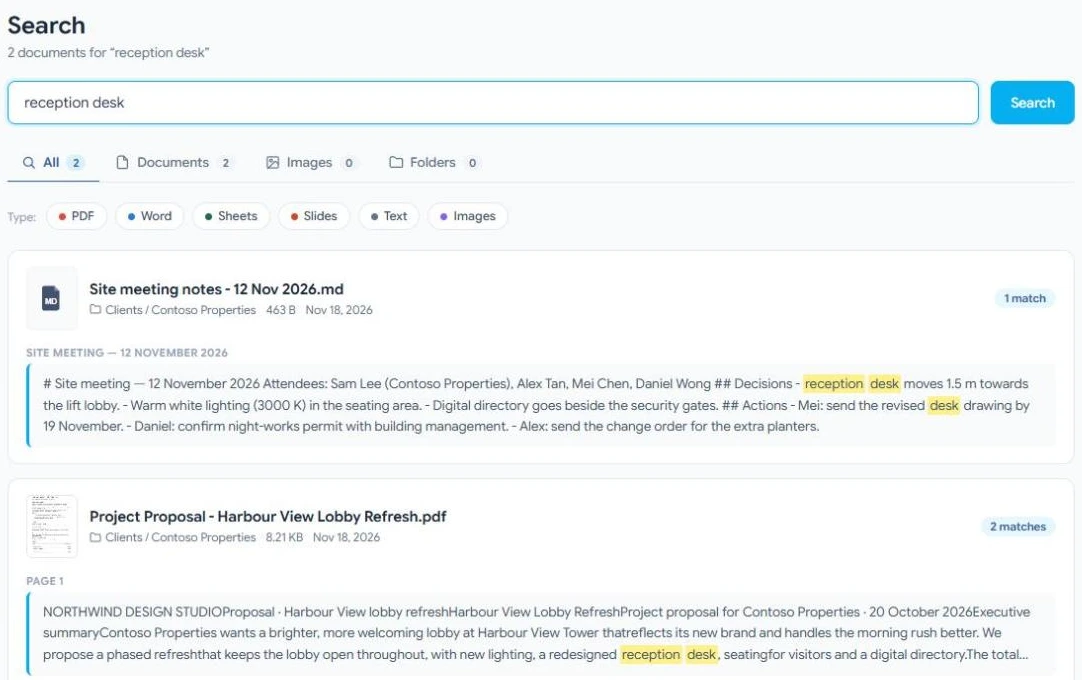
Each document appears once, with the passages that match highlighted and the page they are on. The number on the right shows how many places match.
- Open the right spot
Select a passage to open the document at that place, or select the file name to open it from the start.
Narrow the results
- Tabs — All, Documents, Images (shown as a grid of thumbnails) and Folders (folders whose name matches).
- Type — select PDF, Word, Sheets, Slides, Text or Images to see only those files.
- Tags — if you use tags, filter by them as well. See Tags and views.
When you connect Outlook, OneDrive or SharePoint, External and Email tabs also search those services. See Integrations.
What search can and cannot find
- It finds files and folders you can open, including documents shared with you.
- It does not find text in files with an open password, because those cannot be read until they are unlocked.
- A file uploaded a moment ago appears once DocuAssist.AI has finished reading it. You get a notice when it is ready.
To ask a question instead of searching for words, use Atlas AI. It reads your documents and answers with links to the pages it used. See Ask Atlas AI about a document.