 DocuAssist.AI Guide
Build a workflow with Atlas AI
Atlas AI can build a workflow from a sentence, or change one you already have. It works like a consultant: it proposes a plan, says what it assumed, and asks before anything changes.
Build a new workflow
- Open AI Workflows.
- Under Build a workflow from a sentence, describe what should happen, for example "Every invoice that lands in my inbox goes to Finance and tell me". You can also pick one of the examples.
- Select Build it.
Atlas AI may ask a question when the answer changes which steps it uses. Pick one of the answers, or type your own.
Check the plan
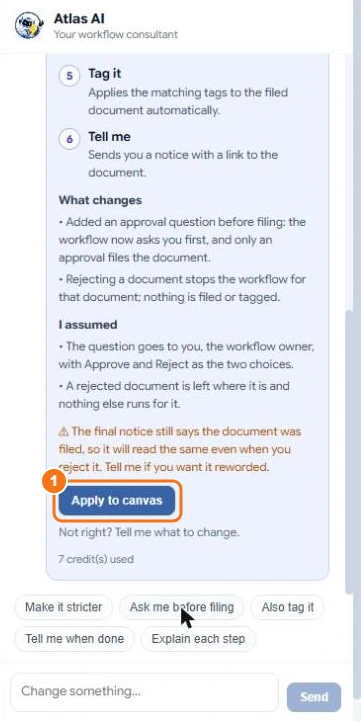
Before anything changes, Atlas AI shows:
- the steps, numbered, with what each does;
- What changes compared with now;
- I assumed — choices it made for you;
- warnings about anything you may want reworded.
Some settings are always yours to choose, such as the folder to file into or the mailbox to read. Atlas AI asks you to fill these in before you can apply the plan.
Select Apply to canvas (1) to make the change. Undo reverts it. Then Save the workflow.
Change an existing workflow
Open the workflow in the designer and type a change in the Atlas AI panel, or pick a suggestion such as Make it stricter, Ask me before filing, Also tag it, Tell me when done or Explain each step.
When Atlas AI can't do something
If you ask for something workflows can't do yet, Atlas AI says so and suggests the closest thing it can build.
Credits
Each Atlas AI turn uses a few credits. For example, adding an approval step to a recipe used 7 credits.