 DocuAssist.AI Guide
Integrations overview
Connect the apps your work lives in. What you connect can be used in AI Workspace projects, sorted by AI Email and read by Atlas AI.
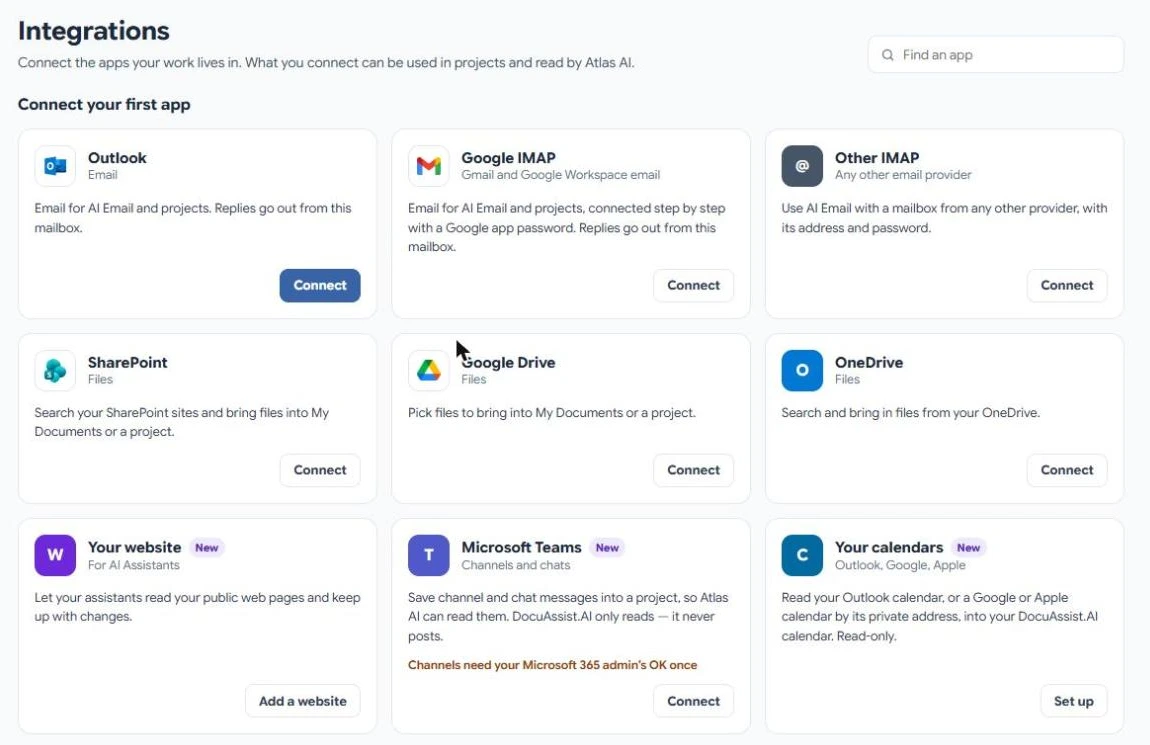
Open Integrations
Select Integrations → All integrations in the menu. Apps you have connected are at the top; the rest are under Add more. Use Find an app to search.
What you can connect
| App | What it is for |
|---|---|
| Outlook | Email for AI Email and projects; replies go out from your mailbox. See Connect Outlook. |
| Google IMAP | Gmail and Google Workspace email, with a Google app password. See Connect Gmail and other email. |
| Other IMAP | Email from any other provider. |
| SharePoint and OneDrive | Search and bring in files, or keep a folder in step with a project. See SharePoint and OneDrive. |
| Google Drive | Pick files to bring in. See Google Drive. |
| Microsoft Teams | Bring channels and chats into a project. See Microsoft Teams. |
| Your website | Let a website chatbot read your public web pages. See Website chatbot knowledge. |
| Your calendars | Show your Outlook, Google or Apple calendar in the DocuAssist.AI calendar, read-only. See Calendar settings. |
Coming later
Slack, WhatsApp Business, WeChat, Google Calendar sign-in, Jira, Confluence, Figma and NotebookLM are planned. Select Tell us which ones you need first to let us know.
Your accounts stay yours
- You sign in to Microsoft or Google on their own pages. DocuAssist.AI never sees those passwords.
- For IMAP email, use an app password; it is stored encrypted and never shown again.
- What you connect is private to you. In a project, you choose what to share with others.
Related
Last updated on November 18, 2026