 DocuAssist.AI Guide
Find and compare versions with Version Finder
Ended up with Contract, Contract (1) and Contract final in three different folders? Version Finder lists every file that looks like the same document — in any folder and any format — and lets you compare two of them side by side.
Find the copies of a document
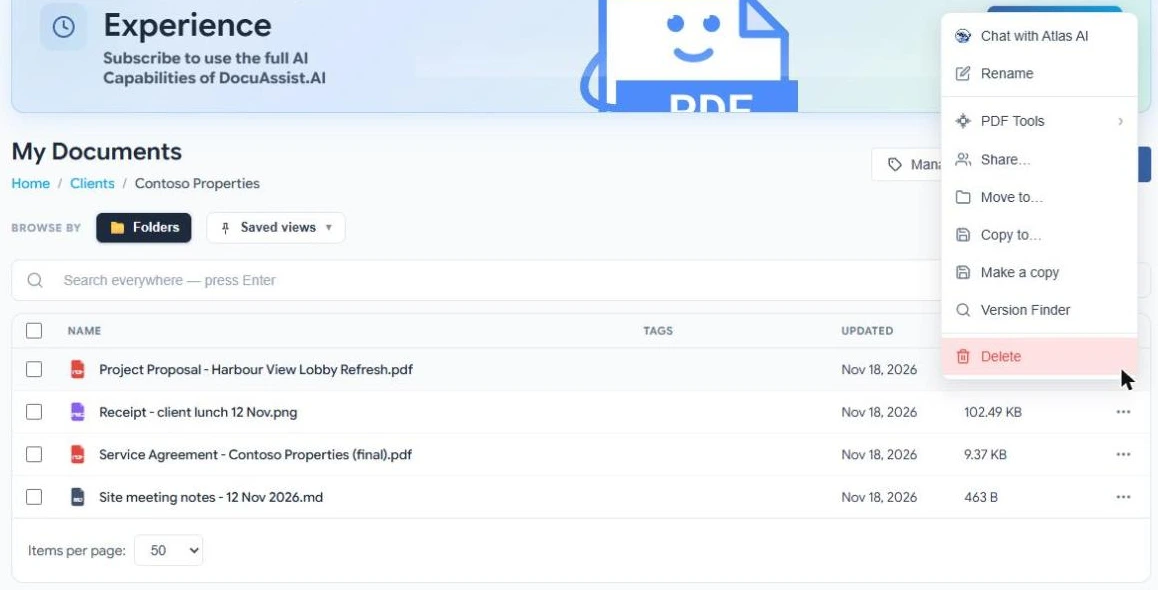
- Open Version Finder
In My Documents, select ⋯ on a file and choose Version Finder.
- Check the list
Version Finder lists the files that look like the same document, with their folder, when they were last changed and by whom. Names such as Copy of…, (1), v2 or final are recognised. If a copy is missing, type a shorter name in Look for and select Search.
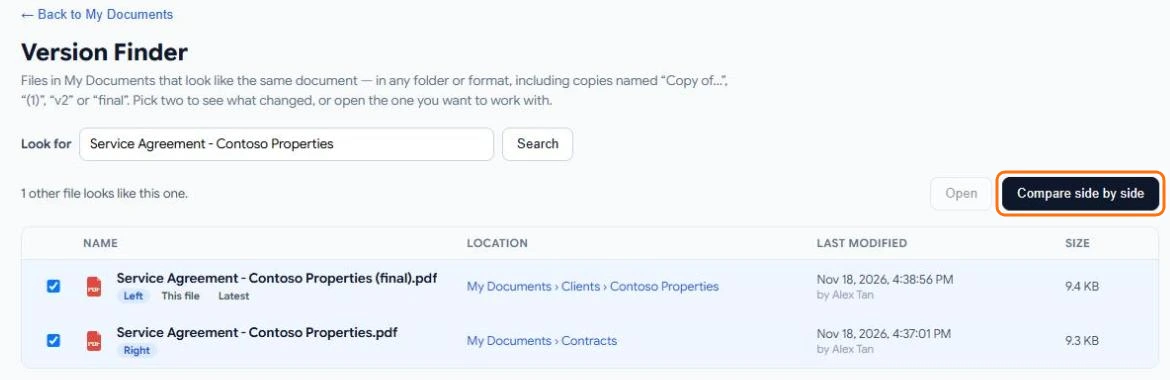
- Open or compare
Tick one file and select Open to work on it. Tick two files and select Compare side by side.
Version Finder only shows files you are allowed to open. It never moves, merges or deletes anything.
Compare two versions
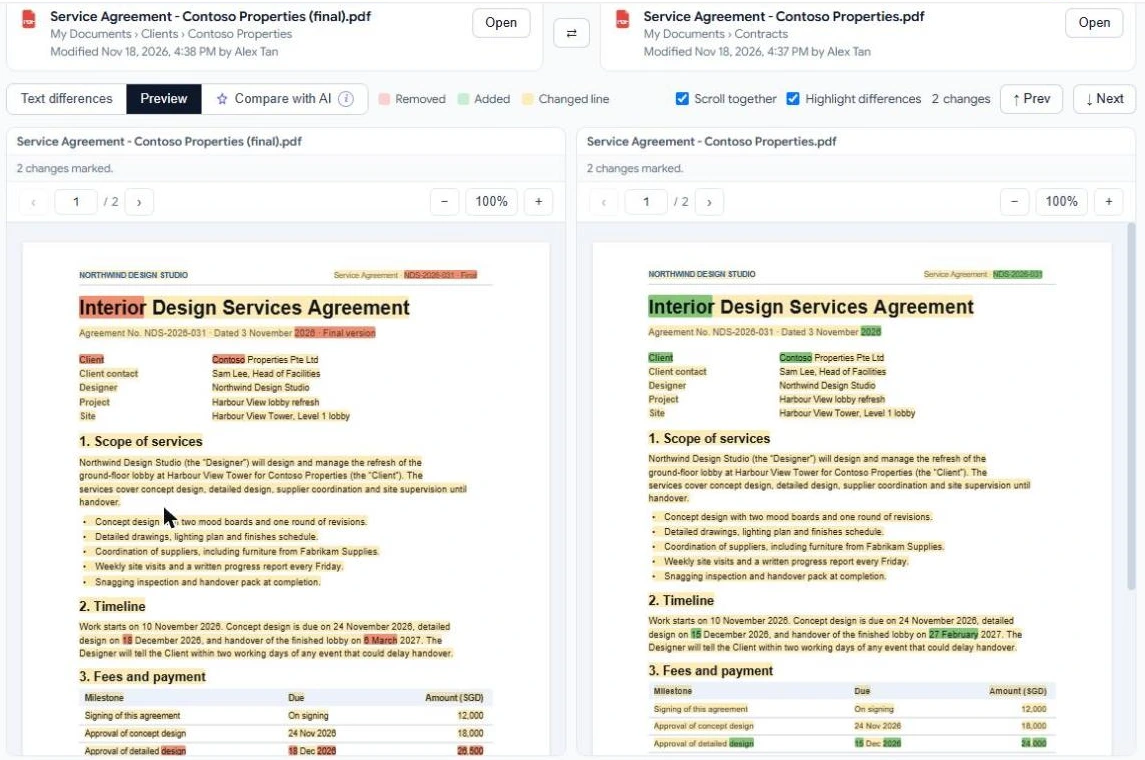
The comparison has three tabs:
- Text differences — the text of both files line by line, with removed, added and changed words marked. Tick Only changes to hide matching text, and use Prev and Next to step through the changes.
- Preview — both files as they look, side by side, with the differences highlighted on the pages. Tick Scroll together to keep them lined up.
- Compare with AI — Atlas AI explains the differences in plain words.
Let Atlas AI explain what changed
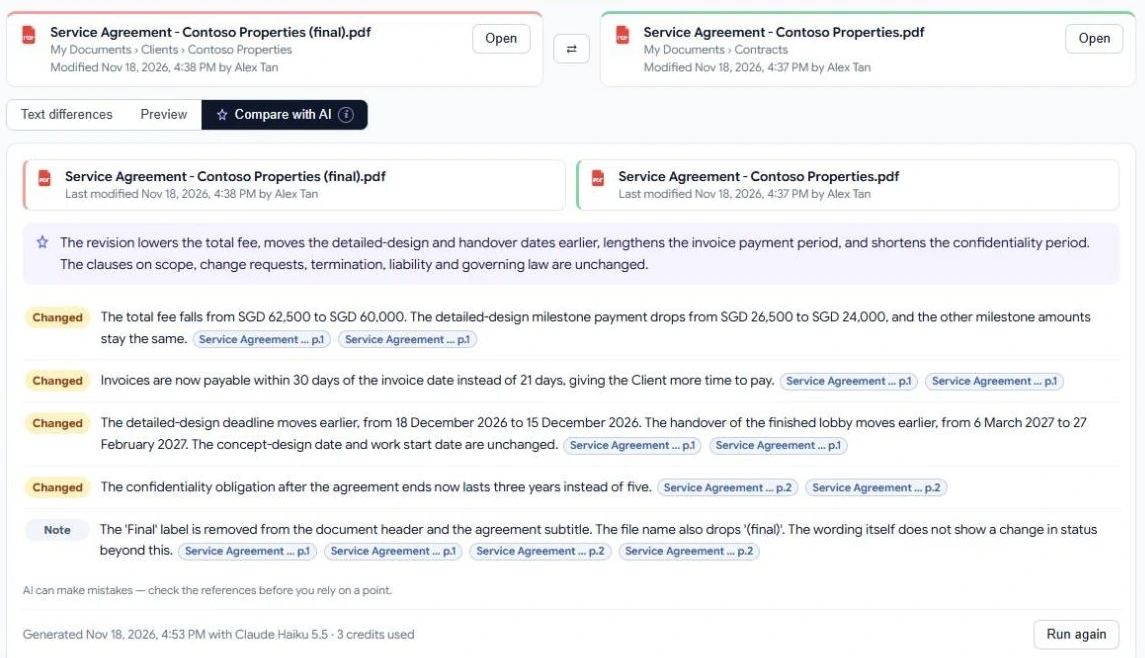
- Select the Compare with AI tab, then Compare with AI. Nothing runs, and nothing is charged, until you press it.
- Read the summary and the list of changes. Each point is marked Changed, Added, Removed or Note.
- Select a page link beside a point to see that exact spot in Preview.
AI can make mistakes. Check the linked pages before you rely on a point. Compare with AI reads the text only; comments, formatting and pictures are not compared.
Each AI comparison uses credits. The comparison of text and the preview are free. See Credit rates.
Password-protected files
If one of the files has an open password, select Enter password in its pane to compare it. The password is used for this comparison only and is not stored.