 DocuAssist.AI Guide
Project files
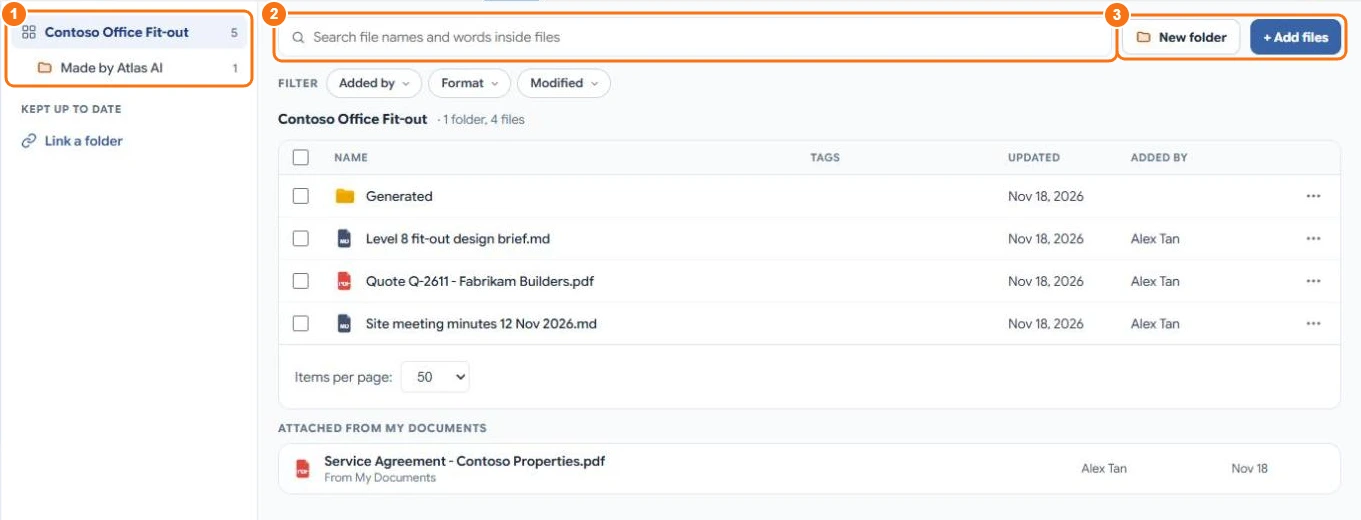
The Files tab shows every file in the project: its folder in My Documents, files attached from elsewhere, and folders kept up to date from SharePoint or OneDrive.
Find a file
- Browse the folders on the left (1). Made by Atlas AI holds documents Atlas AI wrote.
- Search (2) finds file names and words inside files.
- Use Added by, Format and Modified to narrow the list.
Add files and folders
Select Add files to upload or import files, or New folder to make a folder in the folder that is open (3). You can also drag files from your computer onto the list, and drag files onto a folder to move them.
Everything you can do in My Documents also works here: select a row, right-click or use the row menu to rename, move, copy, download, share or use the PDF tools.
Open a file with Atlas AI beside it
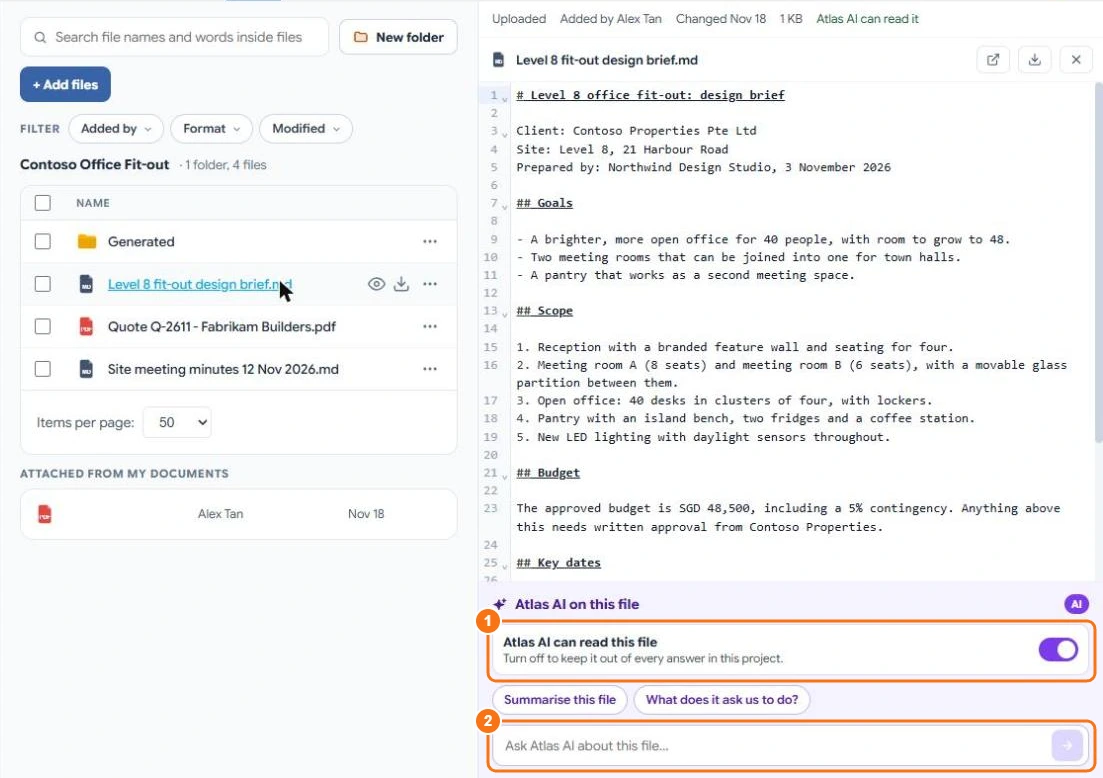
Double-click a file to open it beside the list. Under it, Atlas AI on this file lets you ask about that file only (2).
Keep a file out of Atlas AI answers
Turn off Atlas AI can read this file (1). Atlas AI then leaves the file out of every answer in this project. The file itself doesn't change.
Files attached from My Documents
Files you added from My Documents stay where they are and are listed under Attached from My Documents.
Folders kept up to date
Under Kept up to date, select Link a folder to keep a SharePoint or OneDrive folder in step with the project. DocuAssist.AI copies the files in, adds new ones and updates changed ones when the project opens, or when you select Sync now. A copy you edited here is never overwritten: a new version is added beside it. Linked copies count towards your storage.
Linked folders are private to you until you share them in Project settings → Sharing.