 DocuAssist.AI Guide
Project chats
The Chats tab lets the people on a project talk to each other, share files and ask Atlas AI together.
Start a room
- Open the project and select Chats → New room.
- Name the room, for example "Site team", and tick who is in it.
- Select Create room.
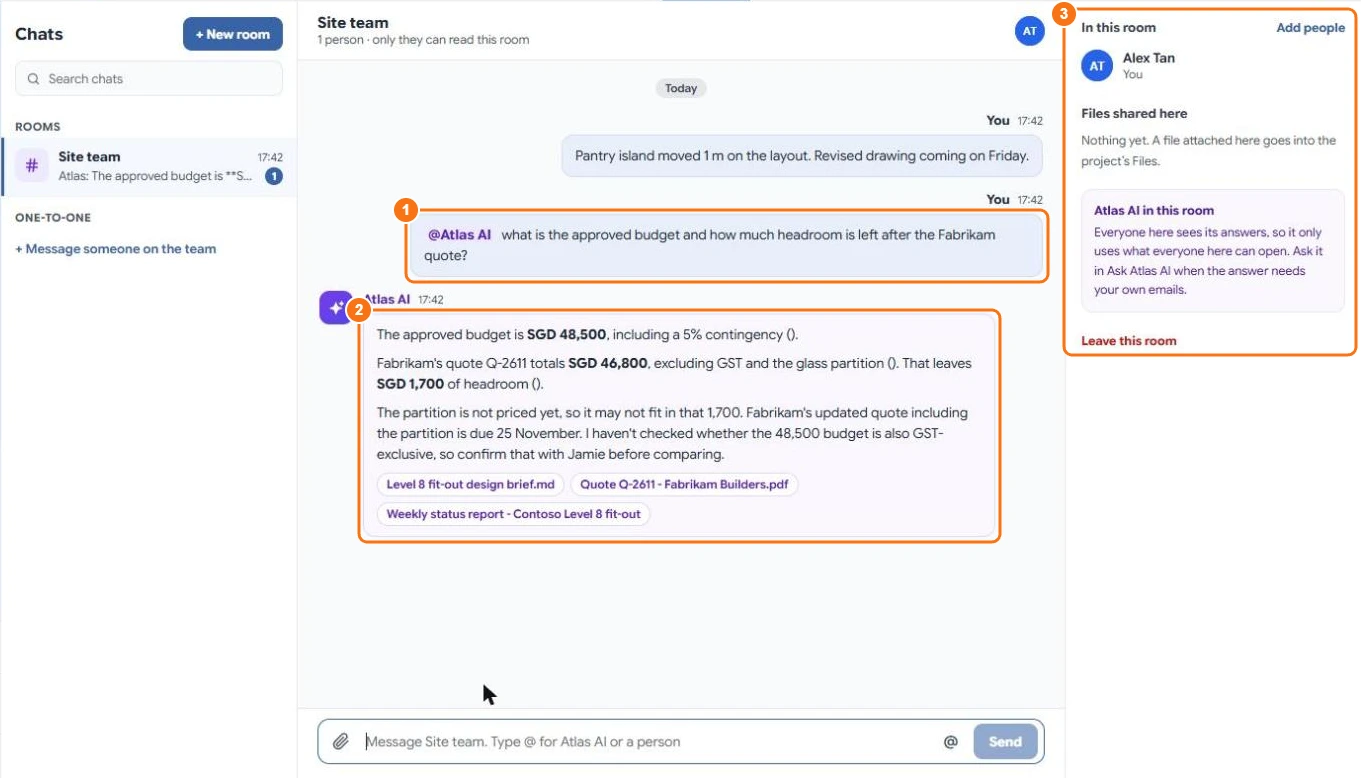
Only the people in a room can read it — this includes the project and workspace owners. Select Add people to bring someone in, or Leave this room to leave.
Chat one to one
On the project's home, select Message next to someone in the Team card. The chat is listed under One-to-one.
Write in a room
- Type a message and press Enter.
- Type @ and pick a person to mention them: they get a notification and a task.
- Select the paper clip to attach a file. Attached files are saved in the project's Files, in a folder for the room.
Ask Atlas AI in a room
Type @Atlas AI and your question (1). Atlas AI answers in the room for everyone to see (2), with source chips. Because everyone in the room reads the answer, Atlas AI only uses what every person in the room can open. For answers that need your own emails, ask on the Ask Atlas AI tab instead.
The person who asks pays for the answer in credits. Writing messages is free.
Related
Last updated on November 18, 2026