 DocuAssist.AI Guide
Open and view a PDF
Select a PDF's name in My Documents to open it in the DocuAssist.AI editor. The editor runs in your browser, so there is nothing to install. What you can do depends on your access: with Edit access you get every tool, with Comment access you can read and comment, and with View access you can read only.
The editor at a glance
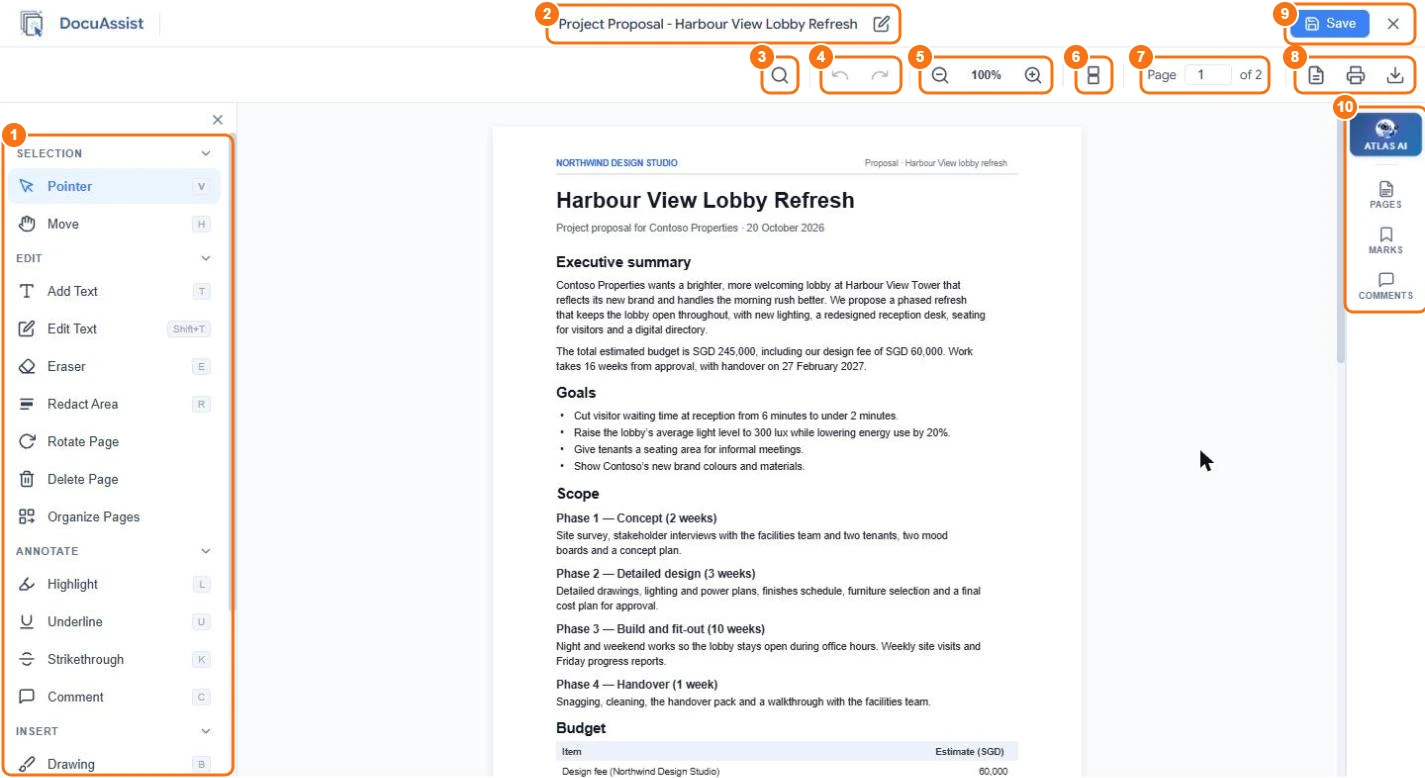
- Tools — every editing tool, in groups. Select TOOLS on the left edge to open the panel, and × to close it.
- Title — select the pencil beside the name to rename the file.
- Find (Ctrl+F) — search the text of the document.
- Undo (Ctrl+Z) and Redo (Ctrl+Y).
- Zoom — select − or +, or select the percentage to drag a slider or type an exact zoom level.
- View options — page layout, scrolling and fit. See below.
- Page — type a page number to jump to it.
- Document Properties, Print and Download.
- Save your changes, or × to close the editor.
- Panels — Atlas AI, Pages (page thumbnails), Marks (bookmarks) and Comments.
Change how pages are shown
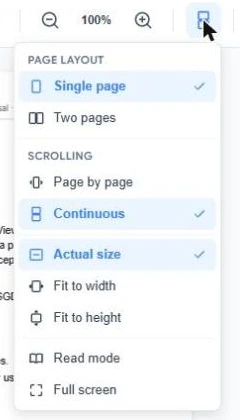
Select View options to choose:
- Single page or Two pages side by side.
- Page by page or Continuous scrolling.
- Actual size, Fit to width or Fit to height.
- Read mode, which hides every panel so only the document shows. Press Esc to leave it.
- Full screen.
Select text
Select text with the Pointer tool and a small toolbar appears with Comment, Highlight, Underline, Strikethrough, Redact, Copy text and Ask AI about the selection.
Keyboard shortcuts
| Key | Tool |
|---|---|
| V | Pointer |
| H | Move (drag the page around) |
| T | Add Text |
| Shift+T | Edit Text |
| E | Eraser |
| R | Redact Area |
| L | Highlight |
| U | Underline |
| K | Strikethrough |
| C | Comment |
| B | Drawing |
| S | Shape |
| I | Image |
| Shift+F | Add PDF Form |
| Ctrl+P |
When some tools are greyed out
- The document's owner may have restricted it, for example to stop changes or printing. Hover over a greyed-out tool to see why.
- A PDF with an open password opens for reading. To change it, remove the password first. See Protect a PDF with a password or restrictions.
- A document that is waiting for signatures, or has an expired date, opens read-only.
Leave the editor
Select × at the top right. If you have changes you have not saved, DocuAssist.AI asks first: select Cancel to go back and save, or Exit Without Saving to discard them.
Related
Last updated on November 18, 2026