 DocuAssist.AI Guide
Upload files and folders
Upload files from your computer into My Documents, or import them from Google Drive, OneDrive, SharePoint or Outlook. You can upload one file, many files or a whole folder. Folders keep their structure, so a folder of folders arrives exactly as it is on your computer.
Before you start
- You can upload PDF, Word (doc, docx), Excel (xls, xlsx), PowerPoint (ppt, pptx), text (txt, md), email (eml) and picture (png, jpg, jpeg, gif, webp, bmp) files. Other file types are skipped.
- Each file counts toward your plan's storage. You can see how much you use in the top bar.
You can upload a file with size up to 100 MB per file
Upload files or a folder
- Open the folder
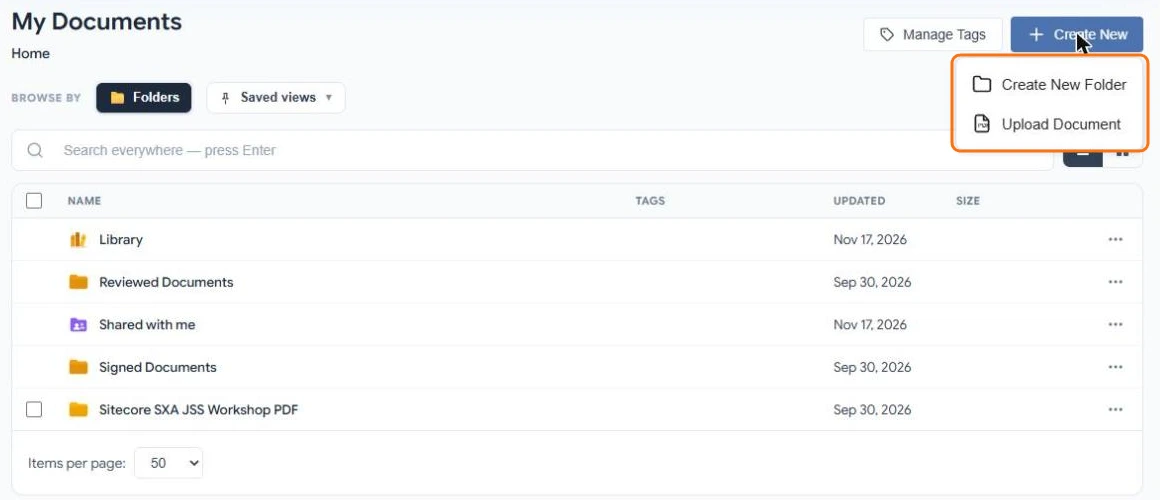
In My Documents, open the folder where the files belong. Then select Create New → Upload Document.
- Choose your files
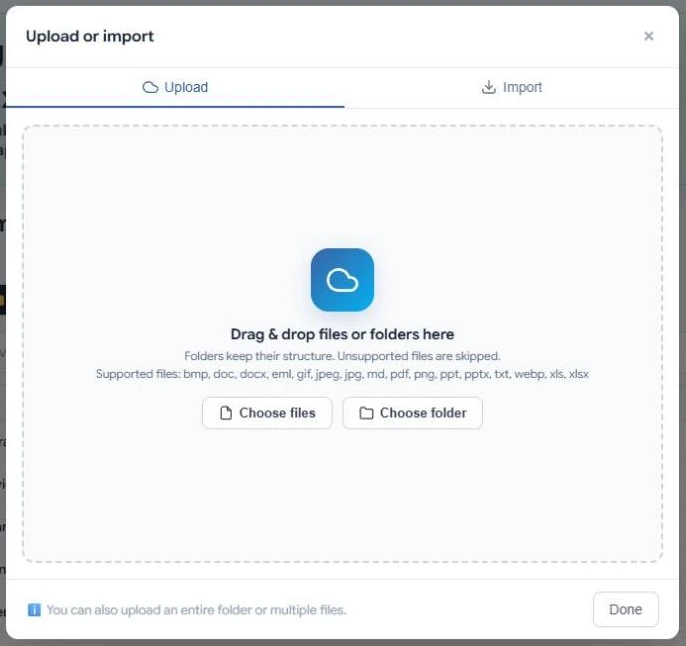
Drag files or folders onto the dotted area, or select Choose files or Choose folder. You can also drop files straight onto the My Documents page without opening this dialog.
- Wait for the green tick
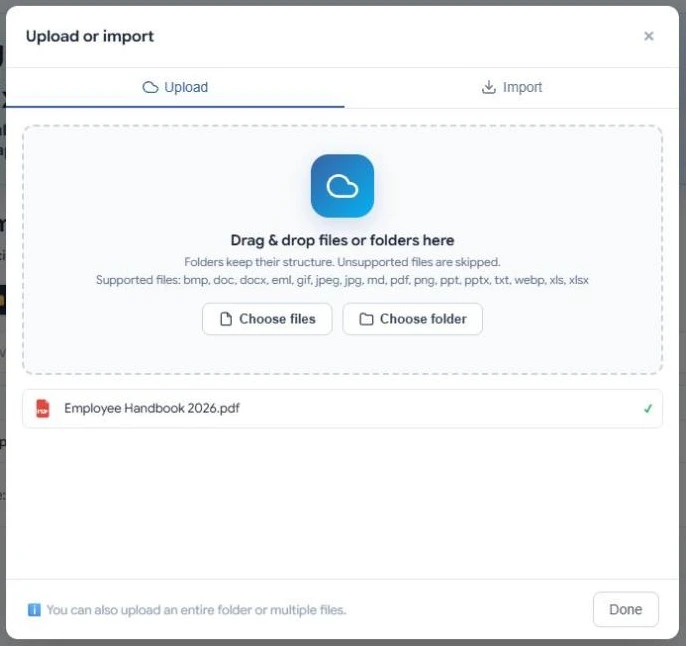
Each file shows its progress and a green tick when it is stored. Select Done to close the dialog.
- Your files become searchable
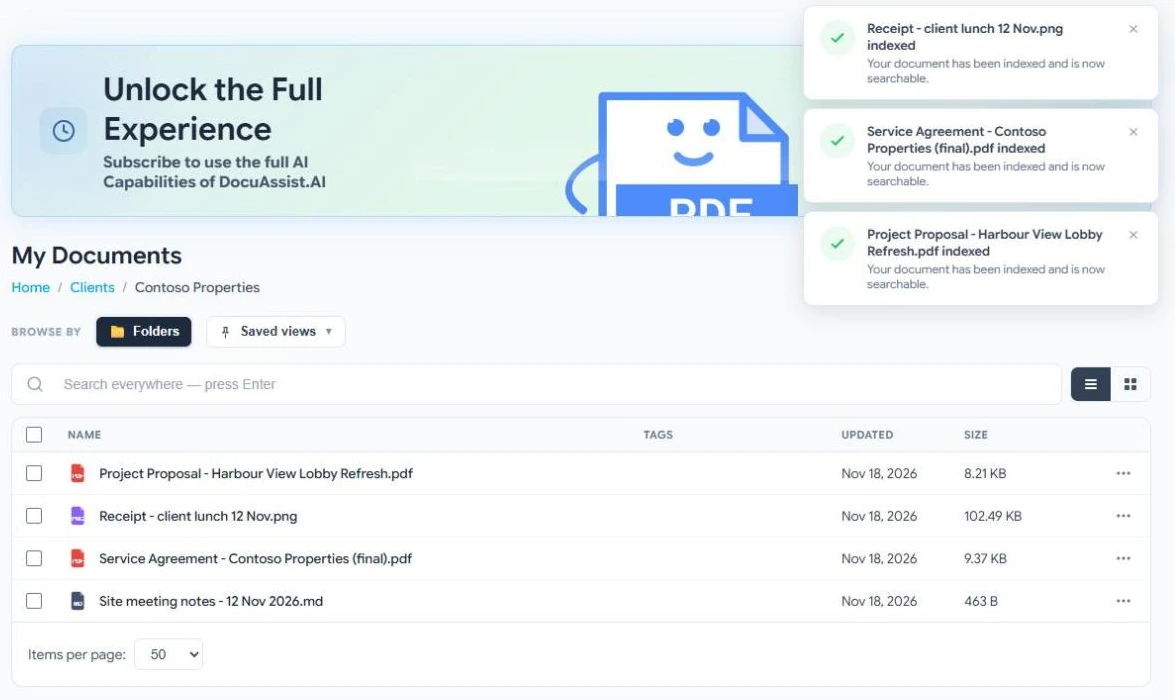
DocuAssist.AI reads every file you upload so you can search the text inside it and ask Atlas AI about it. A notice tells you when each file is ready.
Import from Google Drive, OneDrive, SharePoint or Outlook
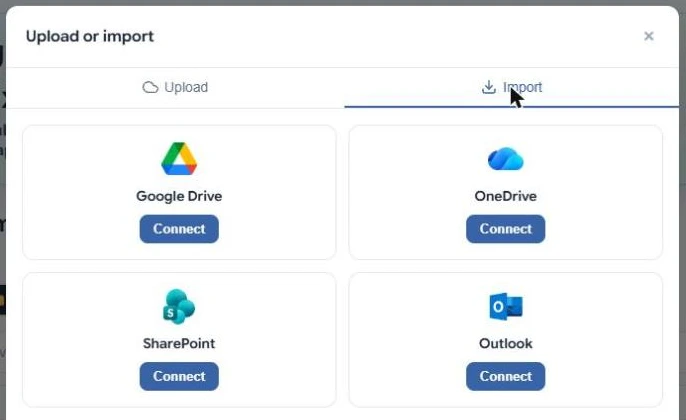
- Select Create New → Upload Document, then the Import tab.
- Select Connect on the service you want, and sign in to it the first time.
- Pick the files to bring into the folder you have open.
The files are copied into DocuAssist.AI. Changing the original later does not change the copy. To keep a SharePoint or OneDrive folder up to date inside a project instead, see Project files.
When a file with the same name exists
A folder can hold only one file with each name. If you upload a file whose name is already used in that folder, DocuAssist.AI asks what to do:
- Keep both — the new file is saved with a number added, for example Report (1).pdf.
- Skip — the new file is not uploaded.
Tick Do this for the other files to answer once for the whole upload.
Scanned documents and pictures
When a page has no text that a computer can read, such as a scan or a photo of a receipt, DocuAssist.AI recognises the text on it (OCR) so the page can be searched. Text recognition uses credits for each page it reads. See Text recognition (OCR) and Credit rates.
Troubleshooting
The file type is not supported, or your storage is full. Check the list of supported types above, and see how much storage you use in the top bar. To get more room, see Additional storage.