 DocuAssist.AI Guide
Get started with AI Email
AI Email reads your mailboxes, puts what is important first, sorts everything else into categories and drafts replies for you to check. Replies always go out from your own address. Open it from Emails in the menu.
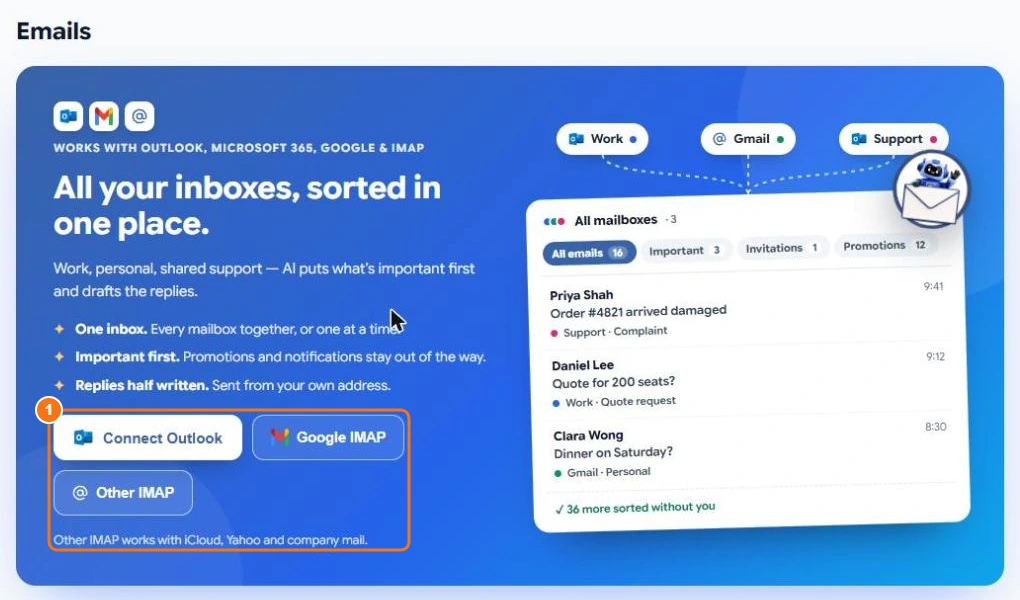
Connect a mailbox
On the Emails page, choose (1):
- Connect Outlook — for Outlook, Microsoft 365 and Outlook.com. See Connect Outlook.
- Google IMAP — for Gmail and Google Workspace, with a Google app password.
- Other IMAP — for iCloud, Yahoo, company mail and other providers. See Connect Gmail and other email.
You can connect up to five mailboxes and see them together or one at a time.
What happens next
AI Email reads your recent mail and sorts each email:
- Important — emails that need you, such as a client's question or a request with a deadline.
- Your categories — every person starts with Invitations, Promotions, Newsletters, Social and Notifications. Rename, change or delete them, and add your own. An email can be in several categories.
- Unsorted — shown while AI Email is still sorting.
New mail is checked when you open the page, when you select Sync now, and, for Outlook, as soon as it arrives.
The tabs
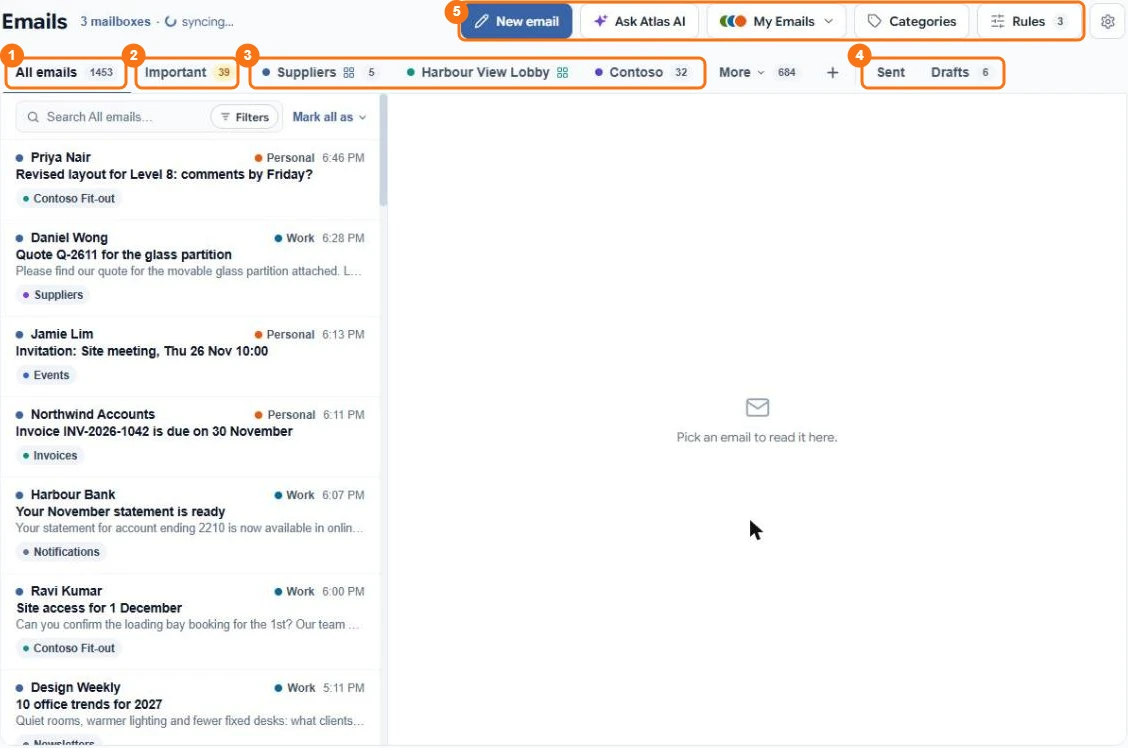
In the picture: 1 All emails, 2 Important, 3 your category tabs, 4 Sent and Drafts, 5 New email, Ask Atlas AI, My Emails, Categories and Rules.
All emails comes first, then Important and your category tabs. The number on each tab counts unread emails. Tabs that don't fit are under More.
What it costs
Sorting uses 1 credit per email. Summaries, translations, reply drafts and rules written in plain words use a few credits each. See Credit rates. If you run out of credits, new mail waits in Unsorted until you top up.