 DocuAssist.AI Guide
Project tracker
The Tracker keeps track of what has to happen in a project, who has it and when. Items given to someone also show in their Tasks.
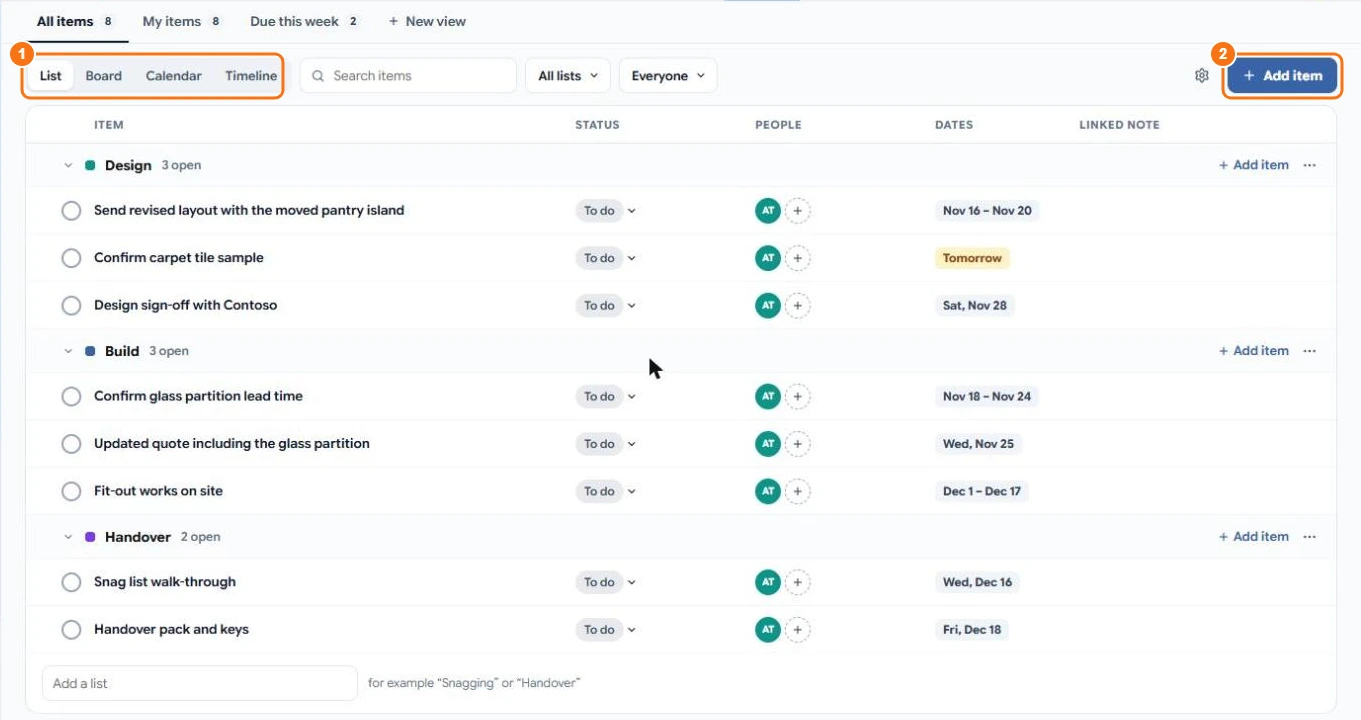
Add items
- Open the project and select Tracker.
- Select Add item (2), or Add item beside a list.
- Type the title. Open the item to add details, people and dates.
Group items into lists, such as Design, Build and Handover. Type a name in Add a list at the bottom. Drag a list or an item by its handle to reorder it, or drag an item into another list. Select an item's or a list's name to rename it.
Change an item
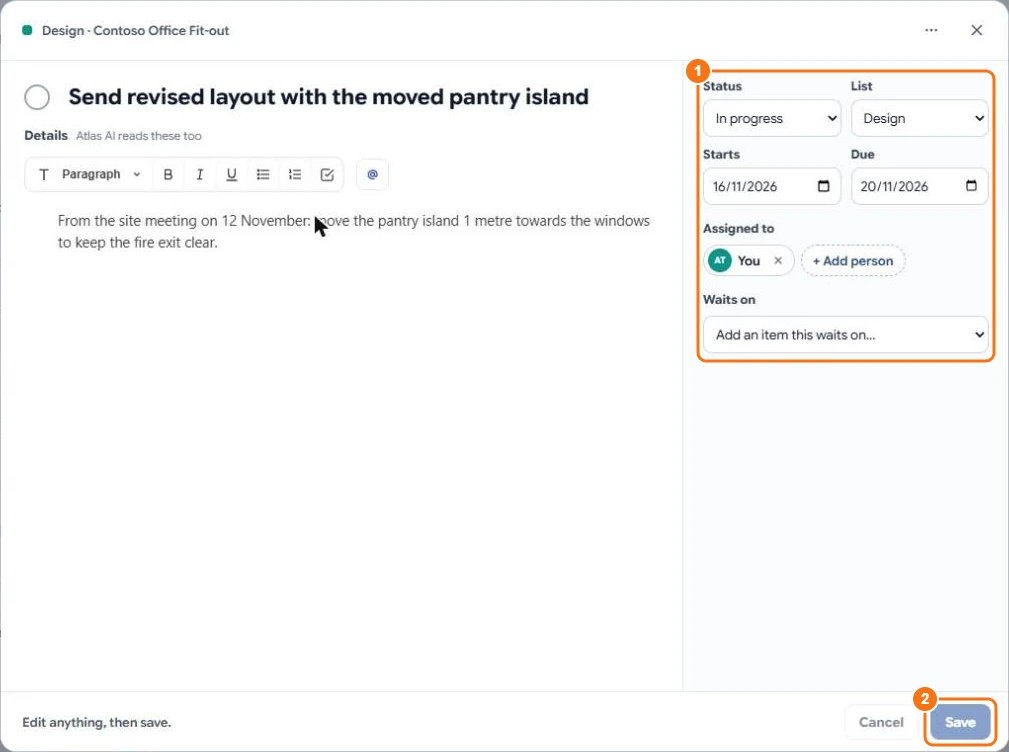
Select an item to open it. You can change:
- Details — what needs doing. Atlas AI reads these too. Type @ to mention someone on the project.
- Status — To do, In progress, Waiting on someone or Done.
- List, Starts and Due.
- Assigned to — up to 10 people: people on the project, people from your Contacts, or any email address.
- Waits on — another item that has to finish first. An item can't start before the item it waits on ends.
- Linked note — a note from the project's Notes.
Changes are kept only when you select Save (2). Status, people and notes can also be changed straight from the row in the list.
Views
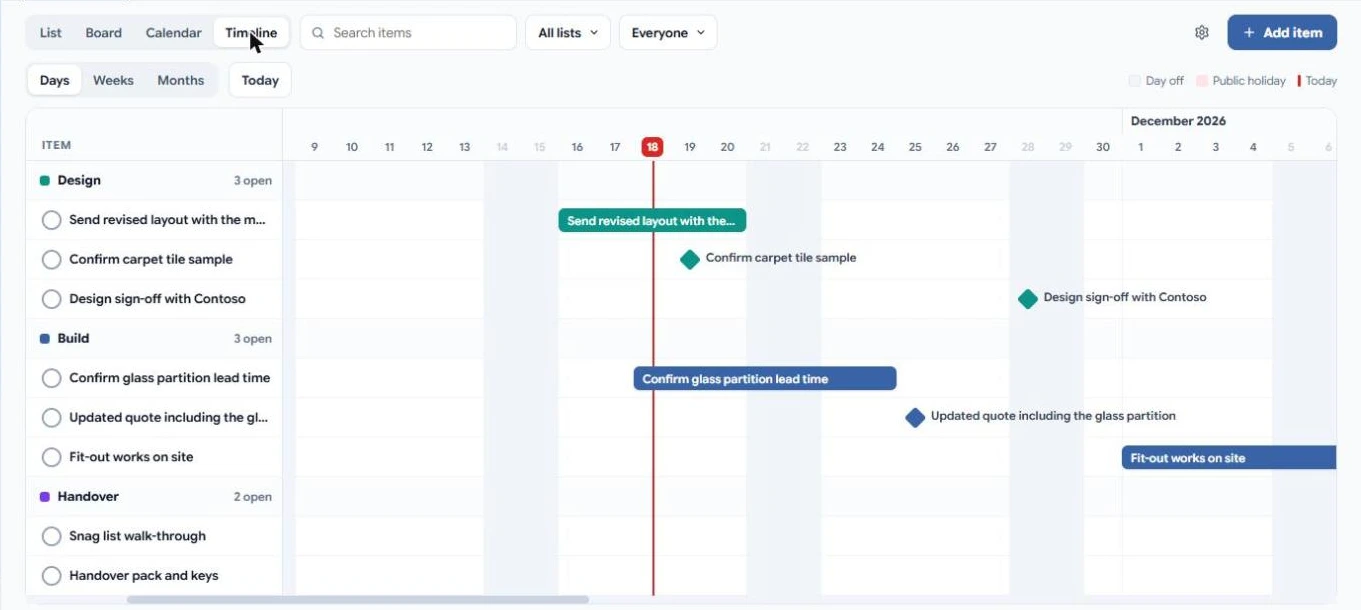
Switch between List, Board, Calendar and Timeline (1 in the first picture).
- Board — one column per status; drag a card to change its status, list or person.
- Calendar — items by month.
- Timeline — a Gantt chart of items with start and end dates, diamonds for items that only have a due date, and a red line for today. Drag a bar to move it or its ends to change its dates; then select Save.
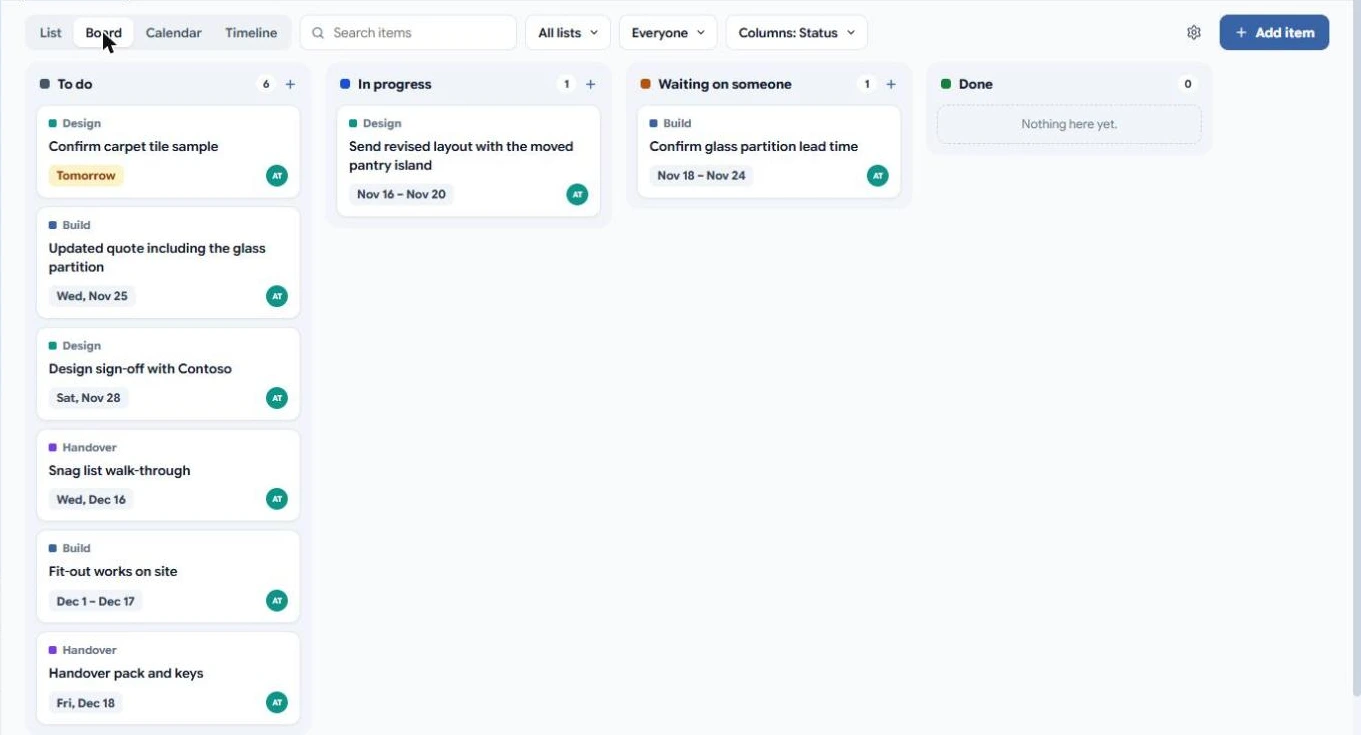
Use the tabs above for saved views: All items, My items, Due this week, or select New view to save your own filters.
Who gets emailed
- People you add to an item get an email straight away, with a link to the item.
- Other changes to items someone is on are gathered and sent as one email about 15 minutes later.
- You are never emailed about your own changes. Clear Email people about this change in an item to send nothing.
Statuses, days off and holidays
Select the cog beside Add item to change the statuses, set which weekdays are days off, and add public holidays. Timeline and dates skip days off.
Ask Atlas AI about the tracker
Atlas AI knows today's date and can read the tracker: ask "What's late?" or "What's due next week?". It can also suggest new tracker items from your files and emails; nothing is added until you select Add to tracker.