 DocuAssist.AI Guide
AI Email categories
Categories decide which tab an email shows in. Important is built in; every other category is yours to change.
Important
AI Email marks an email Important when it needs you. To tell it more about what matters to you, open Categories → Important and add guidance, for example "Anything from the Contoso team is important." You can also teach it from an email — see Rules and teaching.
Create or change a category
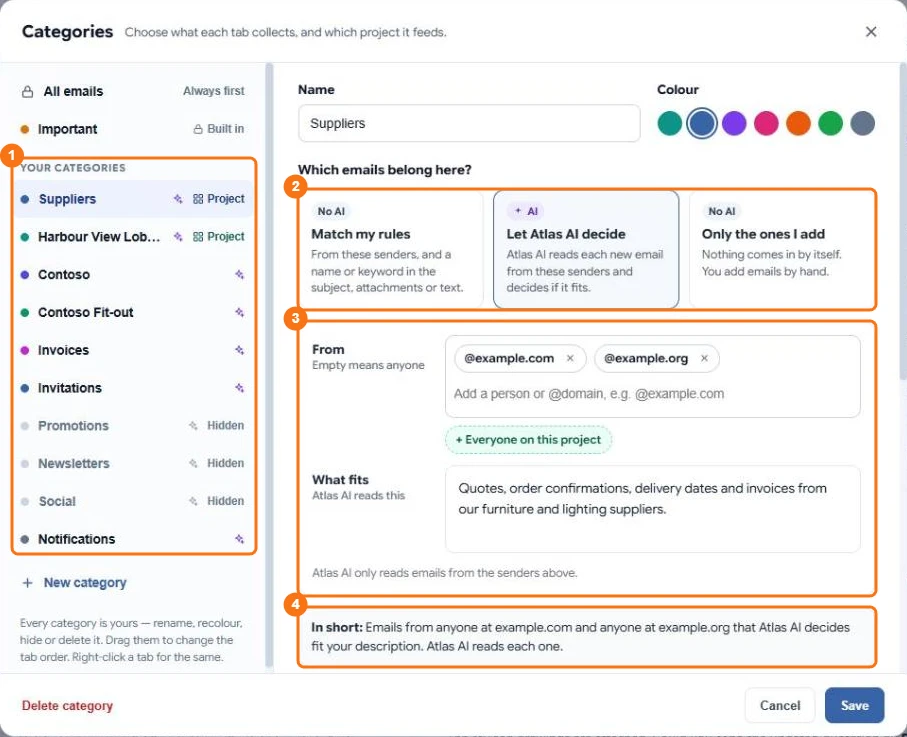
In the picture: 1 your categories, 2 the three ways a category can pick emails, 3 who it reads and what fits, 4 the rule in one sentence.
- Select Categories at the top of the Emails page, or the + at the end of the tabs.
- Give the category a name and a colour.
- Under Emails from, add people or whole domains (such as everyone at example.com), or leave it empty for anyone.
- Choose how emails get in:
- Match my rules — every email from those senders, or only the ones that mention words you choose. Choose whether to look in the subject, attachment names or the email text. No AI is used.
- Let Atlas AI decide — describe the emails in a sentence; Atlas AI decides for each email.
- Only the ones I add — nothing comes in by itself; you add emails yourself.
- Choose which mailboxes it sorts, and whether to show it as a tab.
- Select Save. To see what it would pick before saving, select Show matching mail.
The summary under the rule ("In short") says in plain words what the category will do.
Move an email
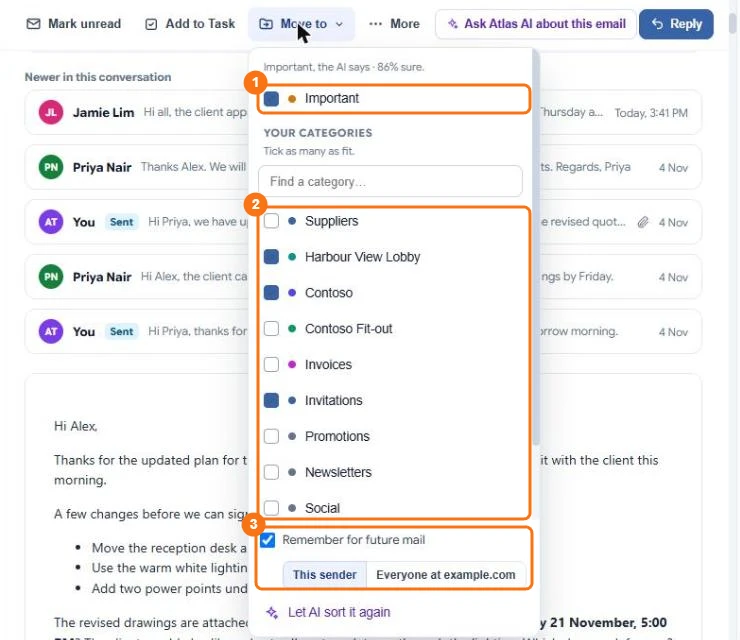
In the picture: 1 Important, 2 your categories, 3 Remember for future mail.
Open an email and select Move to. Tick or untick Important and any categories. Tick Remember for future mail to have new mail from that sender follow.
Tab menu
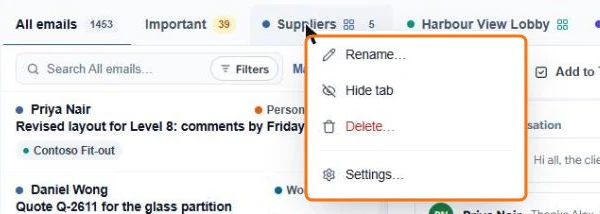
Right-click a tab (long-press on a phone) to Rename it, Hide it, Delete it, or open its Settings.
Link a category to a project
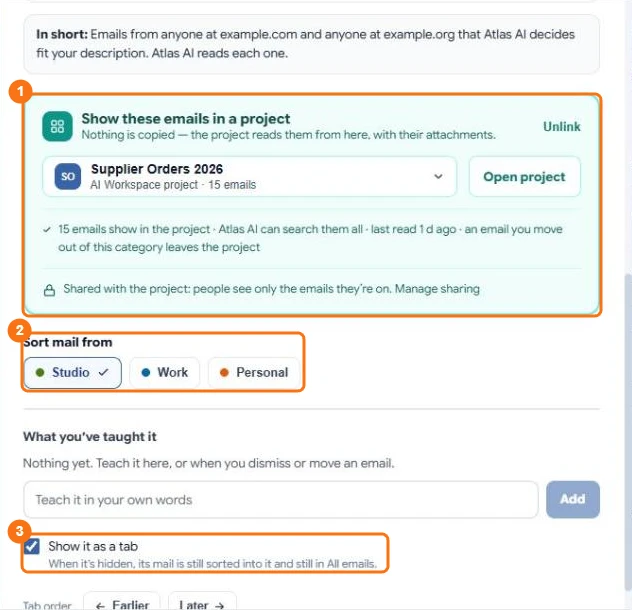
In the picture: 1 the linked project, 2 which mailboxes it sorts, 3 Show it as a tab.
In the category's settings, link it to an AI Workspace project. Every email in the category then shows in that project's Emails tab, and Atlas AI can read it there. See Project emails.